> ## Documentation Index
> Fetch the complete documentation index at: https://docs.creao.ai/llms.txt
> Use this file to discover all available pages before exploring further.
# Browser Use
> Automate your personal social accounts with stealth browsers, persistent login, and CAPTCHA solving.
Browser Use lets you control your personal accounts on social platforms like LinkedIn, Instagram, and X through the CREAO agent. The agent uses a stealth browser with anti-detection, residential proxies, and CAPTCHA solving — so platforms see a normal user, not a bot.
## How It Works
1. **Create a browser profile** — saves your login cookies so you only authenticate once
2. **Select the profile in chat** — the agent knows which account to use
3. **Tell the agent what to do** — it opens a live browser, navigates the site, and completes the task
4. **Watch in real time** — click the Live Browser link to see the agent working
Browser Use is designed for tasks that need your authenticated session — checking messages, posting updates, reviewing analytics. For general web searching, the agent uses its built-in web search tool instead.
## Setting Up a Profile
You can create a browser profile in two ways:
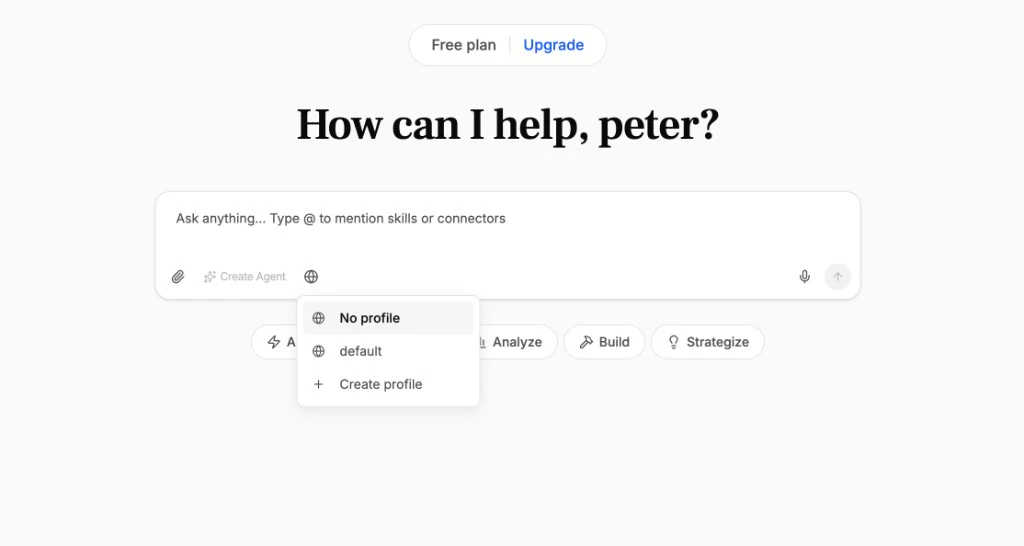
Click the **globe icon** in the chat input bar. If you don't have any profiles yet, click **Create default profile** — a profile is created instantly and auto-selected.
To create a named profile, click **Create profile**, type a name like "linkedin", and press Enter. The profile is created and selected in one step.
 Navigate to **Agent Brain > Browsers** in the sidebar and click the **Profiles** tab.
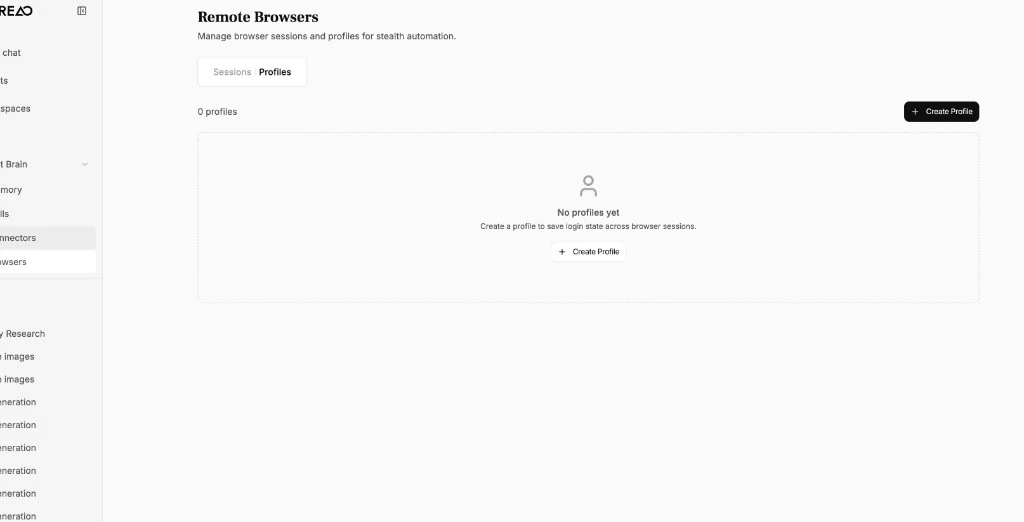 Click **Create Profile** and give it a name that matches the service — for example, "linkedin" or "instagram". This creates an empty profile that will store your login cookies after you authenticate.
## Logging In for the First Time
When you first use a profile, you need to log in manually so the browser saves your session:
Click the globe icon in the chat input bar and select your profile. If you just created one from the dropdown, it's already selected.
Type something like "log into my LinkedIn account". The agent creates a browser session and shows a **Live Browser** card.
Click the Live Browser link. A new tab opens showing a cloud browser. Navigate to your service (e.g., linkedin.com) and log in with your credentials. Complete any 2FA if prompted.
Go back to the chat and tell the agent you've logged in. It will then save your session cookies to the profile by stopping the browser session.
After this one-time setup, your profile remembers the login. Future sessions start already authenticated — no need to log in again.
Profiles expire after about 7 days as cookies naturally expire. If the agent reports that a session was redirected to a login page, just repeat the login step above.
## Using Browser Use in Chat
With your profile set up and selected, just describe what you want to do in natural language:
Click **Create Profile** and give it a name that matches the service — for example, "linkedin" or "instagram". This creates an empty profile that will store your login cookies after you authenticate.
## Logging In for the First Time
When you first use a profile, you need to log in manually so the browser saves your session:
Click the globe icon in the chat input bar and select your profile. If you just created one from the dropdown, it's already selected.
Type something like "log into my LinkedIn account". The agent creates a browser session and shows a **Live Browser** card.
Click the Live Browser link. A new tab opens showing a cloud browser. Navigate to your service (e.g., linkedin.com) and log in with your credentials. Complete any 2FA if prompted.
Go back to the chat and tell the agent you've logged in. It will then save your session cookies to the profile by stopping the browser session.
After this one-time setup, your profile remembers the login. Future sessions start already authenticated — no need to log in again.
Profiles expire after about 7 days as cookies naturally expire. If the agent reports that a session was redirected to a login page, just repeat the login step above.
## Using Browser Use in Chat
With your profile set up and selected, just describe what you want to do in natural language:
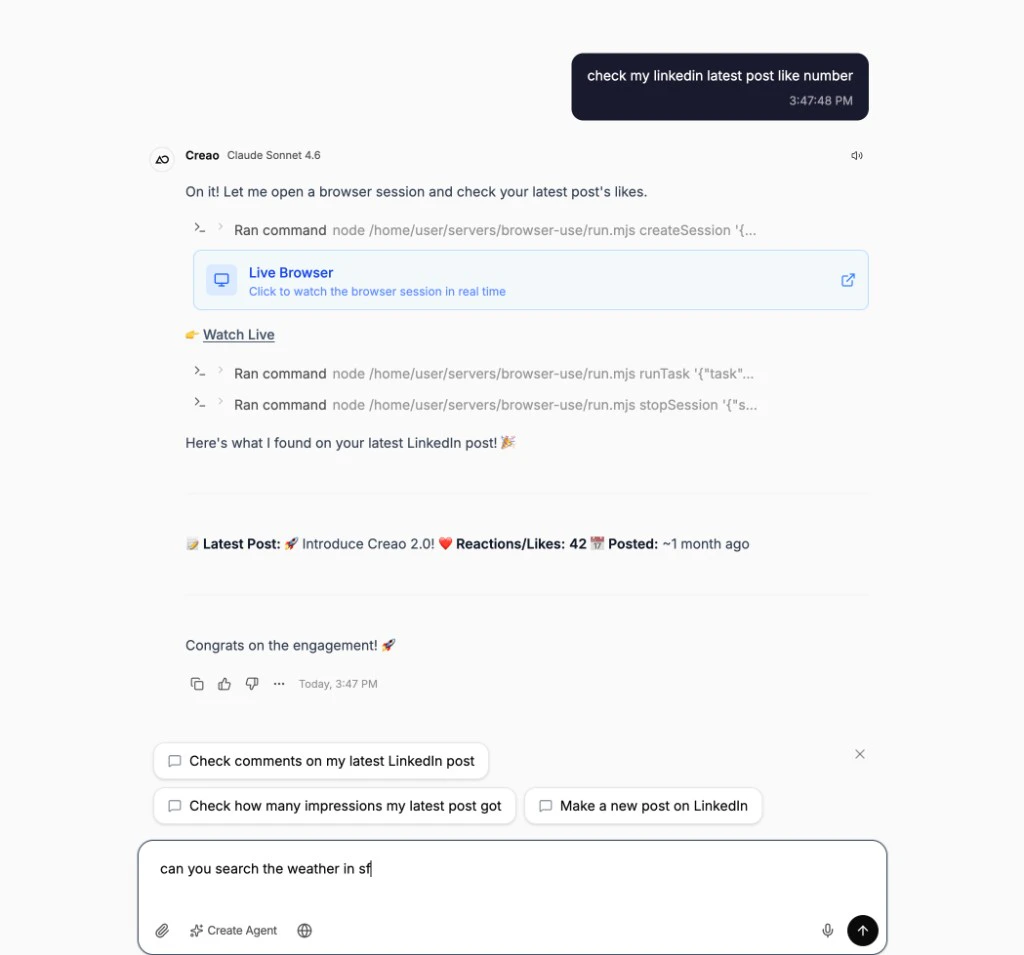 Example prompts:
* "Check my LinkedIn latest post engagement"
* "Read my LinkedIn messages and summarize them"
* "Post an update on my LinkedIn profile about our product launch"
* "Check my Instagram notifications"
The agent will:
1. Check for existing active sessions (reuses them if available)
2. Create a new session with your profile if needed
3. Show a **Live Browser** card so you can watch
4. Complete the task and report back
## Managing Sessions
Navigate to **Agent Brain > Browsers** and click the **Sessions** tab to see all your browser sessions.
Example prompts:
* "Check my LinkedIn latest post engagement"
* "Read my LinkedIn messages and summarize them"
* "Post an update on my LinkedIn profile about our product launch"
* "Check my Instagram notifications"
The agent will:
1. Check for existing active sessions (reuses them if available)
2. Create a new session with your profile if needed
3. Show a **Live Browser** card so you can watch
4. Complete the task and report back
## Managing Sessions
Navigate to **Agent Brain > Browsers** and click the **Sessions** tab to see all your browser sessions.
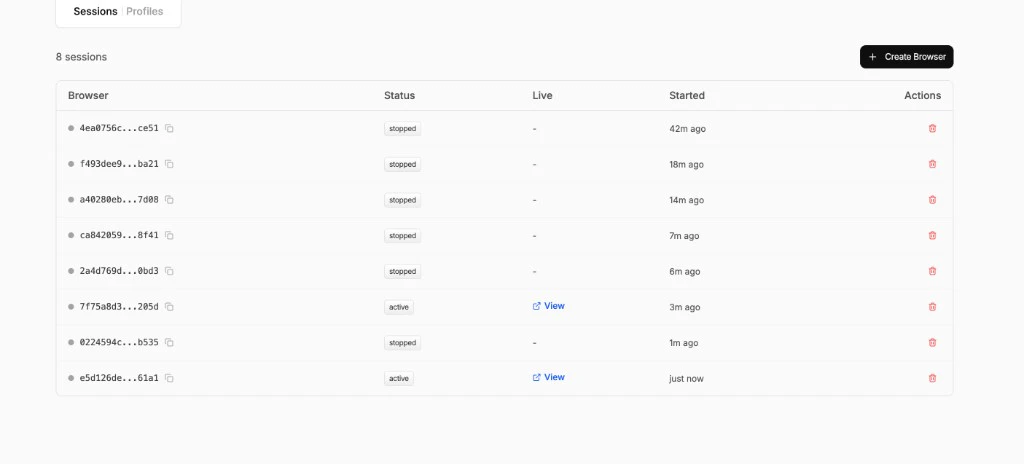 Active sessions show a **View** link that opens the live browser. You can stop sessions to save cookies or delete old ones to clean up.
Sessions auto-expire after 15 minutes if not stopped manually. The agent will create a new one when needed.
## What You Can Automate
Browser Use works with any website that requires login. Common use cases:
| Platform | Example Tasks |
| ---------------------- | ---------------------------------------------------------------------------- |
| **LinkedIn** | Check post engagement, read messages, send connection requests, post updates |
| **Instagram** | View notifications, post stories, check follower analytics |
| **X (Twitter)** | Read DMs, post tweets, check analytics |
| **Facebook** | Check page insights, respond to messages |
| **Any logged-in site** | Navigate, extract data, fill forms, click buttons |
## Privacy and Security
* Your browser profile cookies are stored in Browser Use's cloud infrastructure, isolated per profile
* The CREAO platform never stores or sees your social media passwords
* Login happens in the live browser — you enter credentials directly, not through the agent
* Each profile is scoped to your user account — other users cannot access your profiles or sessions
* The Browser Use API key is stored server-side and never exposed to the agent sandbox
Active sessions show a **View** link that opens the live browser. You can stop sessions to save cookies or delete old ones to clean up.
Sessions auto-expire after 15 minutes if not stopped manually. The agent will create a new one when needed.
## What You Can Automate
Browser Use works with any website that requires login. Common use cases:
| Platform | Example Tasks |
| ---------------------- | ---------------------------------------------------------------------------- |
| **LinkedIn** | Check post engagement, read messages, send connection requests, post updates |
| **Instagram** | View notifications, post stories, check follower analytics |
| **X (Twitter)** | Read DMs, post tweets, check analytics |
| **Facebook** | Check page insights, respond to messages |
| **Any logged-in site** | Navigate, extract data, fill forms, click buttons |
## Privacy and Security
* Your browser profile cookies are stored in Browser Use's cloud infrastructure, isolated per profile
* The CREAO platform never stores or sees your social media passwords
* Login happens in the live browser — you enter credentials directly, not through the agent
* Each profile is scoped to your user account — other users cannot access your profiles or sessions
* The Browser Use API key is stored server-side and never exposed to the agent sandbox