> ## Documentation Index
> Fetch the complete documentation index at: https://docs.creao.ai/llms.txt
> Use this file to discover all available pages before exploring further.
# Chat
> The conversational interface where you interact with the AI super agent — describe tasks, upload files, use voice input, and get streaming results.
## Overview
The chat interface is the primary way to interact with CREAO. Type or speak a request in plain language, and the agent streams its response in real time — including text, code, generated files, and interactive artifacts.
 ## The chat input
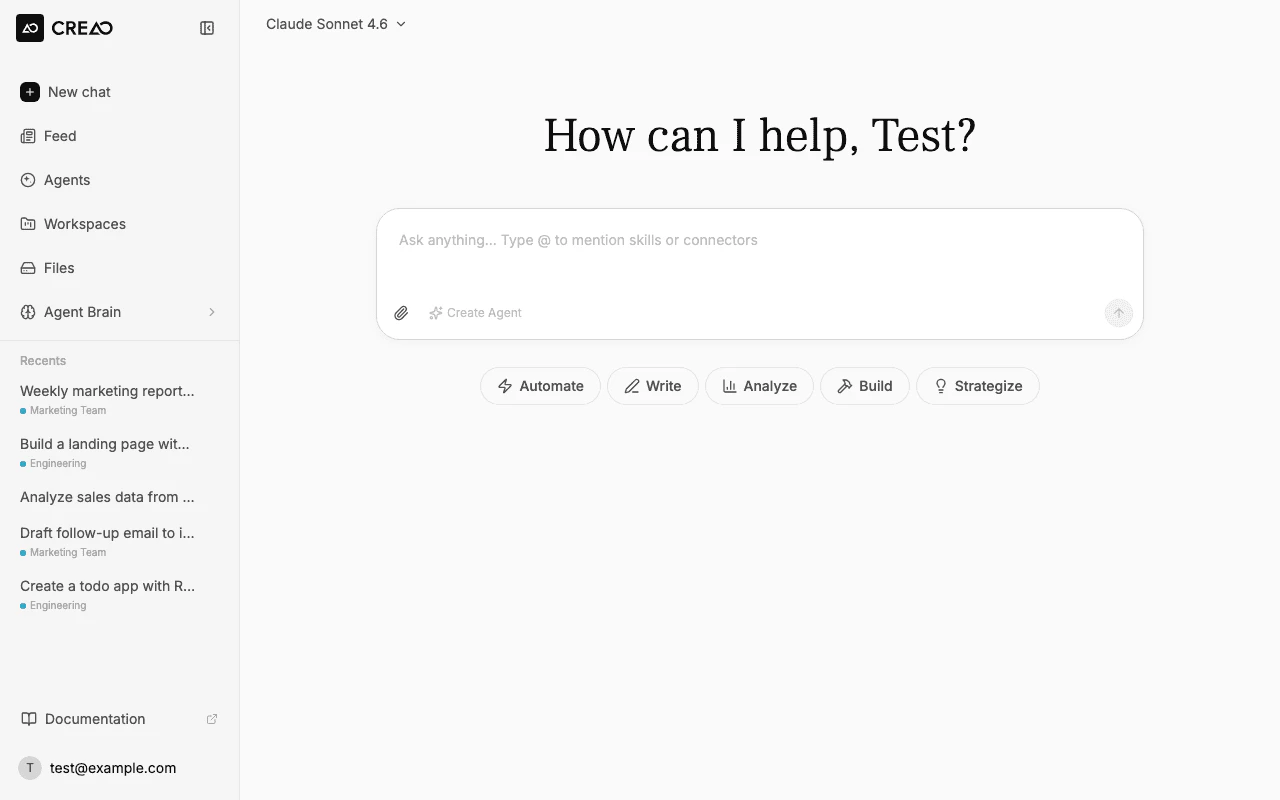
The input bar sits at the bottom of the screen. It includes:
* **Text input** — describe what you need in natural language
* **Send button** — click or press **Enter** to send
* **Stop button** — appears during streaming; click to interrupt the agent
* **File upload** — attach images, documents, and other files for the agent to process
* **Voice input** — tap the microphone icon to dictate your message
* **@ mentions** — type `@` to reference skills and connectors by name
## The chat input
The input bar sits at the bottom of the screen. It includes:
* **Text input** — describe what you need in natural language
* **Send button** — click or press **Enter** to send
* **Stop button** — appears during streaming; click to interrupt the agent
* **File upload** — attach images, documents, and other files for the agent to process
* **Voice input** — tap the microphone icon to dictate your message
* **@ mentions** — type `@` to reference skills and connectors by name
 ## Voice input
Tap the **microphone** icon in the input bar to dictate your message instead of typing. The input bar transforms into a recording interface with a live waveform visualization, a timer, and confirm/cancel buttons.
## Voice input
Tap the **microphone** icon in the input bar to dictate your message instead of typing. The input bar transforms into a recording interface with a live waveform visualization, a timer, and confirm/cancel buttons.
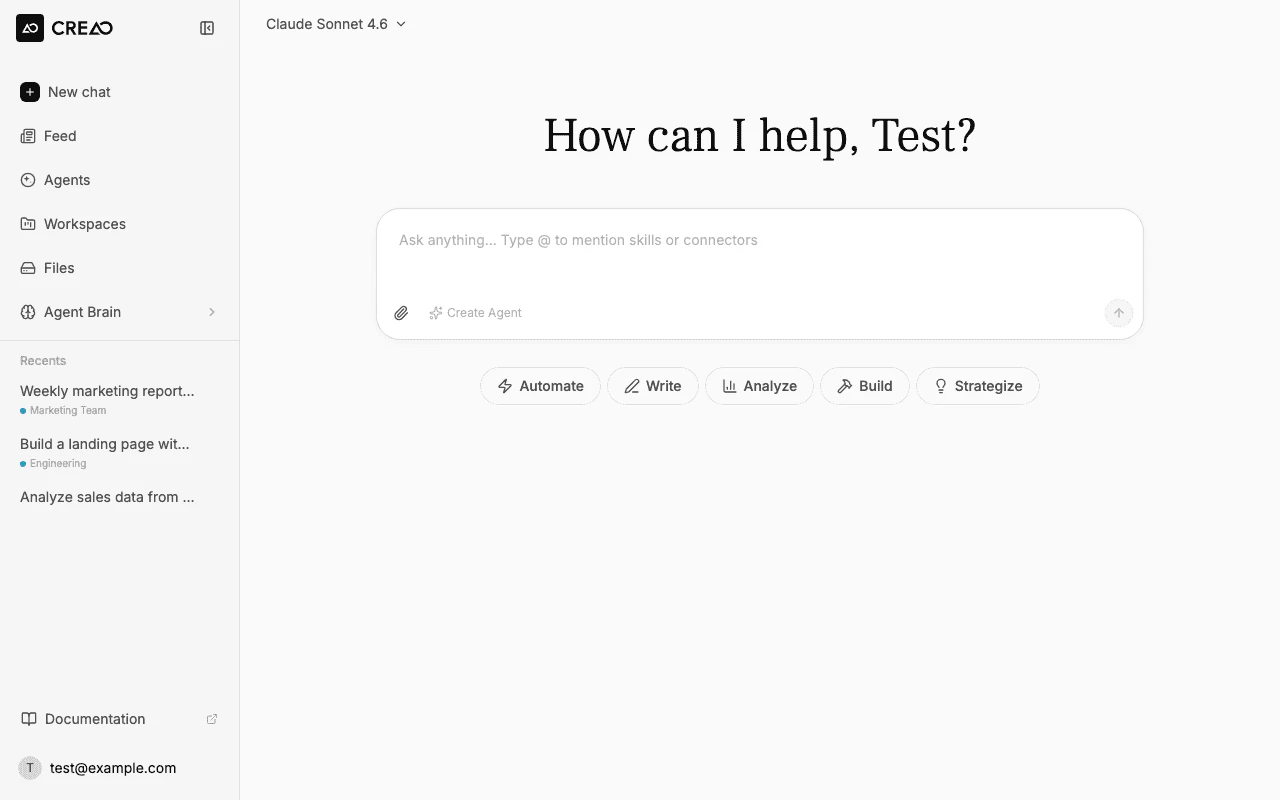 Tap the microphone icon in the input bar. Your browser will ask for microphone permission the first time. A brief "activating" spinner appears while the microphone connects.
A waveform visualization appears with a timer showing how long you've been recording. Speak naturally — the recording supports up to 2 minutes.
Tap the **checkmark** to stop recording and send the audio for transcription. A "Transcribing..." indicator appears while the audio is processed.
The transcribed text appears in the input field. You can edit it before sending, or tap the mic again to append more dictation.
You can also tap the **X** button to cancel the recording and discard the audio without transcribing.
Voice input uses OpenAI's speech-to-text model for high-accuracy transcription. It supports multiple languages and works in all major browsers.
## Sending messages
Type your request and press **Enter**. The agent begins streaming its response immediately.
```
Build a landing page for a SaaS product with a hero section, pricing cards, and a contact form
```
Be specific about what you want. Include details like file format, styling preferences, and functional requirements.
## Streaming responses
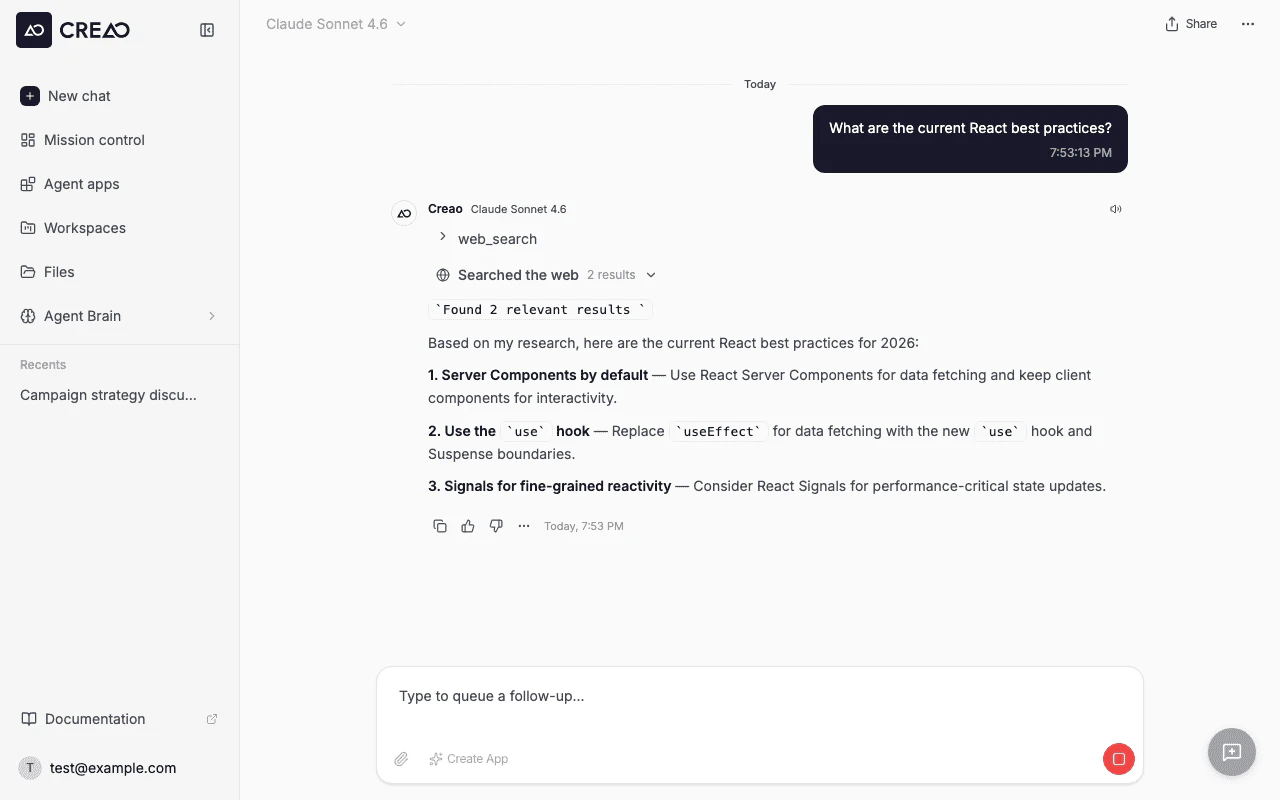
Responses stream token by token in real time. During streaming you'll see:
* **Thinking indicator** — animated dots while the agent plans its approach
* **Status updates** — messages like "Starting sandbox..." or "Running agent..."
* **Tool execution** — each tool call and its output stream in real time, so you can see exactly what the agent is doing as it works
* **Text content** — the response appears progressively
* **Artifact panel** — generated files open in an interactive preview on the right
Tap the microphone icon in the input bar. Your browser will ask for microphone permission the first time. A brief "activating" spinner appears while the microphone connects.
A waveform visualization appears with a timer showing how long you've been recording. Speak naturally — the recording supports up to 2 minutes.
Tap the **checkmark** to stop recording and send the audio for transcription. A "Transcribing..." indicator appears while the audio is processed.
The transcribed text appears in the input field. You can edit it before sending, or tap the mic again to append more dictation.
You can also tap the **X** button to cancel the recording and discard the audio without transcribing.
Voice input uses OpenAI's speech-to-text model for high-accuracy transcription. It supports multiple languages and works in all major browsers.
## Sending messages
Type your request and press **Enter**. The agent begins streaming its response immediately.
```
Build a landing page for a SaaS product with a hero section, pricing cards, and a contact form
```
Be specific about what you want. Include details like file format, styling preferences, and functional requirements.
## Streaming responses
Responses stream token by token in real time. During streaming you'll see:
* **Thinking indicator** — animated dots while the agent plans its approach
* **Status updates** — messages like "Starting sandbox..." or "Running agent..."
* **Tool execution** — each tool call and its output stream in real time, so you can see exactly what the agent is doing as it works
* **Text content** — the response appears progressively
* **Artifact panel** — generated files open in an interactive preview on the right
 ### Premium company data
When you ask for company intelligence, the agent can use native premium data from People Data Labs to enrich the company profile. It can call this capability on your behalf when it helps answer your request, or you can ask for it directly:
```
Enrich Snowflake with People Data Labs and compare the result with current public sources
```
People Data Labs returns standardized company profiles, including identity, domains, social profiles, industry classifications, locations, funding, firmographics, and workforce/headcount fields. In chat, you will see a People Data Labs tool row while enrichment is running and after it completes.
Premium company data may use credits. CREAO sends only the company identifiers needed for enrichment, such as a website, company name, ticker, LinkedIn URL, or location hint. See [Privacy](/trust-and-safety/privacy#subprocessors) for subprocessor details.
### Interrupting the agent
Click the **Stop** button (red square) at any time to cancel the current response. A confirmation prompt appears before stopping so accidental clicks do not interrupt in-progress work.
### Queued follow-up messages
You can send additional messages while the agent is still processing your previous request. Instead of waiting for the agent to finish, type your follow-up and send it — it enters a queue and is processed automatically after the current turn completes. Queued messages are saved on the server, so you can close your browser and the queue keeps running in order.
Each queued message has its own actions:
* **Steer** — interject the message into the turn the agent is **currently** working on, instead of waiting for the next one (see [Steer the agent mid-task](#steer-the-agent-mid-task))
* **Edit message** — bring the message back into the input box to revise before it sends
* **Turn off queueing** — switch to manual, so the next message waits in the input box for your review instead of auto-sending
* **Delete** — remove the message from the queue
### Premium company data
When you ask for company intelligence, the agent can use native premium data from People Data Labs to enrich the company profile. It can call this capability on your behalf when it helps answer your request, or you can ask for it directly:
```
Enrich Snowflake with People Data Labs and compare the result with current public sources
```
People Data Labs returns standardized company profiles, including identity, domains, social profiles, industry classifications, locations, funding, firmographics, and workforce/headcount fields. In chat, you will see a People Data Labs tool row while enrichment is running and after it completes.
Premium company data may use credits. CREAO sends only the company identifiers needed for enrichment, such as a website, company name, ticker, LinkedIn URL, or location hint. See [Privacy](/trust-and-safety/privacy#subprocessors) for subprocessor details.
### Interrupting the agent
Click the **Stop** button (red square) at any time to cancel the current response. A confirmation prompt appears before stopping so accidental clicks do not interrupt in-progress work.
### Queued follow-up messages
You can send additional messages while the agent is still processing your previous request. Instead of waiting for the agent to finish, type your follow-up and send it — it enters a queue and is processed automatically after the current turn completes. Queued messages are saved on the server, so you can close your browser and the queue keeps running in order.
Each queued message has its own actions:
* **Steer** — interject the message into the turn the agent is **currently** working on, instead of waiting for the next one (see [Steer the agent mid-task](#steer-the-agent-mid-task))
* **Edit message** — bring the message back into the input box to revise before it sends
* **Turn off queueing** — switch to manual, so the next message waits in the input box for your review instead of auto-sending
* **Delete** — remove the message from the queue
 This is useful for multi-step workflows where you already know the next few instructions. Queue them all up front and let the agent work through them in sequence.
### Steer the agent mid-task
Sometimes you want to correct or redirect the agent **while it is still working**, rather than wait for it to finish. Type your instruction and choose **Steer now** — or pick **Steer** on a message you have already queued.
Your steer appears in the conversation immediately, marked *"Steering — applies after the current step."* The agent finishes the step it is on (so nothing in progress is lost), then folds your instruction into the same task and adjusts course — without starting a new turn from scratch.
This is useful for multi-step workflows where you already know the next few instructions. Queue them all up front and let the agent work through them in sequence.
### Steer the agent mid-task
Sometimes you want to correct or redirect the agent **while it is still working**, rather than wait for it to finish. Type your instruction and choose **Steer now** — or pick **Steer** on a message you have already queued.
Your steer appears in the conversation immediately, marked *"Steering — applies after the current step."* The agent finishes the step it is on (so nothing in progress is lost), then folds your instruction into the same task and adjusts course — without starting a new turn from scratch.
 Steering takes effect at the next natural break in the agent's work, so if you steer during a long step your message lands the moment that step wraps up. If a run cannot be steered, your message automatically falls back to the queue and runs on the next turn instead — it is never lost.
### Follow-up suggestions
After the agent finishes a response, contextual follow-up suggestion chips appear inline below the last assistant message. Each chip has a topic-relevant icon and a short prompt you can act on:
* **Prompt and refine chips** — click to paste the suggestion into the input bar, where you can edit it before sending
* **Connect chips** — click to open the OAuth flow for an integration the agent recommends connecting
* **Run app chips** — click to immediately launch a suggested agent
Suggestion chips scroll naturally with the conversation and auto-hide when you send your next message. They do not appear while the agent is still streaming.
## Extended thinking
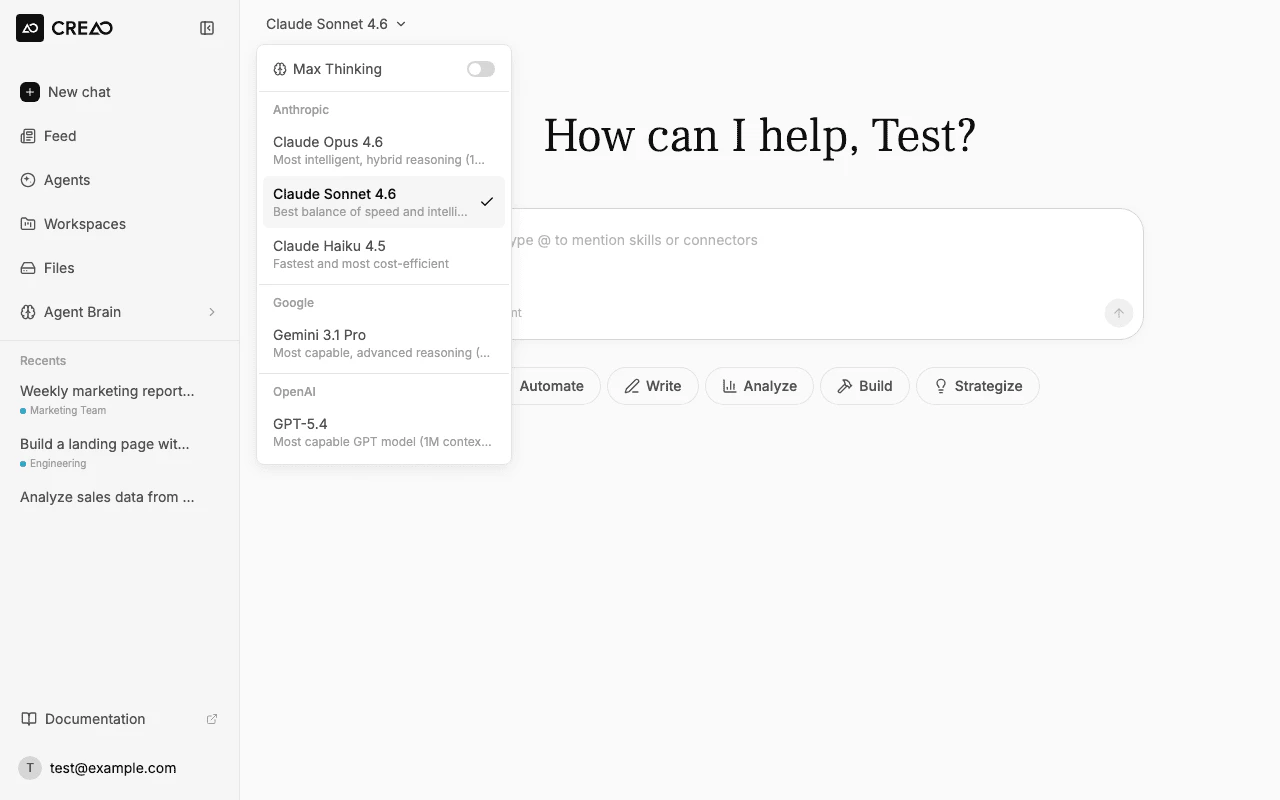
Thinking-capable models can spend extra reasoning time before they respond, which helps with multi-step tasks, intricate code generation, and nuanced analysis. CREAO lets you choose **how much effort** each model spends.
Click the model name in the bottom-left corner of the chat input to open the model selector, then set a model's effort level:
* **Low** — fastest, with the least reasoning (the default)
* **Medium** and **High** — progressively more reasoning time
* **Max** — the deepest reasoning, available on the top models (Claude Opus 4.6/4.7/4.8 and GPT-5.5)
Each model remembers its own effort level, so you can keep one model fast and set another to Max. Claude Sonnet 4.6 and Claude Haiku 4.5 expose Low/Medium/High; Opus and GPT-5.5 add a true Max tier.
Steering takes effect at the next natural break in the agent's work, so if you steer during a long step your message lands the moment that step wraps up. If a run cannot be steered, your message automatically falls back to the queue and runs on the next turn instead — it is never lost.
### Follow-up suggestions
After the agent finishes a response, contextual follow-up suggestion chips appear inline below the last assistant message. Each chip has a topic-relevant icon and a short prompt you can act on:
* **Prompt and refine chips** — click to paste the suggestion into the input bar, where you can edit it before sending
* **Connect chips** — click to open the OAuth flow for an integration the agent recommends connecting
* **Run app chips** — click to immediately launch a suggested agent
Suggestion chips scroll naturally with the conversation and auto-hide when you send your next message. They do not appear while the agent is still streaming.
## Extended thinking
Thinking-capable models can spend extra reasoning time before they respond, which helps with multi-step tasks, intricate code generation, and nuanced analysis. CREAO lets you choose **how much effort** each model spends.
Click the model name in the bottom-left corner of the chat input to open the model selector, then set a model's effort level:
* **Low** — fastest, with the least reasoning (the default)
* **Medium** and **High** — progressively more reasoning time
* **Max** — the deepest reasoning, available on the top models (Claude Opus 4.6/4.7/4.8 and GPT-5.5)
Each model remembers its own effort level, so you can keep one model fast and set another to Max. Claude Sonnet 4.6 and Claude Haiku 4.5 expose Low/Medium/High; Opus and GPT-5.5 add a true Max tier.
 Higher effort uses more credits per response. If a model runs out of thinking budget mid-response, the agent automatically retries so you still get a complete answer.
## Artifacts in chat
When the agent generates an HTML page, SVG, PDF, or other file, an **artifact panel** opens on the right side of the screen with an interactive preview. An artifact chip also appears in the chat message so you can reopen the panel later.
Higher effort uses more credits per response. If a model runs out of thinking budget mid-response, the agent automatically retries so you still get a complete answer.
## Artifacts in chat
When the agent generates an HTML page, SVG, PDF, or other file, an **artifact panel** opens on the right side of the screen with an interactive preview. An artifact chip also appears in the chat message so you can reopen the panel later.
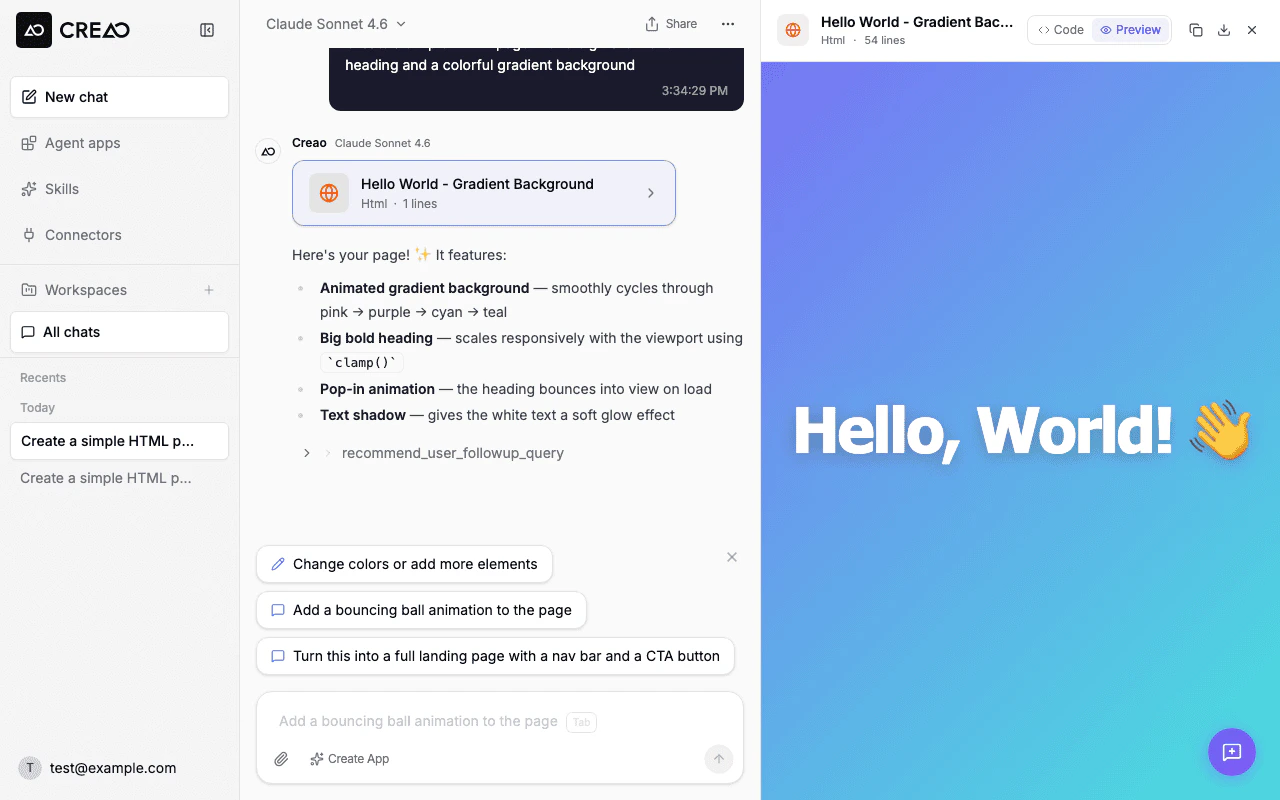 Generated HTML pages are fully interactive — buttons, forms, modals, and localStorage all work in the preview panel. You can also switch to Code view, download the file, or copy the source.
## Dynamic dashboards
When you ask the agent to analyze data, compare metrics, or produce a visual summary, it can render an **interactive dashboard** directly in the chat. Dashboards appear inline with KPI cards, charts, tables, and progress bars — all streaming progressively as the agent generates them.
Generated HTML pages are fully interactive — buttons, forms, modals, and localStorage all work in the preview panel. You can also switch to Code view, download the file, or copy the source.
## Dynamic dashboards
When you ask the agent to analyze data, compare metrics, or produce a visual summary, it can render an **interactive dashboard** directly in the chat. Dashboards appear inline with KPI cards, charts, tables, and progress bars — all streaming progressively as the agent generates them.
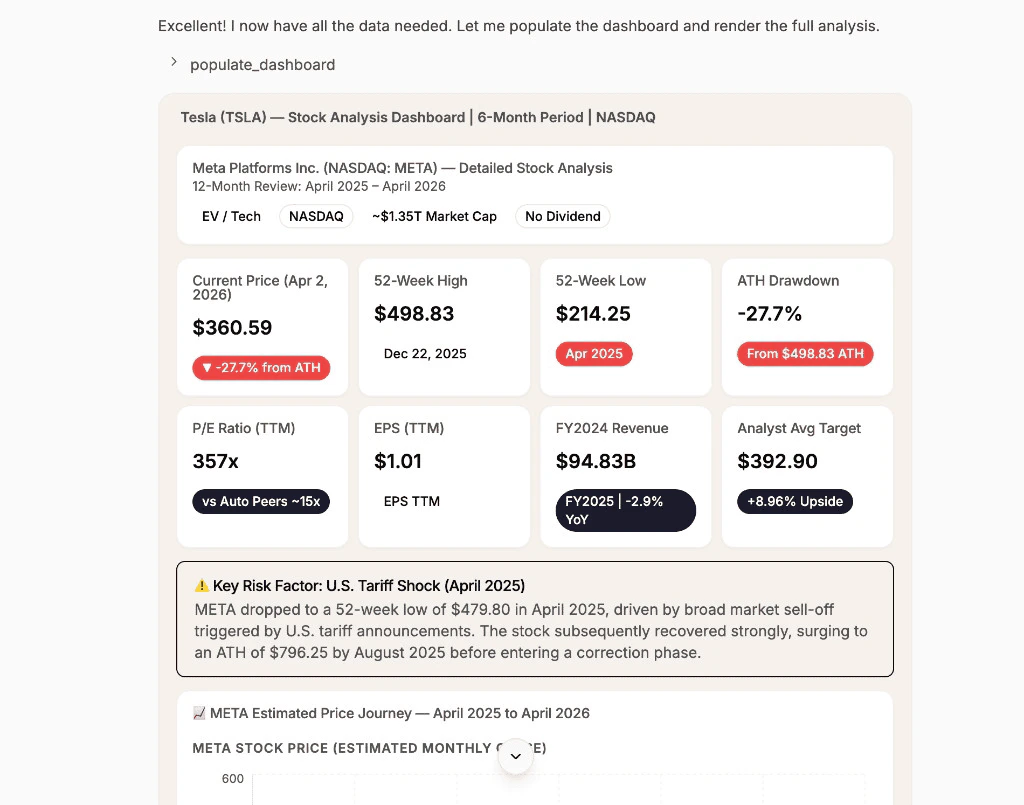 Dashboards are composed of **widgets** — reusable visual building blocks that the agent assembles into a layout. You can browse all available widgets on the [Widgets](/features/widgets) page in Agent Brain.
Common widgets include:
* **KPI cards** — headline metrics with badges for context (growth rates, comparisons)
* **Charts** — area charts, bar charts, line charts, and professional candlestick charts for stock data
* **Tables** — financial comparisons, analyst ratings, quarterly breakdowns
* **Alerts** — callouts for key events or risk factors
* **Progress bars** — visual indicators for analyst consensus, ratings distributions
Dashboards are composed of **widgets** — reusable visual building blocks that the agent assembles into a layout. You can browse all available widgets on the [Widgets](/features/widgets) page in Agent Brain.
Common widgets include:
* **KPI cards** — headline metrics with badges for context (growth rates, comparisons)
* **Charts** — area charts, bar charts, line charts, and professional candlestick charts for stock data
* **Tables** — financial comparisons, analyst ratings, quarterly breakdowns
* **Alerts** — callouts for key events or risk factors
* **Progress bars** — visual indicators for analyst consensus, ratings distributions
 Each component streams in real time — you see the dashboard build up piece by piece as the agent generates it, rather than waiting for the entire response.
Try asking "analyze AAPL stock for the past year" or "build a dashboard comparing Q1 vs Q2 revenue" to see dashboards in action.
## File uploads
Click the **paperclip** icon or drag files into the chat to attach them. Supported file types include:
* Images (PNG, JPG, GIF, WebP)
* Documents (PDF, TXT, CSV)
* Code files (HTML, CSS, JS, Python, etc.)
The agent can read, analyze, and transform uploaded files as part of its response.
Non-image uploads show file-type icons in the input chips, so it's easier to distinguish attachments at a glance before sending.
## @ Mentions
Type `@` in the chat input to open a menu of available skills and connectors. Select one to reference it in your message:
```
@web-search Find the latest React best practices for form handling
```
This tells the agent to use a specific skill for the task.
## Text-to-speech playback
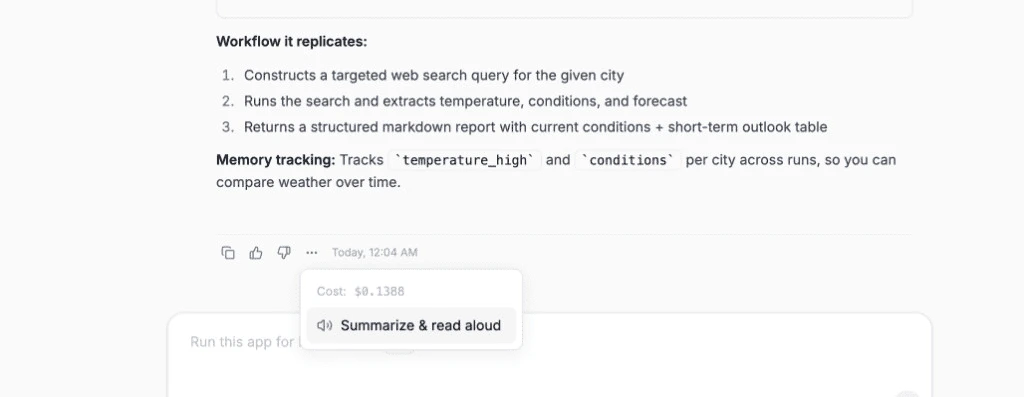
Click the **three-dot menu** (**...**) on any assistant message and select **Summarize & read aloud**. The agent automatically summarizes long or complex responses into concise spoken sentences and plays them back as natural-sounding audio. Click again to stop playback.
Each component streams in real time — you see the dashboard build up piece by piece as the agent generates it, rather than waiting for the entire response.
Try asking "analyze AAPL stock for the past year" or "build a dashboard comparing Q1 vs Q2 revenue" to see dashboards in action.
## File uploads
Click the **paperclip** icon or drag files into the chat to attach them. Supported file types include:
* Images (PNG, JPG, GIF, WebP)
* Documents (PDF, TXT, CSV)
* Code files (HTML, CSS, JS, Python, etc.)
The agent can read, analyze, and transform uploaded files as part of its response.
Non-image uploads show file-type icons in the input chips, so it's easier to distinguish attachments at a glance before sending.
## @ Mentions
Type `@` in the chat input to open a menu of available skills and connectors. Select one to reference it in your message:
```
@web-search Find the latest React best practices for form handling
```
This tells the agent to use a specific skill for the task.
## Text-to-speech playback
Click the **three-dot menu** (**...**) on any assistant message and select **Summarize & read aloud**. The agent automatically summarizes long or complex responses into concise spoken sentences and plays them back as natural-sounding audio. Click again to stop playback.
 ## Thread sharing
Share any conversation as a read-only public link. Click the **share** icon in the thread header to generate a shareable URL. Anyone with the link can view the full conversation — including messages, artifacts, and generated files — without needing a CREAO account.
Shared threads are read-only. Recipients can browse the conversation and download artifacts, but cannot send messages or modify the thread.
To revoke access, click the share icon again and disable the link. Previously shared URLs will stop working immediately.
## Reconnecting expired integrations
If an integration token expires while the agent is working, a **Reconnect** card appears inline in the chat with a button to re-authorize. Click it to open the OAuth popup — once you complete the flow, the agent automatically retries the action that failed. No need to navigate to settings or restart the conversation.
Each provider shows at most one reconnect card per conversation to avoid clutter when multiple tools fail for the same expired token.
## Conversation history
Each workspace maintains its own conversation history. You can:
* **Continue a conversation** — click any thread in the sidebar to resume it
* **Start fresh** — click the **New chat** button to begin a new thread
* **Pin important threads** — keep frequently referenced conversations accessible
### Thread sidebar
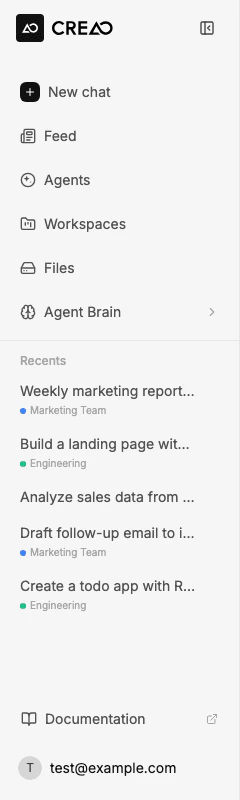
The left sidebar shows your recent threads organized by workspace. Each thread displays its title (auto-generated from the first message) and timestamp.
## Thread sharing
Share any conversation as a read-only public link. Click the **share** icon in the thread header to generate a shareable URL. Anyone with the link can view the full conversation — including messages, artifacts, and generated files — without needing a CREAO account.
Shared threads are read-only. Recipients can browse the conversation and download artifacts, but cannot send messages or modify the thread.
To revoke access, click the share icon again and disable the link. Previously shared URLs will stop working immediately.
## Reconnecting expired integrations
If an integration token expires while the agent is working, a **Reconnect** card appears inline in the chat with a button to re-authorize. Click it to open the OAuth popup — once you complete the flow, the agent automatically retries the action that failed. No need to navigate to settings or restart the conversation.
Each provider shows at most one reconnect card per conversation to avoid clutter when multiple tools fail for the same expired token.
## Conversation history
Each workspace maintains its own conversation history. You can:
* **Continue a conversation** — click any thread in the sidebar to resume it
* **Start fresh** — click the **New chat** button to begin a new thread
* **Pin important threads** — keep frequently referenced conversations accessible
### Thread sidebar
The left sidebar shows your recent threads organized by workspace. Each thread displays its title (auto-generated from the first message) and timestamp.
 ## Workspaces
Workspaces are the organizational unit for your conversations, skills, connectors, and agents. Switch between workspaces using the dropdown at the top of the sidebar.
Each workspace has its own:
* Conversation history
* Enabled skills and connectors
* Agents
* File storage
You must select a workspace before using the chat. The agent's available capabilities depend on which skills and connectors are enabled in the active workspace.
## Language support
The chat interface is available in multiple languages: English, Portuguese (Brazil), Chinese (Simplified), French, Spanish, Japanese, Korean, and German. Your browser language is detected automatically, and the entire UI — including buttons, menus, status messages, and labels — adapts to your preferred language.
Your language preference is saved to your account and synced across devices. When you log in on a new browser or device, CREAO restores your preferred language automatically. Change it any time from **Account Settings**.
## Keyboard shortcuts
| Shortcut | Action |
| ----------------- | --------------------------------- |
| **Enter** | Send message |
| **Shift + Enter** | New line in message |
| **@** | Open skill/connector mention menu |
## Workspaces
Workspaces are the organizational unit for your conversations, skills, connectors, and agents. Switch between workspaces using the dropdown at the top of the sidebar.
Each workspace has its own:
* Conversation history
* Enabled skills and connectors
* Agents
* File storage
You must select a workspace before using the chat. The agent's available capabilities depend on which skills and connectors are enabled in the active workspace.
## Language support
The chat interface is available in multiple languages: English, Portuguese (Brazil), Chinese (Simplified), French, Spanish, Japanese, Korean, and German. Your browser language is detected automatically, and the entire UI — including buttons, menus, status messages, and labels — adapts to your preferred language.
Your language preference is saved to your account and synced across devices. When you log in on a new browser or device, CREAO restores your preferred language automatically. Change it any time from **Account Settings**.
## Keyboard shortcuts
| Shortcut | Action |
| ----------------- | --------------------------------- |
| **Enter** | Send message |
| **Shift + Enter** | New line in message |
| **@** | Open skill/connector mention menu |