> ## Documentation Index
> Fetch the complete documentation index at: https://docs.creao.ai/llms.txt
> Use this file to discover all available pages before exploring further.
# Files
> A personal file manager for all your uploaded and agent-generated files — browse, organize, upload, and download from one place.
## Overview
The **Files** page gives you a centralized view of every file in your account — uploads, agent-generated images, documents, and artifacts. It works like a personal drive: you can create folders, upload files via drag-and-drop, and browse everything the agent has produced across all your chats and workspaces.
Navigate to **Files** from the sidebar to get started.
## My Drive
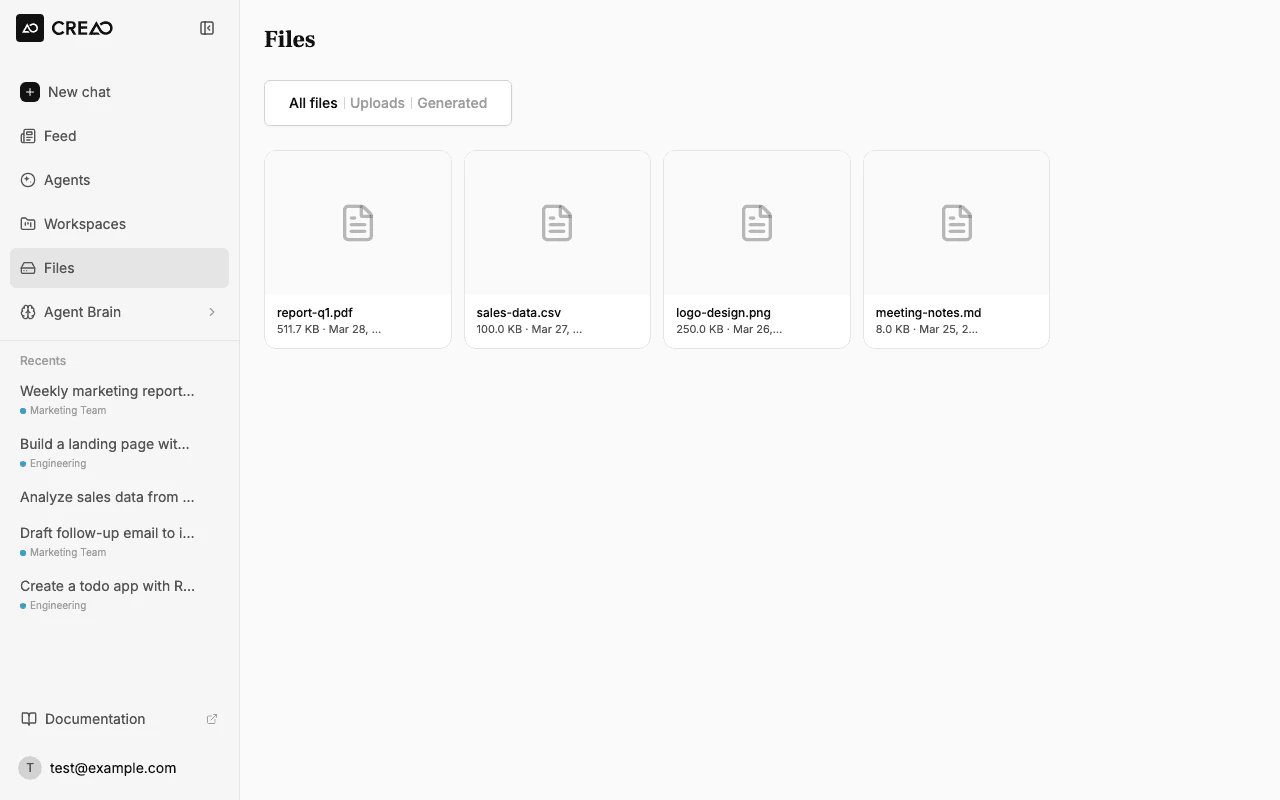
The **My Drive** tab is your personal file space. You can organize files into folders, upload new files, and manage everything in a familiar grid layout.
 ### Folders
Create folders to organize your files:
1. Click **New folder** in the toolbar
2. Enter a folder name
3. Click **Create** (or press Enter)
### Folders
Create folders to organize your files:
1. Click **New folder** in the toolbar
2. Enter a folder name
3. Click **Create** (or press Enter)
 Click any folder to navigate into it. The **breadcrumb** at the top shows your current location — click any segment to jump back.
### Uploading files
You can upload files in two ways:
* **Click Upload** — opens a file picker to select one or more files
* **Drag and drop** — drag files anywhere on the page to upload them
Uploaded files appear in your current folder. If you drop files on the main page (outside a specific folder), they go to the root of My Drive.
You can upload multiple files at once — just select them all in the file picker or drag a batch onto the page.
### Previewing and downloading
* **Images** — click to open a full-size preview overlay
* **Documents and other files** — click to download via a temporary presigned URL
Hover over any file to reveal the **download** and **delete** buttons.
## All Files
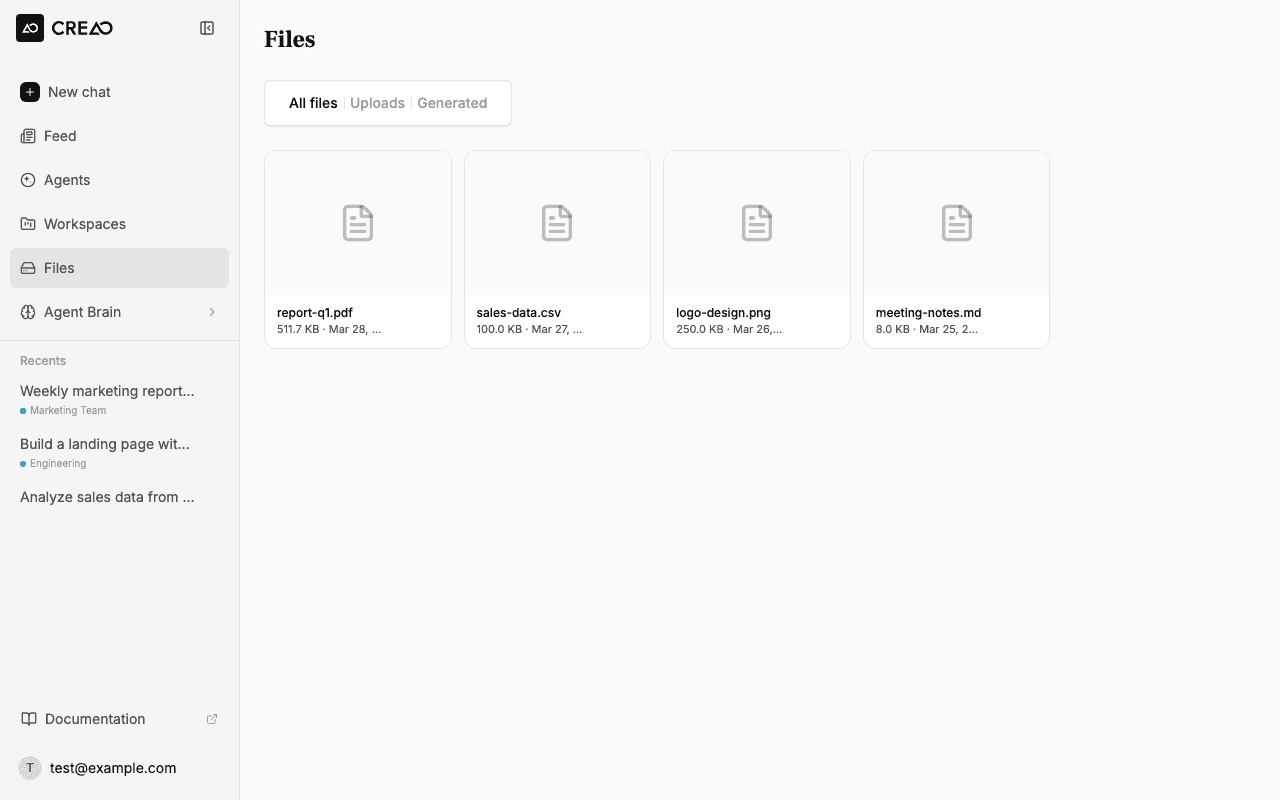
The **All files** tab shows every file across your entire account — personal uploads, workspace files, and files generated by the agent during chats.
Click any folder to navigate into it. The **breadcrumb** at the top shows your current location — click any segment to jump back.
### Uploading files
You can upload files in two ways:
* **Click Upload** — opens a file picker to select one or more files
* **Drag and drop** — drag files anywhere on the page to upload them
Uploaded files appear in your current folder. If you drop files on the main page (outside a specific folder), they go to the root of My Drive.
You can upload multiple files at once — just select them all in the file picker or drag a batch onto the page.
### Previewing and downloading
* **Images** — click to open a full-size preview overlay
* **Documents and other files** — click to download via a temporary presigned URL
Hover over any file to reveal the **download** and **delete** buttons.
## All Files
The **All files** tab shows every file across your entire account — personal uploads, workspace files, and files generated by the agent during chats.
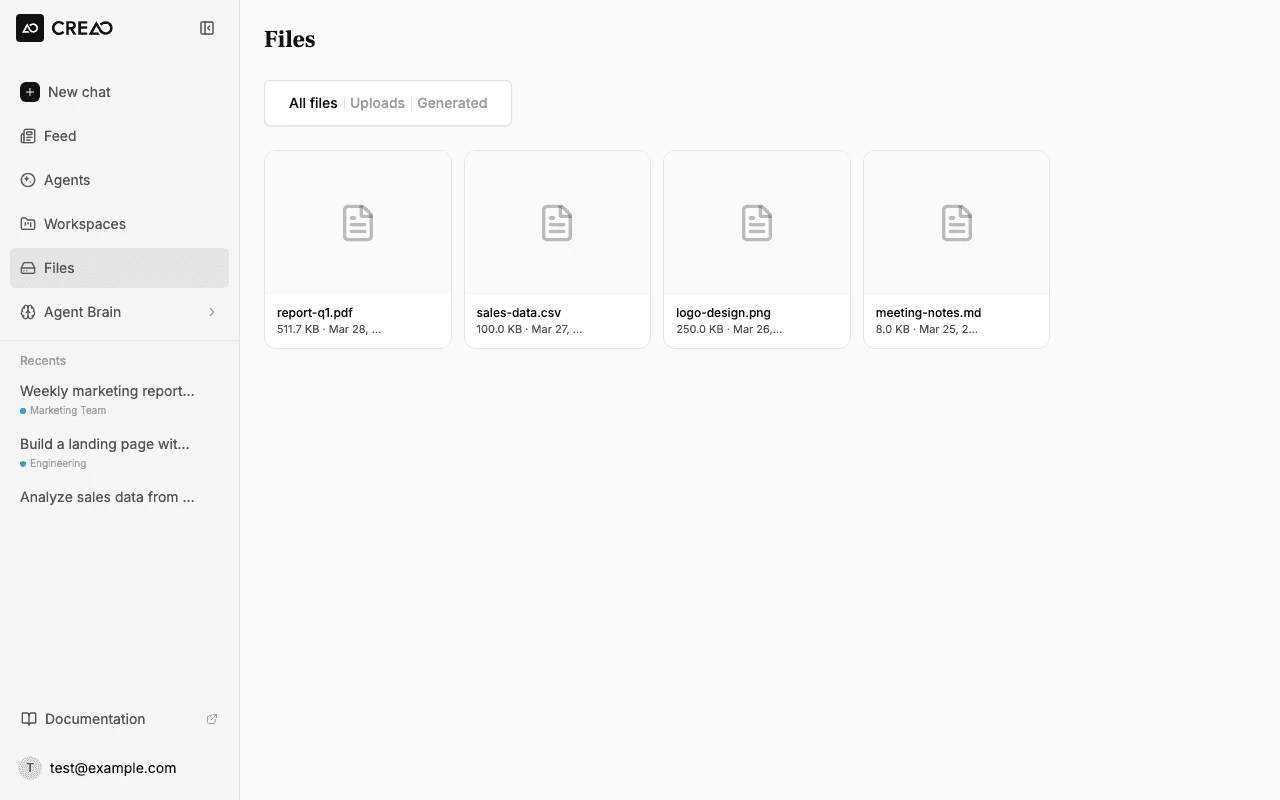 This is useful for finding a file when you don't remember which chat or workspace it came from. Files are sorted by most recent first.
## Agent-generated files
When the agent generates files during a chat — images, PDFs, spreadsheets, HTML pages — they are automatically saved to your file storage. You can find them in:
* **Thread files** — the files panel in each chat thread
* **All files** — the global view on the Files page
Files generated by the agent are stored in the workspace and thread where they were created. They appear in both the chat's file panel and the global All Files view.
## Deleting files and folders
* **Delete a file** — hover over it and click the trash icon
* **Delete a folder** — hover over the folder card and click the trash icon. This deletes the folder and all its contents.
Deleting a file or folder is permanent and cannot be undone.
## File types
The file manager supports all common file types:
| Category | Extensions |
| ------------- | -------------------------- |
| **Images** | PNG, JPG, GIF, WebP, SVG |
| **Documents** | PDF, DOCX, XLSX, PPTX, CSV |
| **Code** | HTML, Markdown, JSON, TXT |
| **Media** | MP4, WebM |
| **Archives** | ZIP |
This is useful for finding a file when you don't remember which chat or workspace it came from. Files are sorted by most recent first.
## Agent-generated files
When the agent generates files during a chat — images, PDFs, spreadsheets, HTML pages — they are automatically saved to your file storage. You can find them in:
* **Thread files** — the files panel in each chat thread
* **All files** — the global view on the Files page
Files generated by the agent are stored in the workspace and thread where they were created. They appear in both the chat's file panel and the global All Files view.
## Deleting files and folders
* **Delete a file** — hover over it and click the trash icon
* **Delete a folder** — hover over the folder card and click the trash icon. This deletes the folder and all its contents.
Deleting a file or folder is permanent and cannot be undone.
## File types
The file manager supports all common file types:
| Category | Extensions |
| ------------- | -------------------------- |
| **Images** | PNG, JPG, GIF, WebP, SVG |
| **Documents** | PDF, DOCX, XLSX, PPTX, CSV |
| **Code** | HTML, Markdown, JSON, TXT |
| **Media** | MP4, WebM |
| **Archives** | ZIP |