> ## Documentation Index
> Fetch the complete documentation index at: https://docs.creao.ai/llms.txt
> Use this file to discover all available pages before exploring further.
# Scheduled Runs
> Run agents on a recurring schedule — automate daily reports, weekly summaries, and regular data processing.
## Overview
Scheduled Runs let you execute agents automatically on a recurring basis. Set up a schedule once, and the super agent runs it at the specified intervals — delivering results without manual intervention.
## Setting up a schedule
Navigate to the **Agents** page and select the agent you want to schedule.
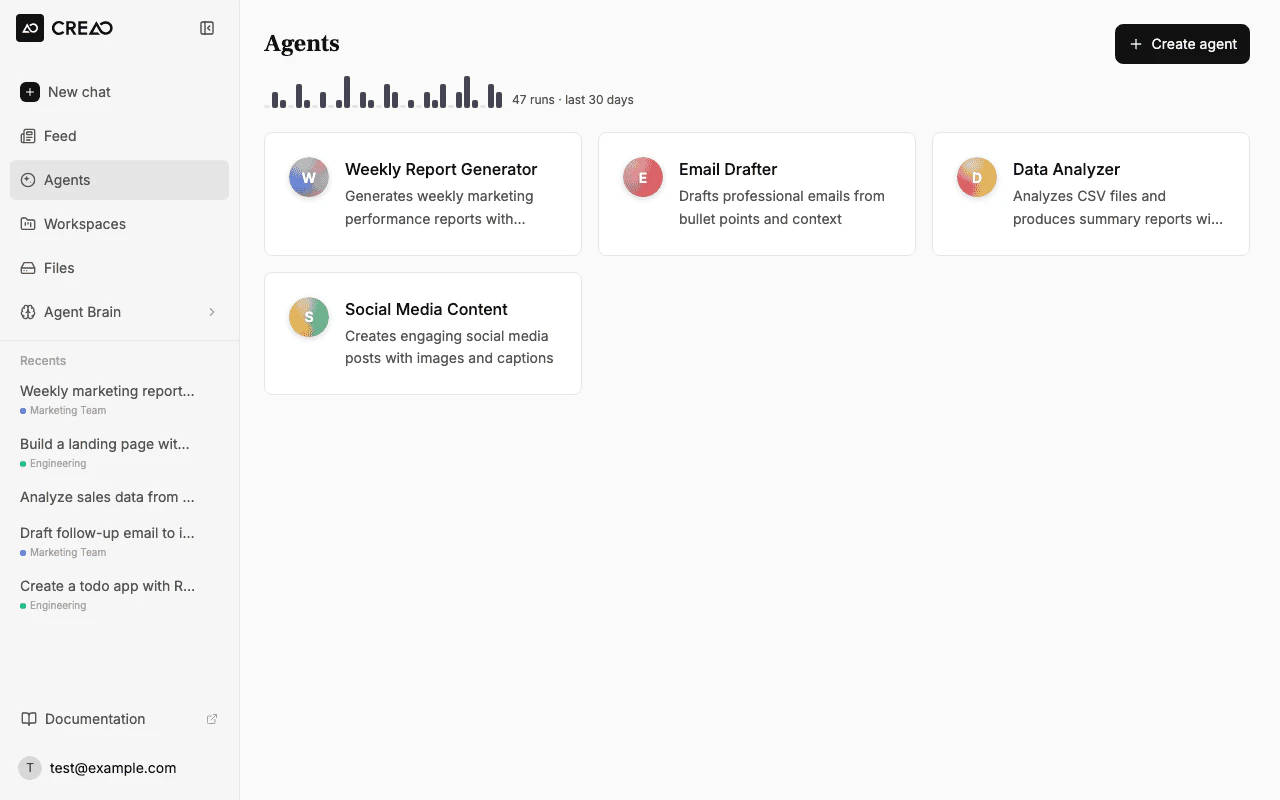 Click the **Schedule** tab on the agent detail page, then click **+ Create Schedule**.
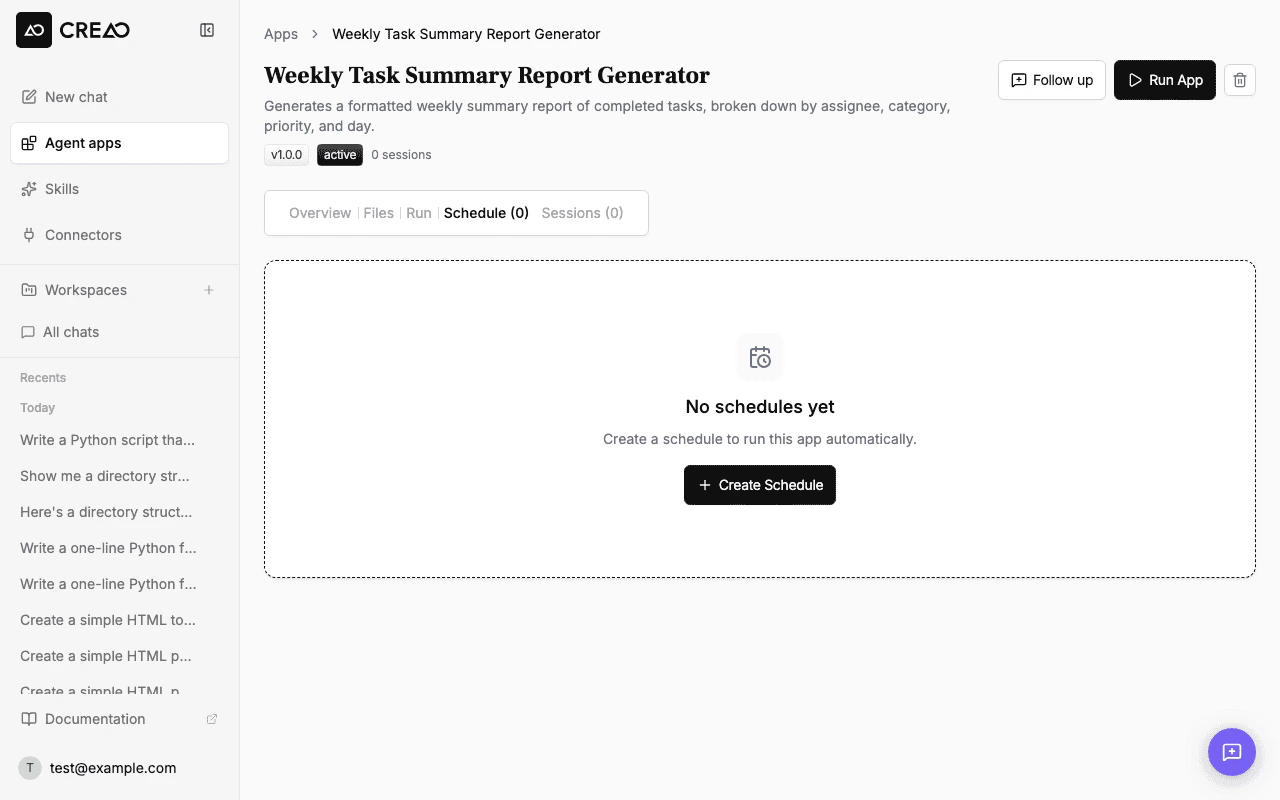 Configure your schedule settings:
* **Frequency** — how often the agent runs (interval-based or custom cron expression)
* **Time** — when during the day the run executes
* **Timezone** — the timezone for scheduling
* **Delivery** — choose whether to receive an email summary after each run (see [Email delivery](#email-delivery) below)
Configure your schedule settings:
* **Frequency** — how often the agent runs (interval-based or custom cron expression)
* **Time** — when during the day the run executes
* **Timezone** — the timezone for scheduling
* **Delivery** — choose whether to receive an email summary after each run (see [Email delivery](#email-delivery) below)
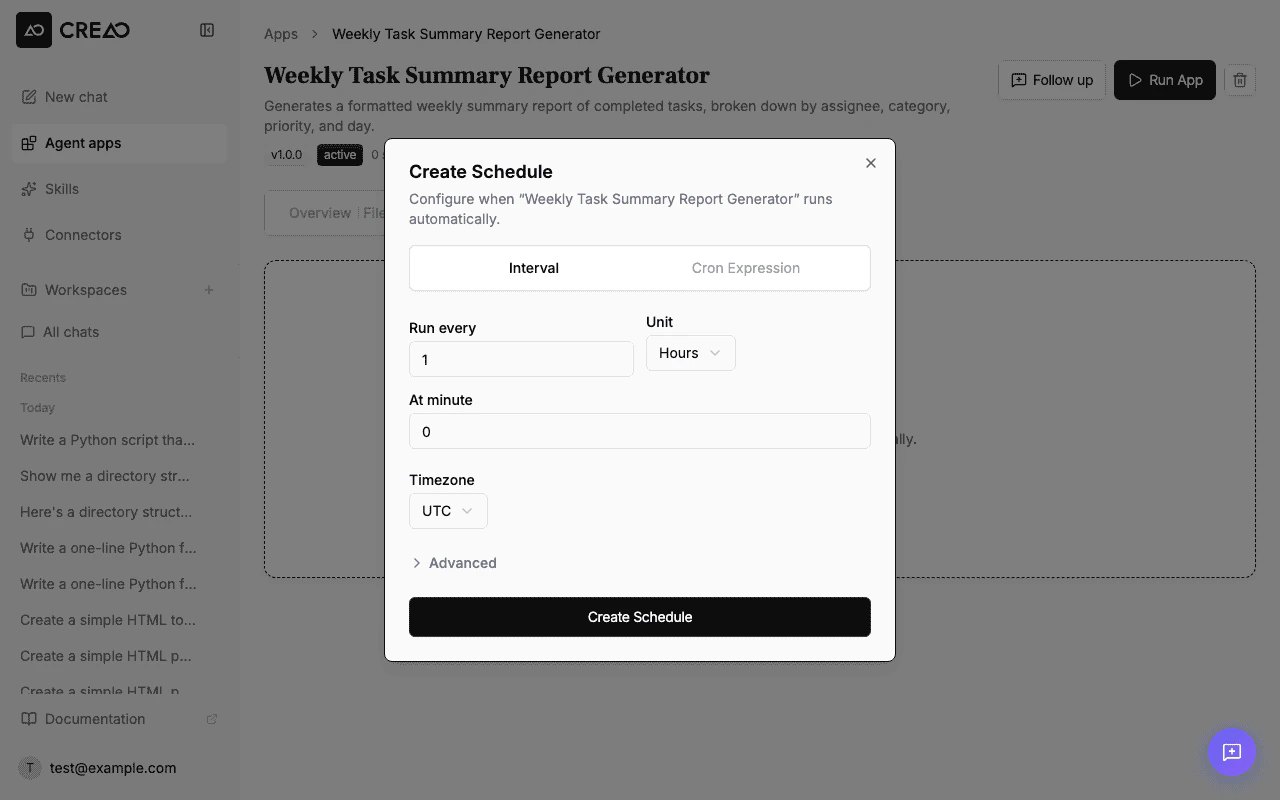 Click **Create Schedule** to activate. The next run time appears in the agent detail page.
## Schedule options
| Frequency | Description | Example |
| ----------- | ----------------------------------------- | ------------------------------------- |
| **Daily** | Runs once every day at the specified time | Daily standup summary at 9:00 AM |
| **Weekly** | Runs once per week on the specified day | Weekly analytics report every Monday |
| **Monthly** | Runs once per month on the specified date | Monthly invoice generation on the 1st |
| **Custom** | Cron expression for advanced scheduling | Every weekday at 6:00 PM |
## Email delivery
You can opt in to receive an email summary after each scheduled run. When email delivery is enabled, you get a formatted message with:
* **Run outcome** — whether the run succeeded, failed, or was skipped
* **Result summary** — a concise summary of what the agent produced
* **Session link** — a direct link to the full session for details
To enable it, set **Delivery** to **Email** when creating or editing a schedule. You can change the delivery setting at any time from the Schedule tab.
Email delivery is best-effort — if the summary email fails to send, the run itself is not affected.
## Run history
Each scheduled execution creates a session entry in the agent's **Sessions** tab. You can:
* **View output** — see what the agent produced for each run
* **Check status** — confirm the run completed successfully or see a **Skipped** badge if the run was skipped due to insufficient credits
* **Review timing** — see exactly when each run executed
* **Delivery status** — see whether the result email was sent successfully (when email delivery is enabled)
Click **Create Schedule** to activate. The next run time appears in the agent detail page.
## Schedule options
| Frequency | Description | Example |
| ----------- | ----------------------------------------- | ------------------------------------- |
| **Daily** | Runs once every day at the specified time | Daily standup summary at 9:00 AM |
| **Weekly** | Runs once per week on the specified day | Weekly analytics report every Monday |
| **Monthly** | Runs once per month on the specified date | Monthly invoice generation on the 1st |
| **Custom** | Cron expression for advanced scheduling | Every weekday at 6:00 PM |
## Email delivery
You can opt in to receive an email summary after each scheduled run. When email delivery is enabled, you get a formatted message with:
* **Run outcome** — whether the run succeeded, failed, or was skipped
* **Result summary** — a concise summary of what the agent produced
* **Session link** — a direct link to the full session for details
To enable it, set **Delivery** to **Email** when creating or editing a schedule. You can change the delivery setting at any time from the Schedule tab.
Email delivery is best-effort — if the summary email fails to send, the run itself is not affected.
## Run history
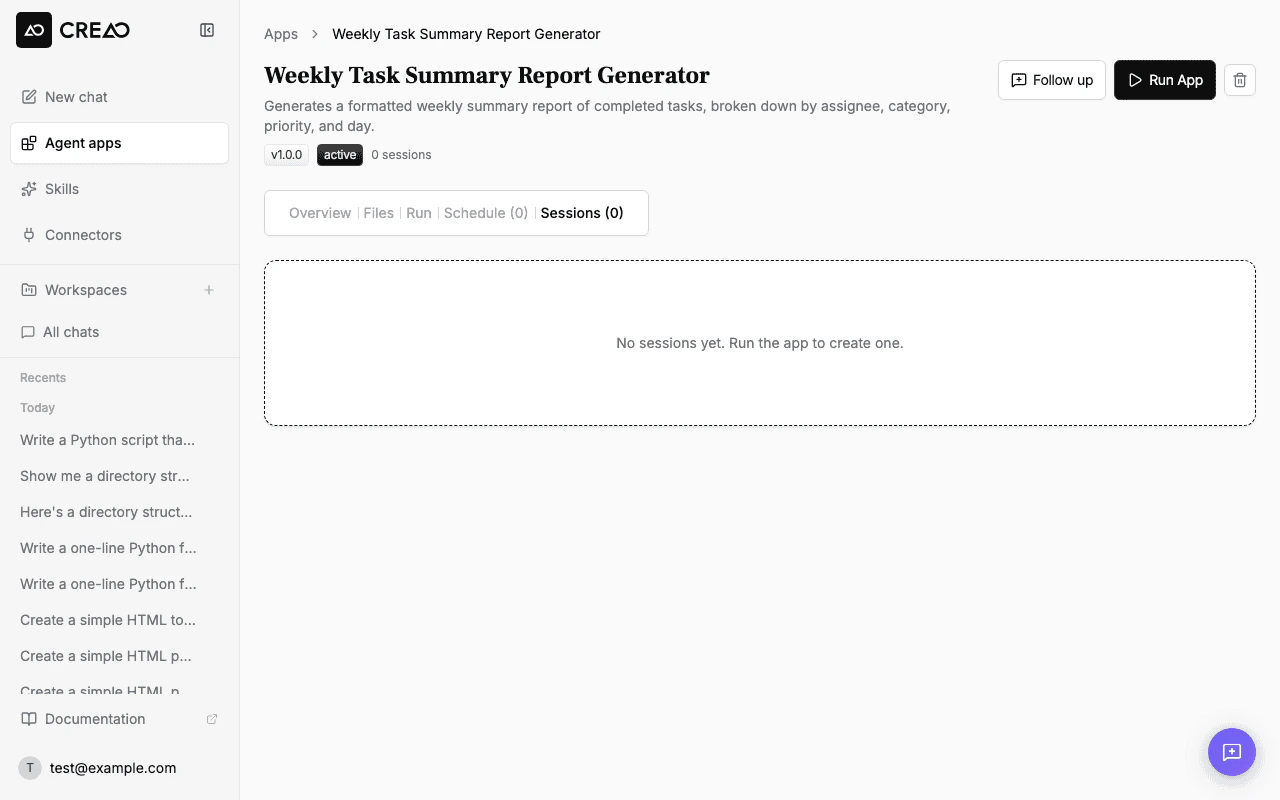
Each scheduled execution creates a session entry in the agent's **Sessions** tab. You can:
* **View output** — see what the agent produced for each run
* **Check status** — confirm the run completed successfully or see a **Skipped** badge if the run was skipped due to insufficient credits
* **Review timing** — see exactly when each run executed
* **Delivery status** — see whether the result email was sent successfully (when email delivery is enabled)
 ## Managing schedules
### Pausing a schedule
Toggle the schedule off to pause it. The configuration is preserved — toggle it back on to resume.
### Modifying inputs
Update the default inputs for scheduled runs at any time. Changes take effect on the next scheduled execution.
### Deleting a schedule
Remove the schedule entirely from the agent detail page. Past run history is preserved.
Scheduled runs consume credits just like manual runs. Monitor your usage on the billing page to avoid unexpected costs.
## Skipped runs and auto-pause
If your account runs out of credits, scheduled runs are **skipped** instead of failing. Skipped runs show a **Skipped** badge in the Sessions tab and count toward the auto-pause threshold.
When a schedule accumulates **2 consecutive skipped runs**, it is automatically paused and you receive an email explaining:
* Why the schedule was paused (insufficient credits)
* How to resume (add credits and re-enable the schedule)
You can re-enable a paused schedule at any time from the Schedule tab. The auto-pause counter resets when you manually re-enable.
Skipped runs auto-pause faster than other failures (2 consecutive skips vs 5 for general errors) to avoid silently burning through daily credit grants on schedules that cannot succeed.
## Use cases
Generate a morning briefing from your email, calendar, and project management tools.
Compile analytics data into a formatted report every Monday.
Check external data sources on a schedule and surface anomalies.
Produce recurring content like social media posts or newsletter drafts.
## Managing schedules
### Pausing a schedule
Toggle the schedule off to pause it. The configuration is preserved — toggle it back on to resume.
### Modifying inputs
Update the default inputs for scheduled runs at any time. Changes take effect on the next scheduled execution.
### Deleting a schedule
Remove the schedule entirely from the agent detail page. Past run history is preserved.
Scheduled runs consume credits just like manual runs. Monitor your usage on the billing page to avoid unexpected costs.
## Skipped runs and auto-pause
If your account runs out of credits, scheduled runs are **skipped** instead of failing. Skipped runs show a **Skipped** badge in the Sessions tab and count toward the auto-pause threshold.
When a schedule accumulates **2 consecutive skipped runs**, it is automatically paused and you receive an email explaining:
* Why the schedule was paused (insufficient credits)
* How to resume (add credits and re-enable the schedule)
You can re-enable a paused schedule at any time from the Schedule tab. The auto-pause counter resets when you manually re-enable.
Skipped runs auto-pause faster than other failures (2 consecutive skips vs 5 for general errors) to avoid silently burning through daily credit grants on schedules that cannot succeed.
## Use cases
Generate a morning briefing from your email, calendar, and project management tools.
Compile analytics data into a formatted report every Monday.
Check external data sources on a schedule and surface anomalies.
Produce recurring content like social media posts or newsletter drafts.