> ## Documentation Index
> Fetch the complete documentation index at: https://docs.creao.ai/llms.txt
> Use this file to discover all available pages before exploring further.
# Secret Key Management
> Securely store API keys, tokens, and credentials so the agent can use them in conversations without exposing sensitive values.
## Overview
Secrets let you store sensitive credentials — API keys, bearer tokens, database passwords — that the agent can access as environment variables during conversations. Values are encrypted at rest and never displayed in plain text after creation.
Secrets are scoped to your account. Each secret is available as `process.env.SECRET_NAME` inside the agent sandbox.
## The Secrets page
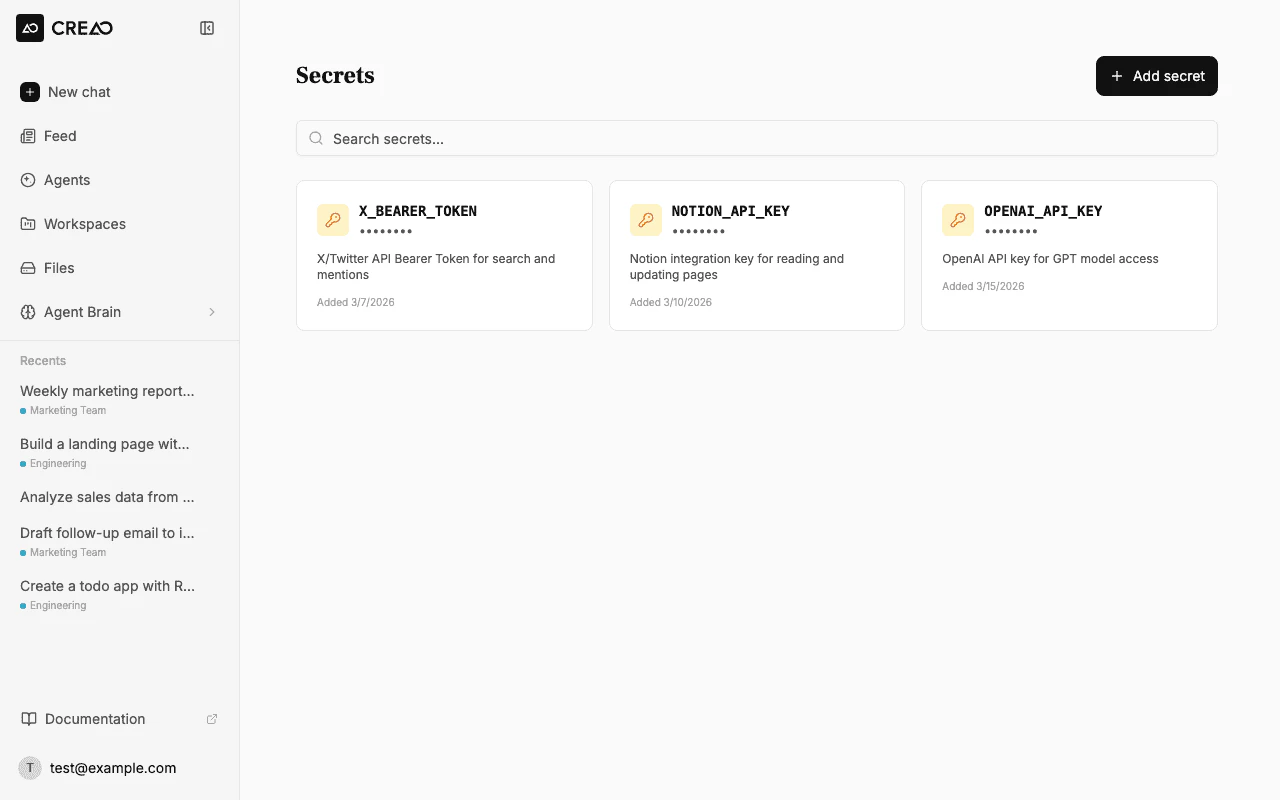
The Secrets page shows all your stored credentials as cards with masked values. Each card displays the secret name, description, and creation date.
 ## From chat
When the agent needs an API key for a service that is not connected as a [built-in integration](/integrations), it may ask you to save a credential with an **in-chat secure field**. Use that field instead of pasting the key in the main message box — the value is stored the same way as secrets you add on this page (encrypted, available as `process.env.YOUR_NAME` in the sandbox). You can still manage everything from **Secrets** in the sidebar or account settings.
## Adding a secret
Click **Secrets** in the sidebar navigation to open the secret management page.
Click the **Add secret** button in the top right corner.
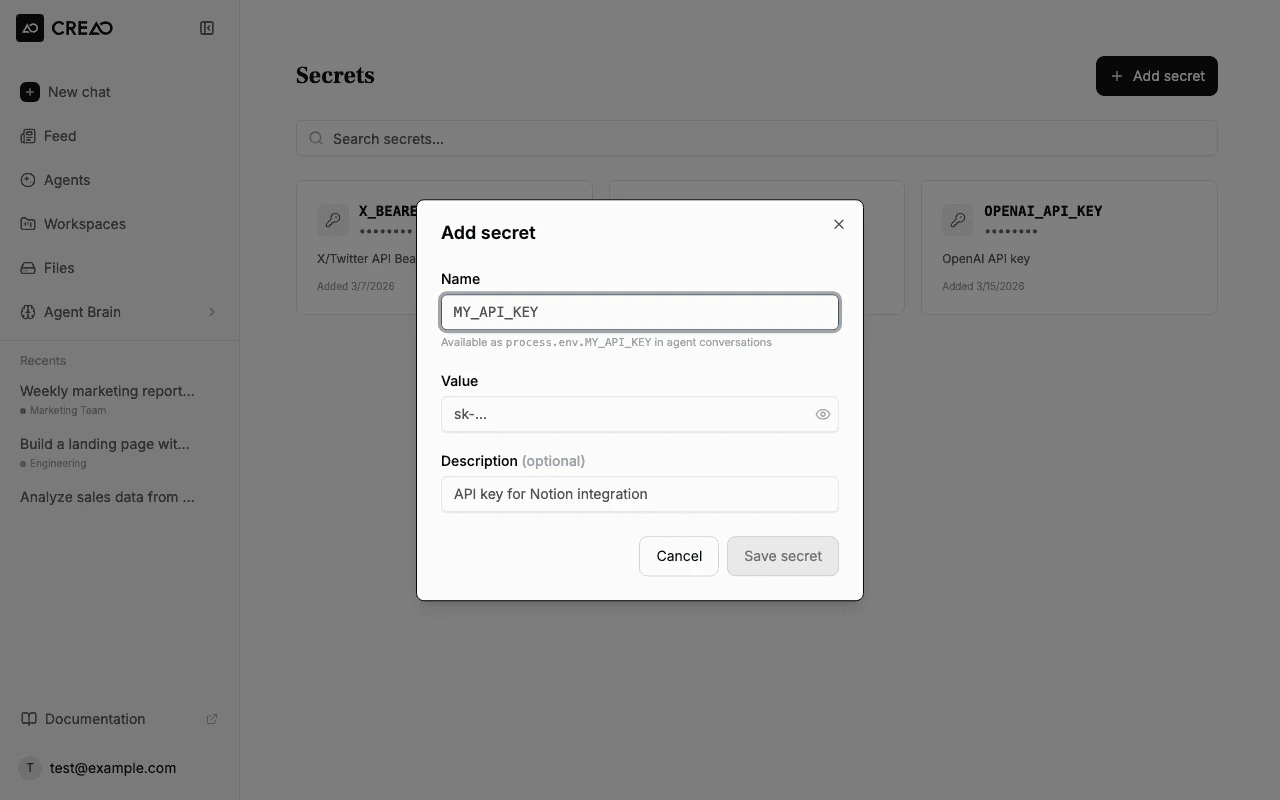
Enter the secret details:
* **Name** — an uppercase identifier like `X_BEARER_TOKEN` or `NOTION_API_KEY`. This becomes the environment variable name (`process.env.X_BEARER_TOKEN`). Only uppercase letters, digits, and underscores are allowed.
* **Value** — the actual secret value (API key, token, password). Hidden by default — click the eye icon to reveal it while typing.
* **Description** (optional) — a note to help you remember what this secret is for.
Click **Save secret**. The secret is encrypted and stored securely.
## Example: Adding an X (Twitter) Bearer Token
Let's walk through a real example — adding an X API bearer token so the agent can search tweets and find mentions.
Go to the [X Developer Portal](https://developer.x.com) and copy your app's Bearer Token from the **Keys and tokens** section.
Open **Secrets** → **Add secret** and fill in:
* **Name**: `X_BEARER_TOKEN`
* **Value**: paste your bearer token (e.g., `AAAAAAAAAAAAAAAAAAAAXXXXXXXXXXXXXXXXXXXXXXXXXXXXXXXX`)
* **Description**: `X/Twitter API Bearer Token for search and mentions`
## From chat
When the agent needs an API key for a service that is not connected as a [built-in integration](/integrations), it may ask you to save a credential with an **in-chat secure field**. Use that field instead of pasting the key in the main message box — the value is stored the same way as secrets you add on this page (encrypted, available as `process.env.YOUR_NAME` in the sandbox). You can still manage everything from **Secrets** in the sidebar or account settings.
## Adding a secret
Click **Secrets** in the sidebar navigation to open the secret management page.
Click the **Add secret** button in the top right corner.
Enter the secret details:
* **Name** — an uppercase identifier like `X_BEARER_TOKEN` or `NOTION_API_KEY`. This becomes the environment variable name (`process.env.X_BEARER_TOKEN`). Only uppercase letters, digits, and underscores are allowed.
* **Value** — the actual secret value (API key, token, password). Hidden by default — click the eye icon to reveal it while typing.
* **Description** (optional) — a note to help you remember what this secret is for.
Click **Save secret**. The secret is encrypted and stored securely.
## Example: Adding an X (Twitter) Bearer Token
Let's walk through a real example — adding an X API bearer token so the agent can search tweets and find mentions.
Go to the [X Developer Portal](https://developer.x.com) and copy your app's Bearer Token from the **Keys and tokens** section.
Open **Secrets** → **Add secret** and fill in:
* **Name**: `X_BEARER_TOKEN`
* **Value**: paste your bearer token (e.g., `AAAAAAAAAAAAAAAAAAAAXXXXXXXXXXXXXXXXXXXXXXXXXXXXXXXX`)
* **Description**: `X/Twitter API Bearer Token for search and mentions`
 After saving, the secret appears as a card on the Secrets page. The value is masked for security.
Now ask the agent to use the token. For example:
```
Search X for recent mentions of @CreaoAI using my X_BEARER_TOKEN secret
```
After saving, the secret appears as a card on the Secrets page. The value is masked for security.
Now ask the agent to use the token. For example:
```
Search X for recent mentions of @CreaoAI using my X_BEARER_TOKEN secret
```
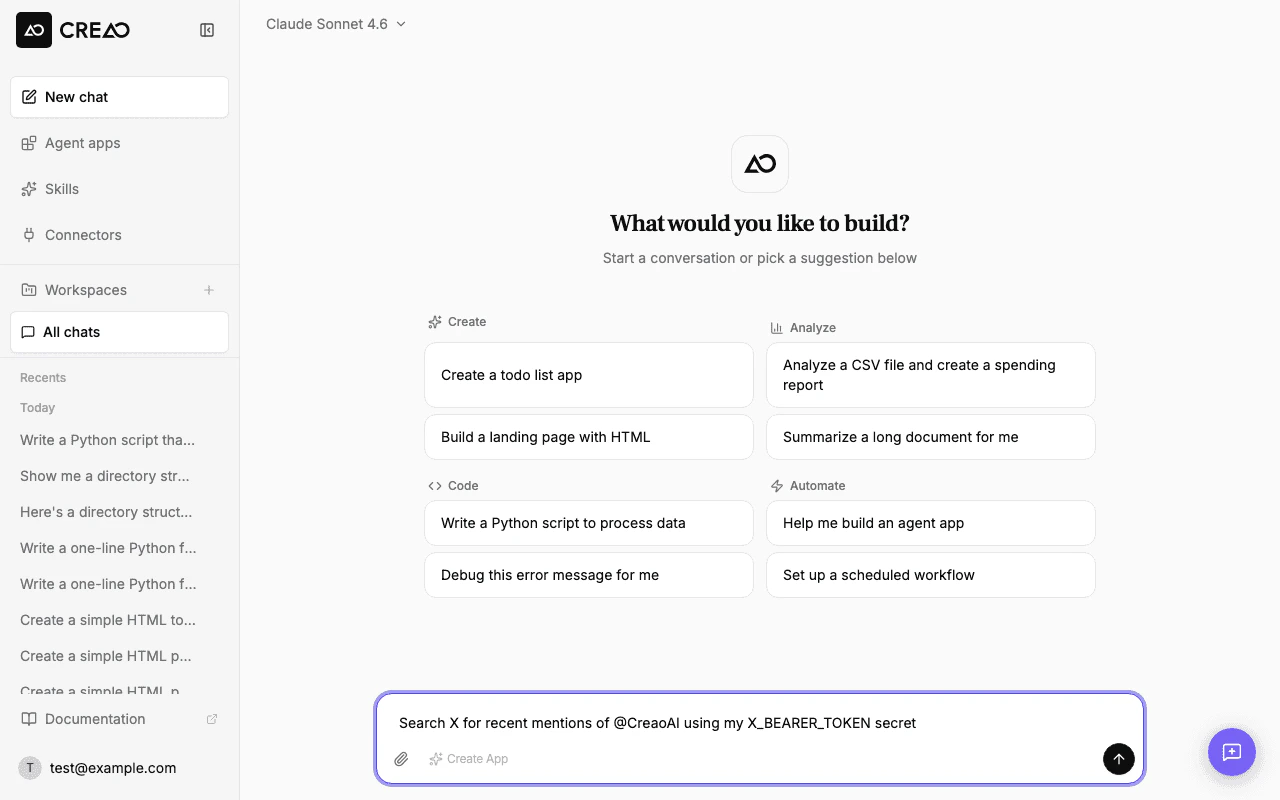 The agent will access `process.env.X_BEARER_TOKEN` in the sandbox and use the X API to fetch results.
## How secrets work in the agent sandbox
When the agent runs code in its sandbox environment, all your secrets are injected as environment variables:
```python theme={null}
import os
# Access your secret in Python
bearer_token = os.environ["X_BEARER_TOKEN"]
# Use it in an API call
import requests
headers = {"Authorization": f"Bearer {bearer_token}"}
response = requests.get(
"https://api.x.com/2/tweets/search/recent",
params={"query": "@CreaoAI"},
headers=headers,
)
```
```javascript theme={null}
// Access your secret in Node.js
const bearerToken = process.env.X_BEARER_TOKEN;
// Use it in an API call
const response = await fetch(
"https://api.x.com/2/tweets/search/recent?query=@CreaoAI",
{ headers: { Authorization: `Bearer ${bearerToken}` } }
);
```
Secrets are injected into every agent sandbox session. Only store credentials you are comfortable the agent having access to.
## Managing secrets
### Editing a secret
Click the pencil icon on any secret card to update its value or description. You can change the value without re-entering the current one — leave the value field blank to keep the existing value.
### Deleting a secret
Click the trash icon on the secret card and confirm the deletion. Any agent conversations that reference the deleted secret will no longer have access to it.
### Naming conventions
| Pattern | Example | Use for |
| ---------------------- | ------------------- | --------------------------------- |
| `SERVICE_API_KEY` | `OPENAI_API_KEY` | API keys for third-party services |
| `SERVICE_BEARER_TOKEN` | `X_BEARER_TOKEN` | OAuth bearer tokens |
| `SERVICE_SECRET` | `STRIPE_SECRET` | General secrets and passwords |
| `DB_PASSWORD` | `POSTGRES_PASSWORD` | Database credentials |
Use descriptive names that make it clear which service the secret belongs to. The agent can see the environment variable names and will choose the right one based on context.
## Security
* **Encrypted at rest** — secret values are encrypted before being stored in the database
* **Never displayed** — after creation, the full value is never shown in the UI (displayed as `••••••••`)
* **Sandbox isolation** — secrets are only accessible inside the ephemeral agent sandbox, not in the browser
* **Per-user scope** — your secrets are only available to your agent sessions, not shared across accounts
The agent will access `process.env.X_BEARER_TOKEN` in the sandbox and use the X API to fetch results.
## How secrets work in the agent sandbox
When the agent runs code in its sandbox environment, all your secrets are injected as environment variables:
```python theme={null}
import os
# Access your secret in Python
bearer_token = os.environ["X_BEARER_TOKEN"]
# Use it in an API call
import requests
headers = {"Authorization": f"Bearer {bearer_token}"}
response = requests.get(
"https://api.x.com/2/tweets/search/recent",
params={"query": "@CreaoAI"},
headers=headers,
)
```
```javascript theme={null}
// Access your secret in Node.js
const bearerToken = process.env.X_BEARER_TOKEN;
// Use it in an API call
const response = await fetch(
"https://api.x.com/2/tweets/search/recent?query=@CreaoAI",
{ headers: { Authorization: `Bearer ${bearerToken}` } }
);
```
Secrets are injected into every agent sandbox session. Only store credentials you are comfortable the agent having access to.
## Managing secrets
### Editing a secret
Click the pencil icon on any secret card to update its value or description. You can change the value without re-entering the current one — leave the value field blank to keep the existing value.
### Deleting a secret
Click the trash icon on the secret card and confirm the deletion. Any agent conversations that reference the deleted secret will no longer have access to it.
### Naming conventions
| Pattern | Example | Use for |
| ---------------------- | ------------------- | --------------------------------- |
| `SERVICE_API_KEY` | `OPENAI_API_KEY` | API keys for third-party services |
| `SERVICE_BEARER_TOKEN` | `X_BEARER_TOKEN` | OAuth bearer tokens |
| `SERVICE_SECRET` | `STRIPE_SECRET` | General secrets and passwords |
| `DB_PASSWORD` | `POSTGRES_PASSWORD` | Database credentials |
Use descriptive names that make it clear which service the secret belongs to. The agent can see the environment variable names and will choose the right one based on context.
## Security
* **Encrypted at rest** — secret values are encrypted before being stored in the database
* **Never displayed** — after creation, the full value is never shown in the UI (displayed as `••••••••`)
* **Sandbox isolation** — secrets are only accessible inside the ephemeral agent sandbox, not in the browser
* **Per-user scope** — your secrets are only available to your agent sessions, not shared across accounts