> ## Documentation Index
> Fetch the complete documentation index at: https://docs.creao.ai/llms.txt
> Use this file to discover all available pages before exploring further.
# Skills and Connectors
> Built-in capabilities and external integrations that power what the agent can do — from web search to Gmail to custom workflows.
## Overview
Every agent session is powered by **capabilities** — the things the agent can actually do. There are two types:
* **Skills** — modular instruction packages that teach the agent how to perform specific tasks
* **Connectors** — MCP integrations that give the agent access to external services
Together, they form the execution layer behind every chat session and agent.
Reusable instruction sets that define how the agent approaches a task — from image generation to PDF creation to data analysis.
MCP servers and APIs that connect the agent to external services like Gmail, Google Sheets, Slack, and more.
## Skills management
Open the **Skills** page from the sidebar to browse, enable, and inspect skills. The panel has two sections:
* **Sidebar** — lists your custom skills and all built-in skills with a search bar and GitHub install input
* **Detail panel** — shows the selected skill's description, rendered `SKILL.md` content, and supporting files with syntax highlighting
Toggle any skill on or off from the detail panel header. Changes take effect immediately for new chat sessions.
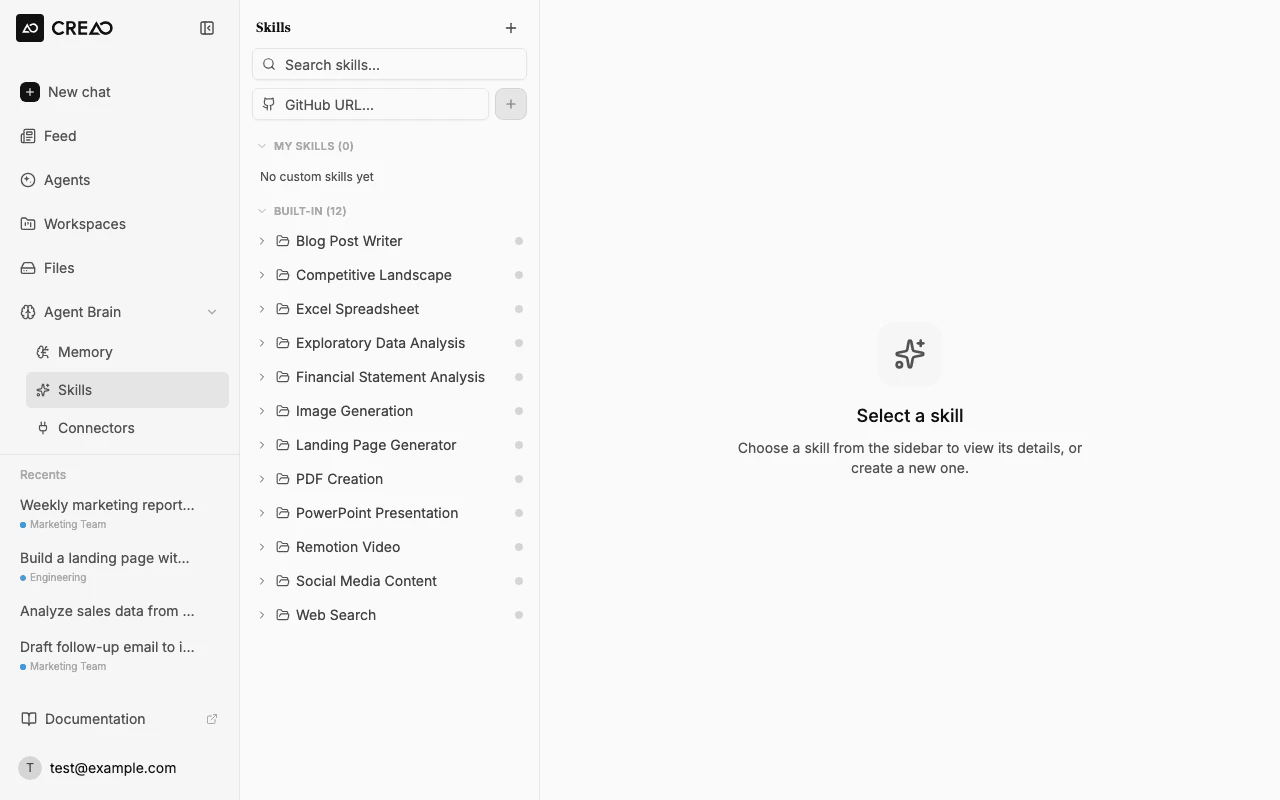 Select a file in the sidebar tree to view its contents with full syntax highlighting — Python, JavaScript, YAML, and other languages are all supported. Markdown files render as a formatted preview with a toggle to view raw source.
Click **Try in chat** from the skill's menu to jump straight into a new conversation with that skill enabled and a starter prompt pre-filled.
Disabling a skill means the agent will not use it even if your prompt would normally trigger it. This is useful for controlling costs or restricting the agent's capabilities.
## Connectors
Connectors link the agent to external services via MCP (Model Context Protocol). Once connected, the agent can read and write data in those services as part of its response.
### Available connectors
Select a file in the sidebar tree to view its contents with full syntax highlighting — Python, JavaScript, YAML, and other languages are all supported. Markdown files render as a formatted preview with a toggle to view raw source.
Click **Try in chat** from the skill's menu to jump straight into a new conversation with that skill enabled and a starter prompt pre-filled.
Disabling a skill means the agent will not use it even if your prompt would normally trigger it. This is useful for controlling costs or restricting the agent's capabilities.
## Connectors
Connectors link the agent to external services via MCP (Model Context Protocol). Once connected, the agent can read and write data in those services as part of its response.
### Available connectors
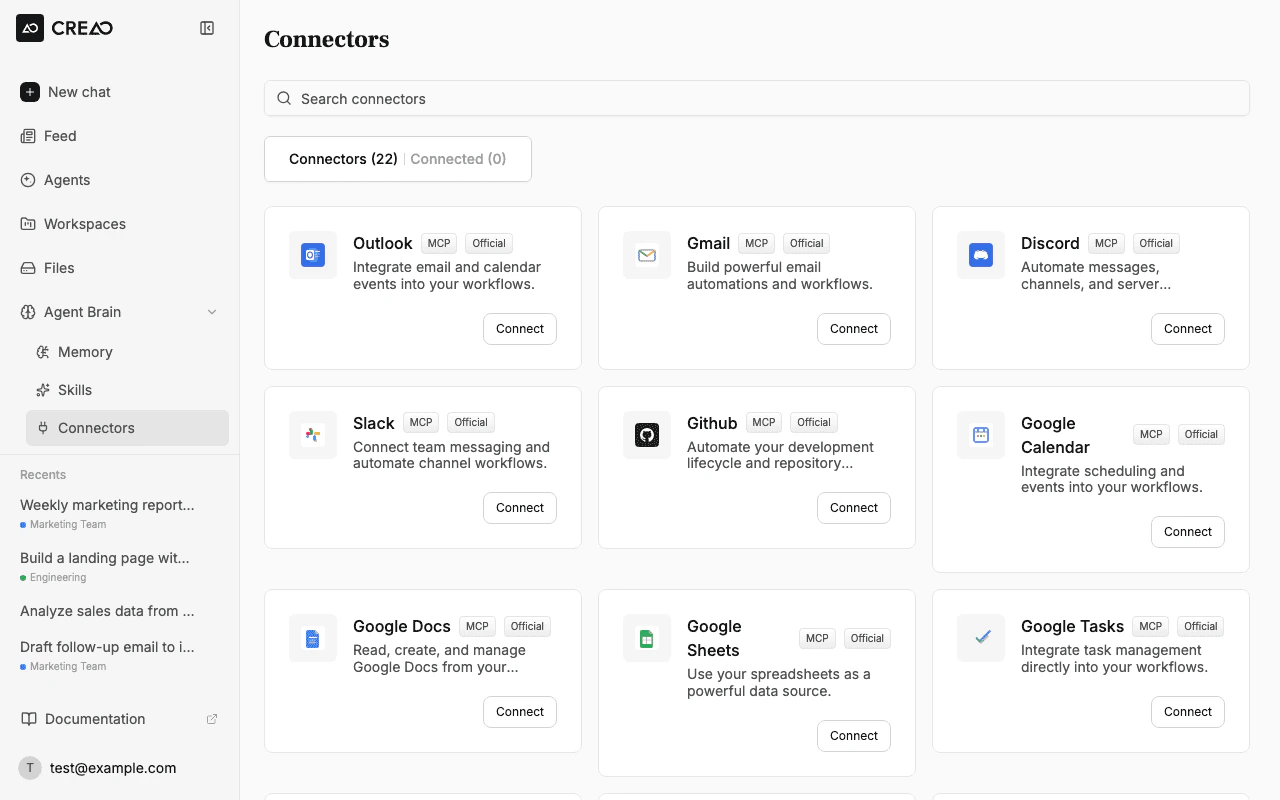 | Category | Connector | What it does |
| ---------------------- | --------------------- | -------------------------------------------------------------- |
| **Google Workspace** | Gmail | Read, search, and send emails |
| | Google Calendar | View and create calendar events |
| | Google Sheets | Read, update, and create spreadsheets |
| | Google Docs | Read and create documents |
| | Google Drive | Browse, upload, and manage files |
| | Google Tasks | Create and manage task lists |
| **Google Marketing** | Google Ads | Manage campaigns and view performance |
| | Google Analytics | Access website traffic and engagement data |
| | Google Search Console | Monitor search performance and indexing |
| **Microsoft** | Outlook | Read, search, and send emails |
| | Microsoft Teams | Send messages and interact with channels |
| **Project Management** | Asana | Manage tasks, projects, and workflows |
| | Linear | Track issues and project progress |
| | Notion | Read and update pages, databases, and wikis |
| **Communication** | Slack | Send messages and read channels |
| | Discord | Send messages and interact with servers |
| | Telegram | Send and receive messages |
| **Social & Ads** | X (Twitter) | Post tweets, reply, retweet, and read timelines |
| | Reddit | Browse and interact with subreddits |
| | YouTube | Search videos and access channel data |
| **E-commerce** | Shopify | Read products, orders, and store data |
| | eBay | Create listings, manage offers, and run campaigns |
| **Developer** | GitHub | Browse repos, read files, create issues, and upload code files |
| | Webflow | Manage CMS collections, content items, sites, and publishing |
| **SEO & Research** | Semrush | Access SEO data, keywords, and site audits |
| | Perplexity | AI-powered research and web search |
| **Automation** | Pipedream | Build and trigger automated workflows |
| **Web Scraping** | Firecrawl | Scrape and parse web pages |
New connectors are added regularly. If you need an integration that isn't listed, let us know in the `#feature-requests` channel on Discord.
### Connecting a service
Navigate to the **Skills** page and switch to the **Connectors** tab.
Find the service you want and click **Connect**. You'll be redirected to the service's OAuth flow.
Grant CREAO access to the requested permissions. You'll be redirected back to the workspace.
The connector is now available in your chat sessions. The agent will automatically use it when your request involves that service.
### Using connectors in chat
Once connected, just describe what you need in natural language. The agent figures out which connector to use:
```
Summarize my unread emails from today and create a Google Sheet with the key action items
```
You can also explicitly reference a connector with `@`:
```
@gmail Find all emails from the marketing team this week
```
## Built-in skills
The super agent comes with 30+ built-in skills covering a wide range of tasks. These are available out of the box — just describe what you need and the super agent will use the right skill automatically.
| Category | Skills |
| ----------------------- | ------------------------------------------------------------------------------------------------------------------------ |
| **Document generation** | PDF creation and manipulation, Word documents (DOCX), Excel spreadsheets (XLSX), PowerPoint presentations (PPTX) |
| **Content & writing** | Blog Post Writer, Content Creator, Social Media Content, Content Research Writer, Scientific Writing |
| **Data & analysis** | Exploratory Data Analysis, Data Storytelling, Financial Statement Analysis, Financial Modeling, SQL Optimization |
| **Research & strategy** | Competitive Landscape, Market Sizing Analysis, Product Requirements, Product Strategist, Startup Metrics Framework |
| **Design & web** | Landing Page Generator, Brand Guidelines, KPI Dashboard Design, Scientific Schematics |
| **Automation & dev** | Changelog Automation, Remotion Video generation |
| **Specialized** | Treatment Plans, Data Privacy Compliance, Domain Name Brainstormer, Meeting Insights Analyzer, Competitive Ads Extractor |
You can browse and toggle skills from the **Skills** page. Disable skills you don't need to keep the super agent focused on the capabilities most relevant to your work.
## Custom skills
Custom skills let you teach the agent domain-specific workflows that aren't covered by the built-in skill library. A custom skill is a `SKILL.md` file with YAML frontmatter that tells the agent what to do and when.
There are three ways to add custom skills:
### Install from GitHub
Paste any public GitHub repository URL that contains a `SKILL.md` into the GitHub URL input in the sidebar and click **Install**. The platform fetches the repository, validates the skill, and registers it automatically.
You can link to a repository root or a specific subdirectory:
```
https://github.com/org/my-skill
https://github.com/org/skills-collection/tree/main/skills/data-cleaner
```
Skills installed from GitHub show their source URL and have a **Refresh from source** option in the detail panel menu to pull the latest version.
### Upload a ZIP file
Drag and drop a `.zip` file onto the sidebar, or click the **+** button to upload manually. The ZIP must contain a `SKILL.md` with `name` and `description` in the YAML frontmatter:
```yaml theme={null}
---
name: expense-normalizer
description: Normalizes expense reports by standardizing categories, dates, and currencies.
---
# Expense Normalizer
## When to use this skill
Use when the user uploads an expense report or asks to clean up financial data.
## Procedure
1. Read the uploaded file
2. Standardize date formats to YYYY-MM-DD
3. Map categories to the company's chart of accounts
4. Convert all currencies to USD
5. Output a clean CSV
```
You can also include a `scripts/` folder with helper scripts the agent can execute.
### Create a skill from chat
Ask the agent to create a skill directly in the chat window. Describe what you want the skill to do, and the agent will scaffold a `SKILL.md` and register it for you:
```
Create a custom skill called "meeting-summarizer" that takes meeting notes
and produces a structured summary with action items, decisions, and follow-ups
```
You can also paste a GitHub URL in chat and ask the agent to install it:
```
Install this skill: https://github.com/org/my-skill
```
The skill appears in the sidebar under **My Skills** immediately after installation.
### Custom skill format
Every custom skill needs a `SKILL.md` file with YAML frontmatter:
| Field | Required | Description |
| ------------- | -------- | -------------------------------------------------------------- |
| `name` | Yes | Lowercase letters, numbers, and hyphens (e.g. `data-cleaner`) |
| `description` | Yes | One sentence explaining what the skill does and when to use it |
The markdown body contains the instructions the agent follows. Structure it with clear sections: when to use the skill, step-by-step procedure, and expected output.
Keep the `description` specific and include trigger words. The agent uses it to decide when to read the full skill instructions.
## @ Mentions
Type `@` in the chat input to see a list of all enabled skills and connected services. Select one to explicitly direct the agent to use that capability.
| Category | Connector | What it does |
| ---------------------- | --------------------- | -------------------------------------------------------------- |
| **Google Workspace** | Gmail | Read, search, and send emails |
| | Google Calendar | View and create calendar events |
| | Google Sheets | Read, update, and create spreadsheets |
| | Google Docs | Read and create documents |
| | Google Drive | Browse, upload, and manage files |
| | Google Tasks | Create and manage task lists |
| **Google Marketing** | Google Ads | Manage campaigns and view performance |
| | Google Analytics | Access website traffic and engagement data |
| | Google Search Console | Monitor search performance and indexing |
| **Microsoft** | Outlook | Read, search, and send emails |
| | Microsoft Teams | Send messages and interact with channels |
| **Project Management** | Asana | Manage tasks, projects, and workflows |
| | Linear | Track issues and project progress |
| | Notion | Read and update pages, databases, and wikis |
| **Communication** | Slack | Send messages and read channels |
| | Discord | Send messages and interact with servers |
| | Telegram | Send and receive messages |
| **Social & Ads** | X (Twitter) | Post tweets, reply, retweet, and read timelines |
| | Reddit | Browse and interact with subreddits |
| | YouTube | Search videos and access channel data |
| **E-commerce** | Shopify | Read products, orders, and store data |
| | eBay | Create listings, manage offers, and run campaigns |
| **Developer** | GitHub | Browse repos, read files, create issues, and upload code files |
| | Webflow | Manage CMS collections, content items, sites, and publishing |
| **SEO & Research** | Semrush | Access SEO data, keywords, and site audits |
| | Perplexity | AI-powered research and web search |
| **Automation** | Pipedream | Build and trigger automated workflows |
| **Web Scraping** | Firecrawl | Scrape and parse web pages |
New connectors are added regularly. If you need an integration that isn't listed, let us know in the `#feature-requests` channel on Discord.
### Connecting a service
Navigate to the **Skills** page and switch to the **Connectors** tab.
Find the service you want and click **Connect**. You'll be redirected to the service's OAuth flow.
Grant CREAO access to the requested permissions. You'll be redirected back to the workspace.
The connector is now available in your chat sessions. The agent will automatically use it when your request involves that service.
### Using connectors in chat
Once connected, just describe what you need in natural language. The agent figures out which connector to use:
```
Summarize my unread emails from today and create a Google Sheet with the key action items
```
You can also explicitly reference a connector with `@`:
```
@gmail Find all emails from the marketing team this week
```
## Built-in skills
The super agent comes with 30+ built-in skills covering a wide range of tasks. These are available out of the box — just describe what you need and the super agent will use the right skill automatically.
| Category | Skills |
| ----------------------- | ------------------------------------------------------------------------------------------------------------------------ |
| **Document generation** | PDF creation and manipulation, Word documents (DOCX), Excel spreadsheets (XLSX), PowerPoint presentations (PPTX) |
| **Content & writing** | Blog Post Writer, Content Creator, Social Media Content, Content Research Writer, Scientific Writing |
| **Data & analysis** | Exploratory Data Analysis, Data Storytelling, Financial Statement Analysis, Financial Modeling, SQL Optimization |
| **Research & strategy** | Competitive Landscape, Market Sizing Analysis, Product Requirements, Product Strategist, Startup Metrics Framework |
| **Design & web** | Landing Page Generator, Brand Guidelines, KPI Dashboard Design, Scientific Schematics |
| **Automation & dev** | Changelog Automation, Remotion Video generation |
| **Specialized** | Treatment Plans, Data Privacy Compliance, Domain Name Brainstormer, Meeting Insights Analyzer, Competitive Ads Extractor |
You can browse and toggle skills from the **Skills** page. Disable skills you don't need to keep the super agent focused on the capabilities most relevant to your work.
## Custom skills
Custom skills let you teach the agent domain-specific workflows that aren't covered by the built-in skill library. A custom skill is a `SKILL.md` file with YAML frontmatter that tells the agent what to do and when.
There are three ways to add custom skills:
### Install from GitHub
Paste any public GitHub repository URL that contains a `SKILL.md` into the GitHub URL input in the sidebar and click **Install**. The platform fetches the repository, validates the skill, and registers it automatically.
You can link to a repository root or a specific subdirectory:
```
https://github.com/org/my-skill
https://github.com/org/skills-collection/tree/main/skills/data-cleaner
```
Skills installed from GitHub show their source URL and have a **Refresh from source** option in the detail panel menu to pull the latest version.
### Upload a ZIP file
Drag and drop a `.zip` file onto the sidebar, or click the **+** button to upload manually. The ZIP must contain a `SKILL.md` with `name` and `description` in the YAML frontmatter:
```yaml theme={null}
---
name: expense-normalizer
description: Normalizes expense reports by standardizing categories, dates, and currencies.
---
# Expense Normalizer
## When to use this skill
Use when the user uploads an expense report or asks to clean up financial data.
## Procedure
1. Read the uploaded file
2. Standardize date formats to YYYY-MM-DD
3. Map categories to the company's chart of accounts
4. Convert all currencies to USD
5. Output a clean CSV
```
You can also include a `scripts/` folder with helper scripts the agent can execute.
### Create a skill from chat
Ask the agent to create a skill directly in the chat window. Describe what you want the skill to do, and the agent will scaffold a `SKILL.md` and register it for you:
```
Create a custom skill called "meeting-summarizer" that takes meeting notes
and produces a structured summary with action items, decisions, and follow-ups
```
You can also paste a GitHub URL in chat and ask the agent to install it:
```
Install this skill: https://github.com/org/my-skill
```
The skill appears in the sidebar under **My Skills** immediately after installation.
### Custom skill format
Every custom skill needs a `SKILL.md` file with YAML frontmatter:
| Field | Required | Description |
| ------------- | -------- | -------------------------------------------------------------- |
| `name` | Yes | Lowercase letters, numbers, and hyphens (e.g. `data-cleaner`) |
| `description` | Yes | One sentence explaining what the skill does and when to use it |
The markdown body contains the instructions the agent follows. Structure it with clear sections: when to use the skill, step-by-step procedure, and expected output.
Keep the `description` specific and include trigger words. The agent uses it to decide when to read the full skill instructions.
## @ Mentions
Type `@` in the chat input to see a list of all enabled skills and connected services. Select one to explicitly direct the agent to use that capability.
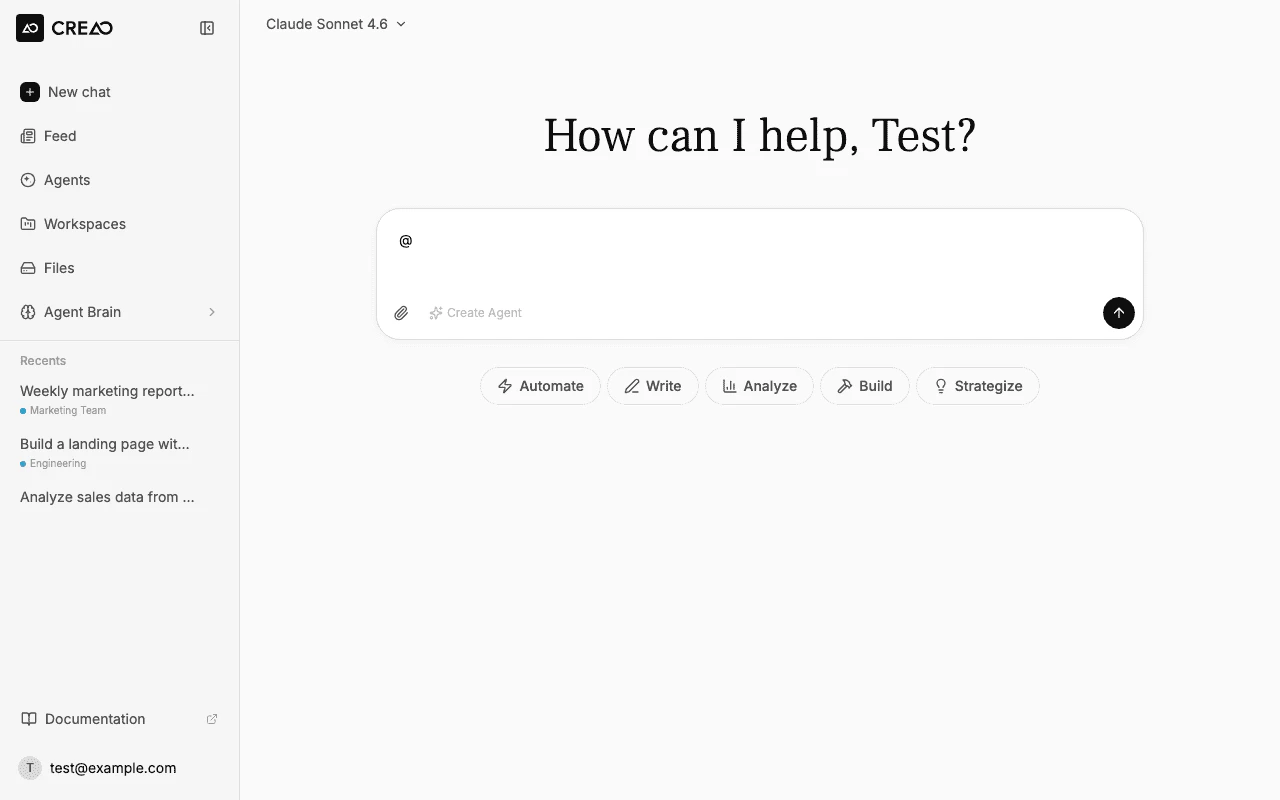 This is useful when:
* You want to ensure a specific tool is used
* Your request could match multiple skills
* You want to reference a connector by name
## Trust and safety
For privacy, permissions, and data-handling guidance specific to connectors and official built-in skills:
* [Connector Data Access](/trust-and-safety/privacy#connector-data-access) — data categories, subprocessor relay model
* [Skill Data Handling](/trust-and-safety/privacy#skill-data-handling) — what data skills operate on
* [Connector Security](/trust-and-safety/security#connector-security) — auth model, security controls
* [Skill Security](/trust-and-safety/security#skill-security) — safety boundaries, sensitive-domain guidance
This is useful when:
* You want to ensure a specific tool is used
* Your request could match multiple skills
* You want to reference a connector by name
## Trust and safety
For privacy, permissions, and data-handling guidance specific to connectors and official built-in skills:
* [Connector Data Access](/trust-and-safety/privacy#connector-data-access) — data categories, subprocessor relay model
* [Skill Data Handling](/trust-and-safety/privacy#skill-data-handling) — what data skills operate on
* [Connector Security](/trust-and-safety/security#connector-security) — auth model, security controls
* [Skill Security](/trust-and-safety/security#skill-security) — safety boundaries, sensitive-domain guidance