> ## Documentation Index
> Fetch the complete documentation index at: https://docs.creao.ai/llms.txt
> Use this file to discover all available pages before exploring further.
# Dynamic Workflows
> Break a big request into a multi-step plan the super agent runs for you — proposed as a visual graph, approved in one click, and executed with live progress.
## Overview
A dynamic workflow turns a single complex request into a structured, multi-step plan that the super agent runs end-to-end. Instead of working through a large task in one long back-and-forth, you describe the goal, the super agent proposes a set of connected tasks shown as a visual graph, and — once you approve — each step runs in turn with live progress, summaries, and results.
Workflows are ideal when a request naturally breaks into parts: comparing several options, researching multiple sources in parallel, or producing a deliverable that depends on earlier steps.
Describe a goal and run the workflow directly — then, once it works the way you want, [save it as an agent](#save-a-workflow-as-an-agent) to re-run it with different inputs or put it on a [schedule](/features/scheduled-runs).
## Starting a workflow
Type the `/workflow` command in the chat input, followed by your goal:
```
/workflow compare Notion, Asana, and Linear for a small engineering team
```
A few variations are available:
| Command | What it does |
| ---------------------- | ----------------------------------------------------------------- |
| `/workflow ` | Describe a goal; the super agent proposes a workflow for approval |
| `/workflow run ` | Same as above — `run` is optional |
| `/wf ` | Short alias for `/workflow` |
| `/workflow` | With no goal, the super agent helps you shape one |
### Referencing skills with `@`
While describing your goal, type `@` to reference a specific skill or connected service inline. The super agent factors those capabilities into the plan it proposes:
```
/workflow run research @web-search the top 5 competitors and draft a summary
```
The `@` menu lists your enabled skills and connected services so you can pick the exact capability you want a step to use.
## Approving the plan
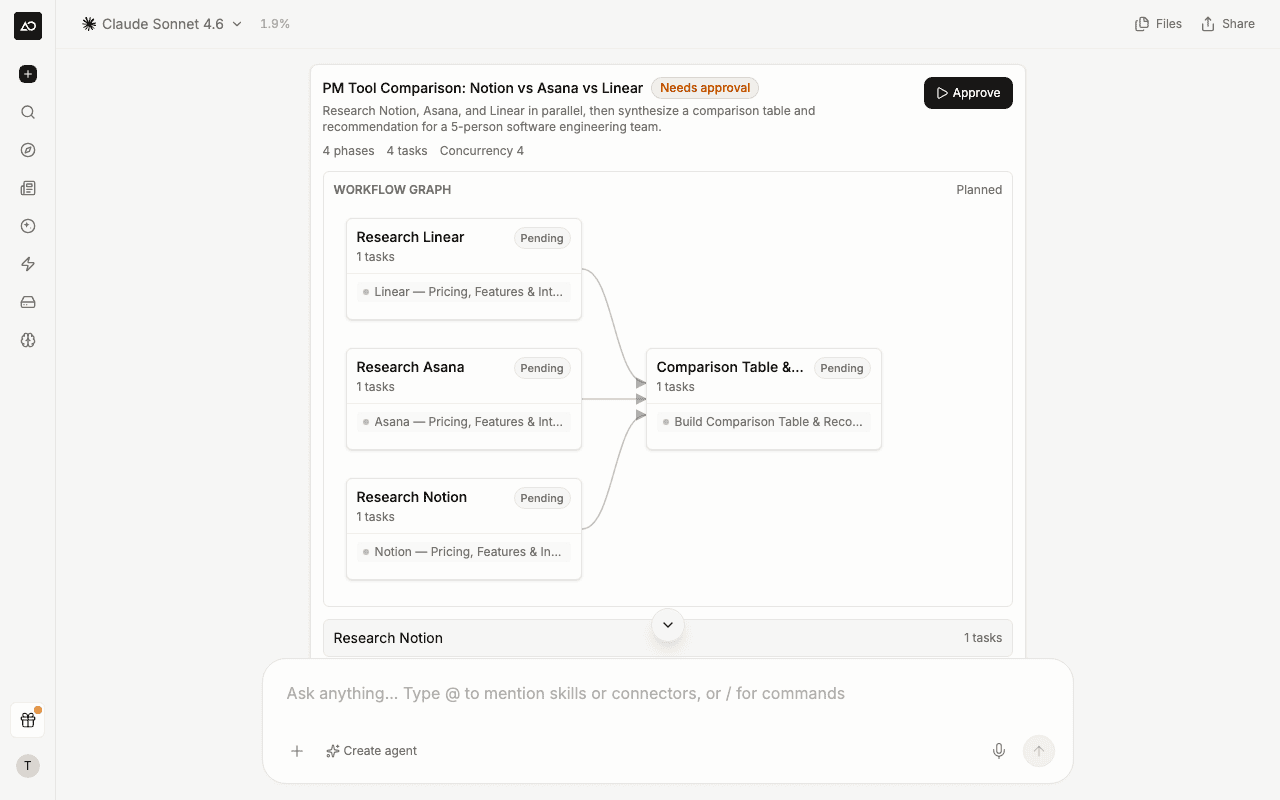
Before anything runs, the super agent proposes the workflow as a structured block in the chat — not just text. The proposal shows:
* A **name and description** for the workflow
* The **phases and tasks** it will run, with how many run at once
* A **visual graph** connecting the phases, so you can see how steps depend on one another
* A **Needs approval** badge while it waits for you
Expand **Show details** to review each phase and its tasks. When the plan looks right, click **Approve** to start it.
 Send a `/workflow` command with what you want to accomplish.
The super agent responds with a workflow proposal — a visual graph of connected tasks plus an expandable breakdown of each phase.
Click **Approve**. The plan is locked in and execution begins immediately, with progress appearing in the same thread.
Approval is required — a workflow never runs until you click **Approve**. If a proposal isn't what you wanted, just describe the change or send a new request instead of approving.
## Watching it run
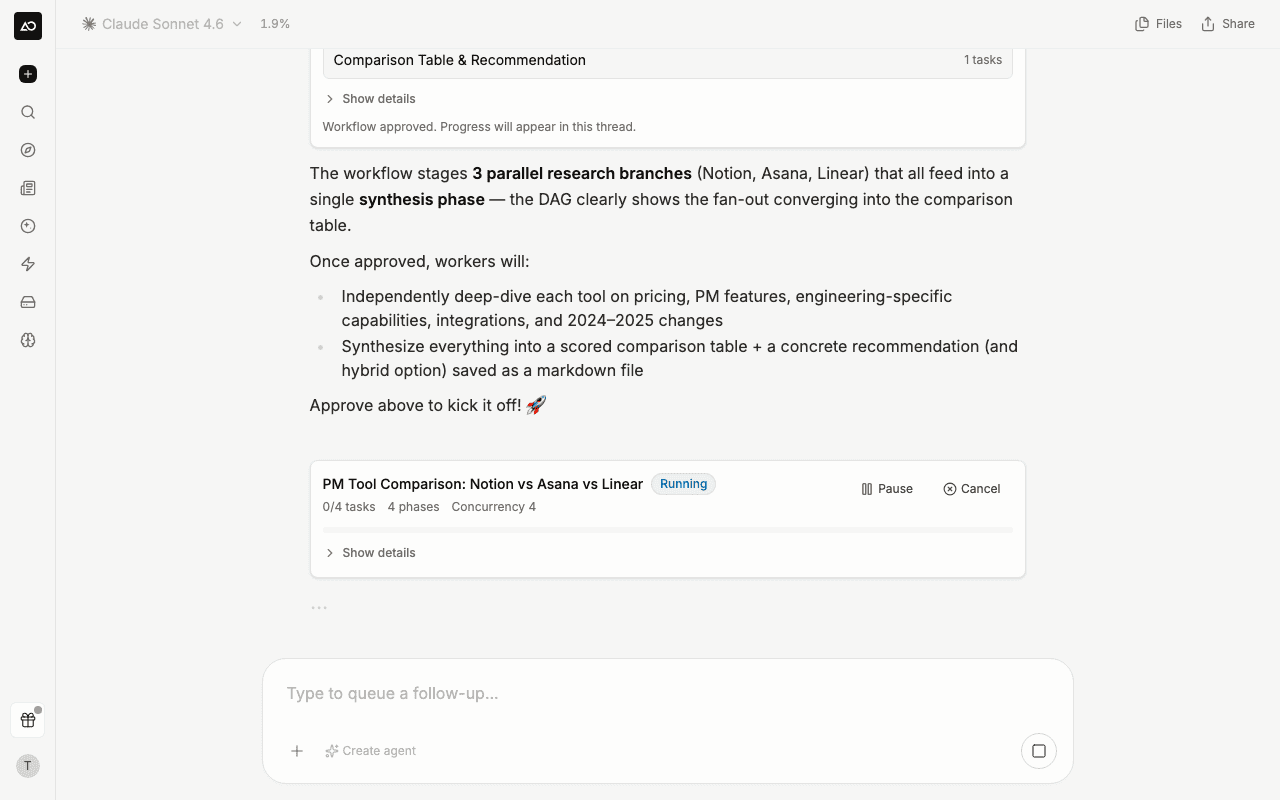
Once approved, the workflow graph updates live as the super agent works. Each task carries a status so you always know where things stand:
Send a `/workflow` command with what you want to accomplish.
The super agent responds with a workflow proposal — a visual graph of connected tasks plus an expandable breakdown of each phase.
Click **Approve**. The plan is locked in and execution begins immediately, with progress appearing in the same thread.
Approval is required — a workflow never runs until you click **Approve**. If a proposal isn't what you wanted, just describe the change or send a new request instead of approving.
## Watching it run
Once approved, the workflow graph updates live as the super agent works. Each task carries a status so you always know where things stand:
 | Status | What it means |
| ------------- | ------------------------ |
| **Pending** | Queued, not started yet |
| **Running** | Currently executing |
| **Completed** | Finished successfully |
| **Failed** | Hit an error |
| **Cancelled** | Stopped before finishing |
The workflow block also shows an overall progress counter (for example, *3/12 tasks*) and a running cost estimate as tasks complete. Phases that depend on earlier phases are connected with arrows, so you can follow how results flow through the plan.
### Controlling a running workflow
While a workflow is active, controls appear in the workflow block:
* **Pause** — stop new tasks from starting while preserving completed work
* **Resume** — pick up again from where you paused
* **Cancel** — stop the entire workflow
* **Retry** — re-run an individual task that failed
## Inspecting a task
Click any task in the plan to open a side panel showing exactly what that step's sub-agent is doing — its thinking, tool calls, and generated output stream in real time, using the same rendering as the main chat.
This makes a multi-step run transparent: instead of waiting for a final summary, you can open any task — running or finished — and follow its work step by step. A task that hasn't started yet shows as queued; once it begins, its activity streams in and scrolls to the latest as it arrives.
| Status | What it means |
| ------------- | ------------------------ |
| **Pending** | Queued, not started yet |
| **Running** | Currently executing |
| **Completed** | Finished successfully |
| **Failed** | Hit an error |
| **Cancelled** | Stopped before finishing |
The workflow block also shows an overall progress counter (for example, *3/12 tasks*) and a running cost estimate as tasks complete. Phases that depend on earlier phases are connected with arrows, so you can follow how results flow through the plan.
### Controlling a running workflow
While a workflow is active, controls appear in the workflow block:
* **Pause** — stop new tasks from starting while preserving completed work
* **Resume** — pick up again from where you paused
* **Cancel** — stop the entire workflow
* **Retry** — re-run an individual task that failed
## Inspecting a task
Click any task in the plan to open a side panel showing exactly what that step's sub-agent is doing — its thinking, tool calls, and generated output stream in real time, using the same rendering as the main chat.
This makes a multi-step run transparent: instead of waiting for a final summary, you can open any task — running or finished — and follow its work step by step. A task that hasn't started yet shows as queued; once it begins, its activity streams in and scrolls to the latest as it arrives.
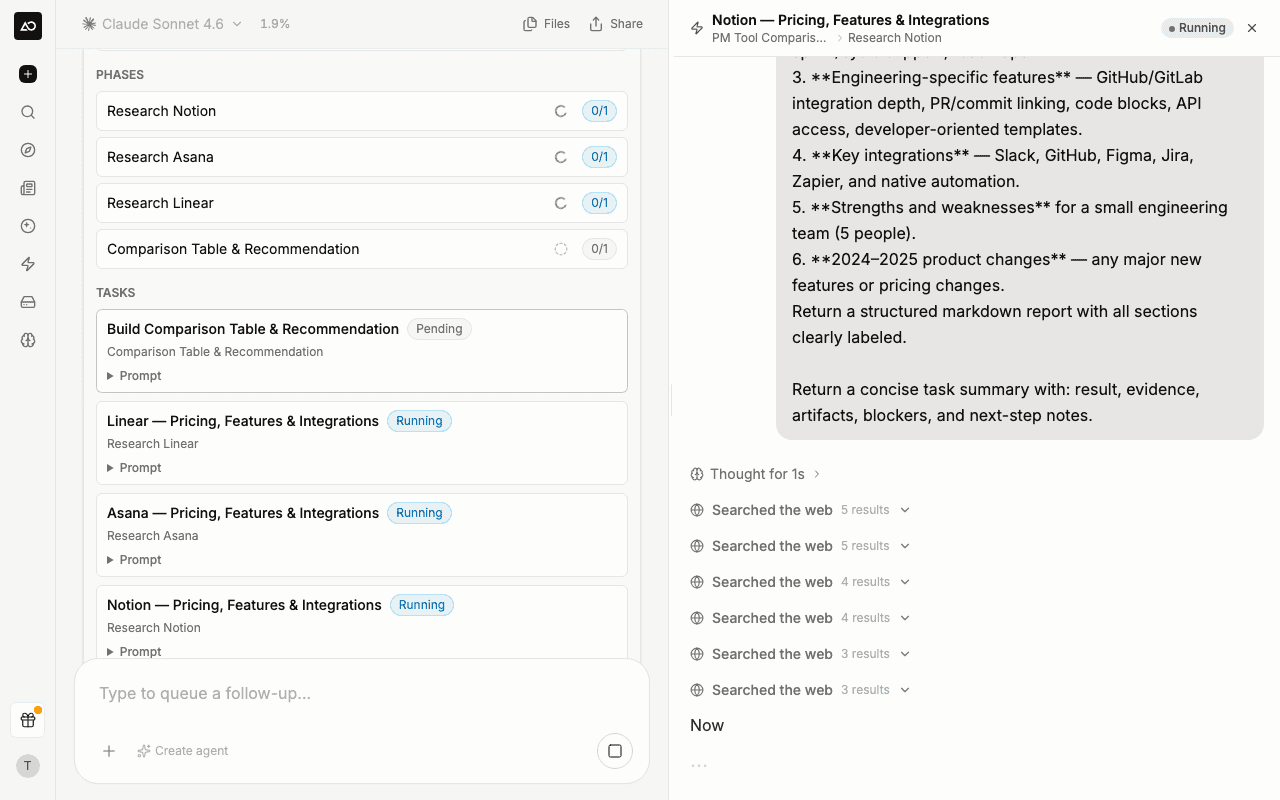 The task panel and the artifact preview can be open at the same time, so you can inspect a step's reasoning while keeping a generated file in view.
## Save a workflow as an agent
A dynamic workflow runs your goal once. When a run produces something you'll want again — a weekly competitor scan, a recurring research brief — you can save the exact plan as a reusable **workflow agent** instead of re-describing it each time.
After a workflow run, click **Save as agent**, give it a name (and an optional description), and the plan is saved as a workflow agent on its own agent page.
From the agent page you can:
* **Run it again** — fill in a structured input form and re-run the same steps with new inputs
* **Ask for it in chat** — describe what you want in a new message and the super agent recognizes which saved workflow agent fits, gathers what it needs, and streams progress and the result into the conversation
* **Edit its steps** — adjust the plan directly in the workflow spec editor
* **Schedule it** — run it automatically on a daily, weekly, or custom cadence
* **Trigger it over the API**
A saved workflow agent behaves like any other [Agent](/features/agents) — structured inputs, its own persistent sandbox, and [scheduled runs](/features/scheduled-runs). The difference is that its steps are the fixed plan you approved, rather than a fresh plan generated on each run.
You can also start one from scratch: in the create-agent dialog, choose **Workflow Agent** and describe the multi-step process you want packaged.
## Good to know
* **You approve, the super agent structures.** The super agent decides how to break the goal into phases and tasks based on what you describe — the plan isn't hand-edited before it runs.
* **Workflows run on credits**, like any other session. The proposal shows an estimate, and the actual cost depends on the models and tools each task uses. Larger plans with many parallel tasks cost more.
* **Shared threads are read-only.** When you open a shared, read-only thread, workflow controls don't appear — viewers can follow along but can't start or approve a run.
* **For processes you repeat, save the workflow as an agent.** A dynamic workflow runs your goal a single time. If you run the same multi-step process regularly, [save it as a workflow agent](#save-a-workflow-as-an-agent) — an [Agent](/features/agents) with structured inputs you can re-run and put on a [schedule](/features/scheduled-runs).
The task panel and the artifact preview can be open at the same time, so you can inspect a step's reasoning while keeping a generated file in view.
## Save a workflow as an agent
A dynamic workflow runs your goal once. When a run produces something you'll want again — a weekly competitor scan, a recurring research brief — you can save the exact plan as a reusable **workflow agent** instead of re-describing it each time.
After a workflow run, click **Save as agent**, give it a name (and an optional description), and the plan is saved as a workflow agent on its own agent page.
From the agent page you can:
* **Run it again** — fill in a structured input form and re-run the same steps with new inputs
* **Ask for it in chat** — describe what you want in a new message and the super agent recognizes which saved workflow agent fits, gathers what it needs, and streams progress and the result into the conversation
* **Edit its steps** — adjust the plan directly in the workflow spec editor
* **Schedule it** — run it automatically on a daily, weekly, or custom cadence
* **Trigger it over the API**
A saved workflow agent behaves like any other [Agent](/features/agents) — structured inputs, its own persistent sandbox, and [scheduled runs](/features/scheduled-runs). The difference is that its steps are the fixed plan you approved, rather than a fresh plan generated on each run.
You can also start one from scratch: in the create-agent dialog, choose **Workflow Agent** and describe the multi-step process you want packaged.
## Good to know
* **You approve, the super agent structures.** The super agent decides how to break the goal into phases and tasks based on what you describe — the plan isn't hand-edited before it runs.
* **Workflows run on credits**, like any other session. The proposal shows an estimate, and the actual cost depends on the models and tools each task uses. Larger plans with many parallel tasks cost more.
* **Shared threads are read-only.** When you open a shared, read-only thread, workflow controls don't appear — viewers can follow along but can't start or approve a run.
* **For processes you repeat, save the workflow as an agent.** A dynamic workflow runs your goal a single time. If you run the same multi-step process regularly, [save it as a workflow agent](#save-a-workflow-as-an-agent) — an [Agent](/features/agents) with structured inputs you can re-run and put on a [schedule](/features/scheduled-runs).