> ## Documentation Index
> Fetch the complete documentation index at: https://docs.creao.ai/llms.txt
> Use this file to discover all available pages before exploring further.
# Quickstart
> Send your first message, generate an artifact, and save it as a reusable agent — all in under 10 minutes.
## Watch the walkthrough
## Before you start
You need a CREAO account. If you don't have one yet, sign up at [agent.creao.ai](https://agent.creao.ai).
## Your first session
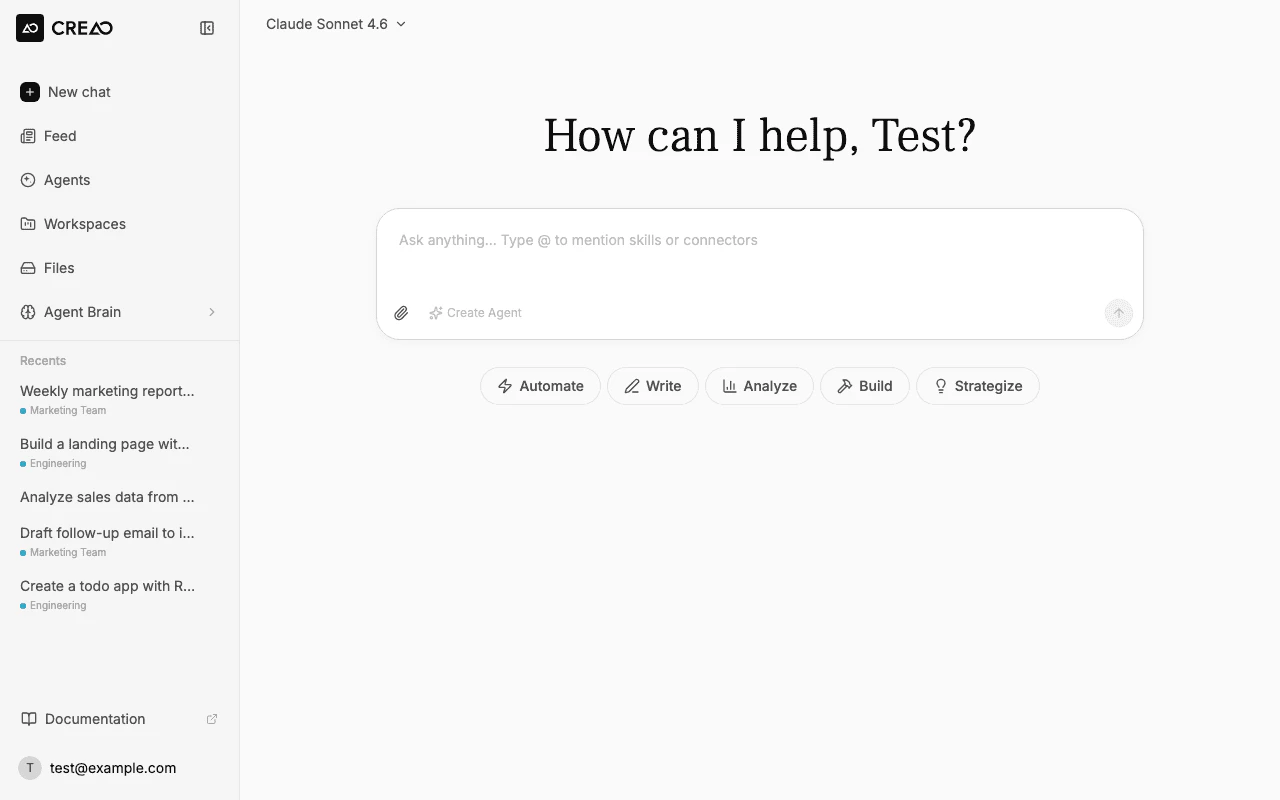
After signing in, you land on the chat page. The sidebar shows navigation (Feed, Agents, Workspaces, Files), your recent threads, and the **Agent Brain** section where you can manage skills and connectors.
You can optionally select or create a workspace from the sidebar to organize your conversations, but it's not required to get started.
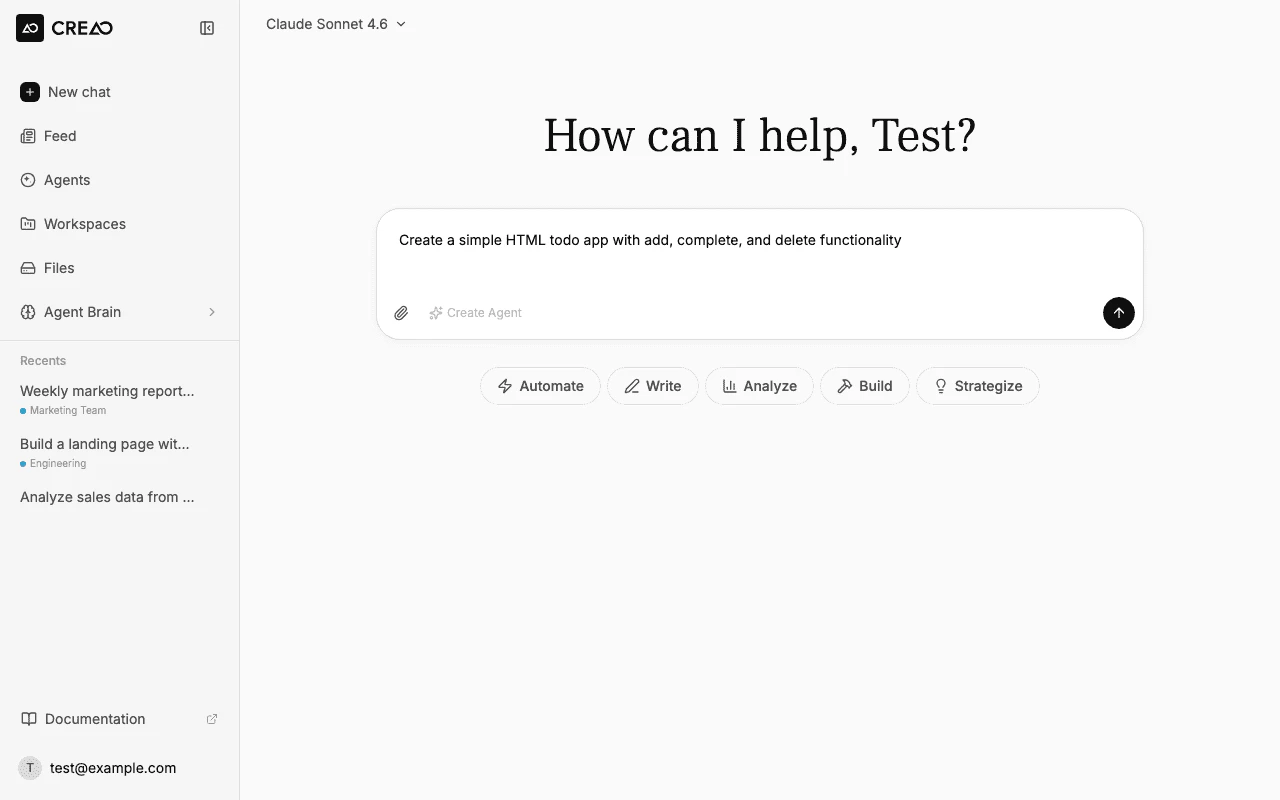
Type a request in the chat input at the bottom of the screen. For example:
```
Create a simple HTML todo app with add, complete, and delete functionality
```
Press **Enter** or click the send button. The agent starts streaming its response in real time.
You can also click one of the suggestion pills — **Automate**, **Write**, **Analyze**, **Build**, or **Strategize** — to start with a guided prompt.
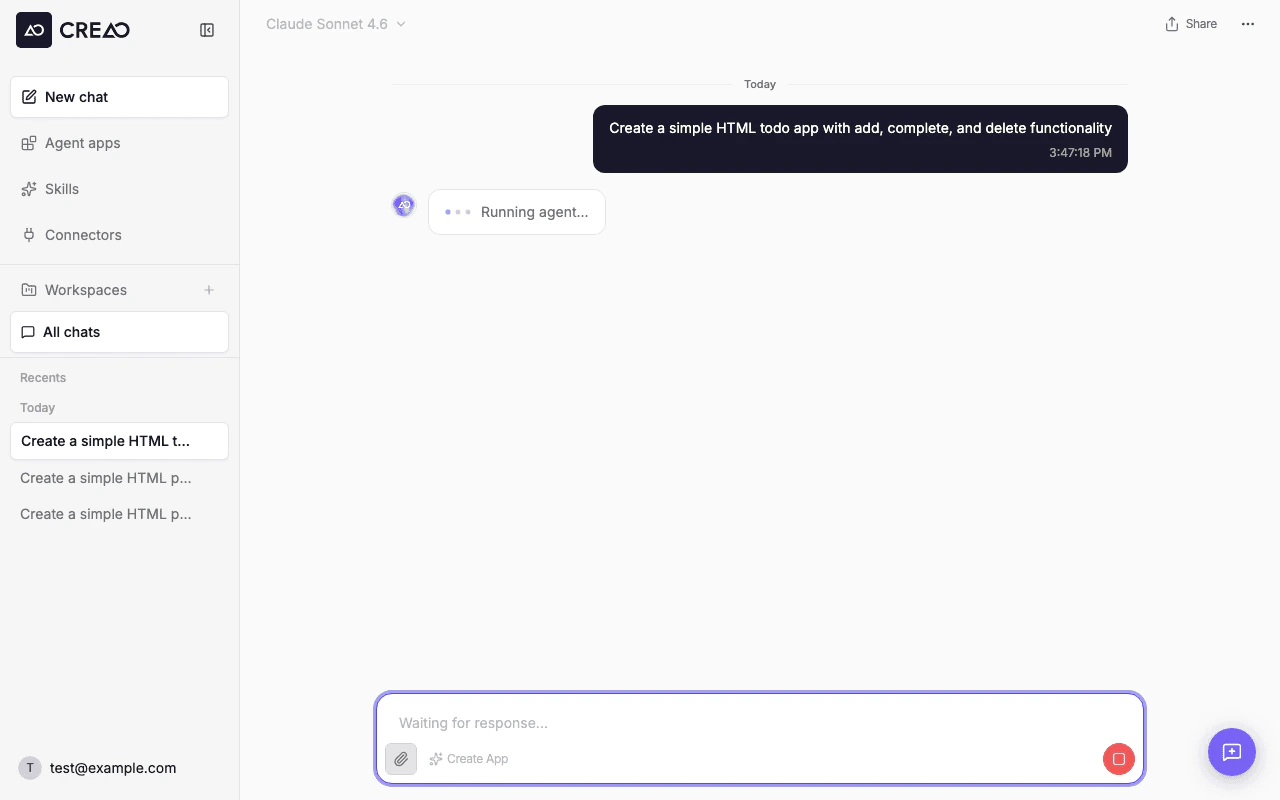
The agent executes your request step by step. You'll see:
* **Thinking indicator** — animated dots while the agent processes your request
* **Status updates** — messages like "Starting sandbox..." or "Running agent..."
* **Tool execution** — each tool call and its output stream in real time
* **Artifact panel** — generated files (HTML, SVG, PDF) open in an interactive preview on the right side
You can click the **Stop** button (red square) at any time to interrupt the agent.
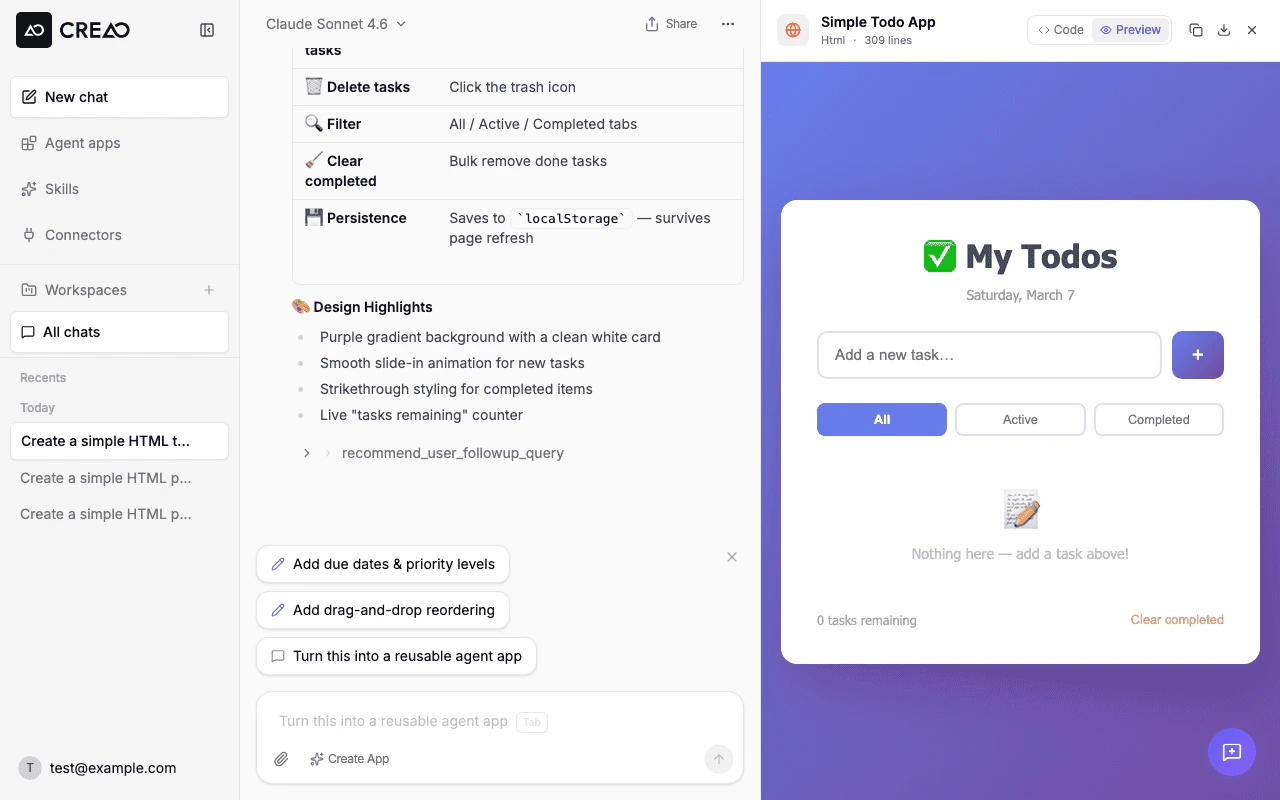
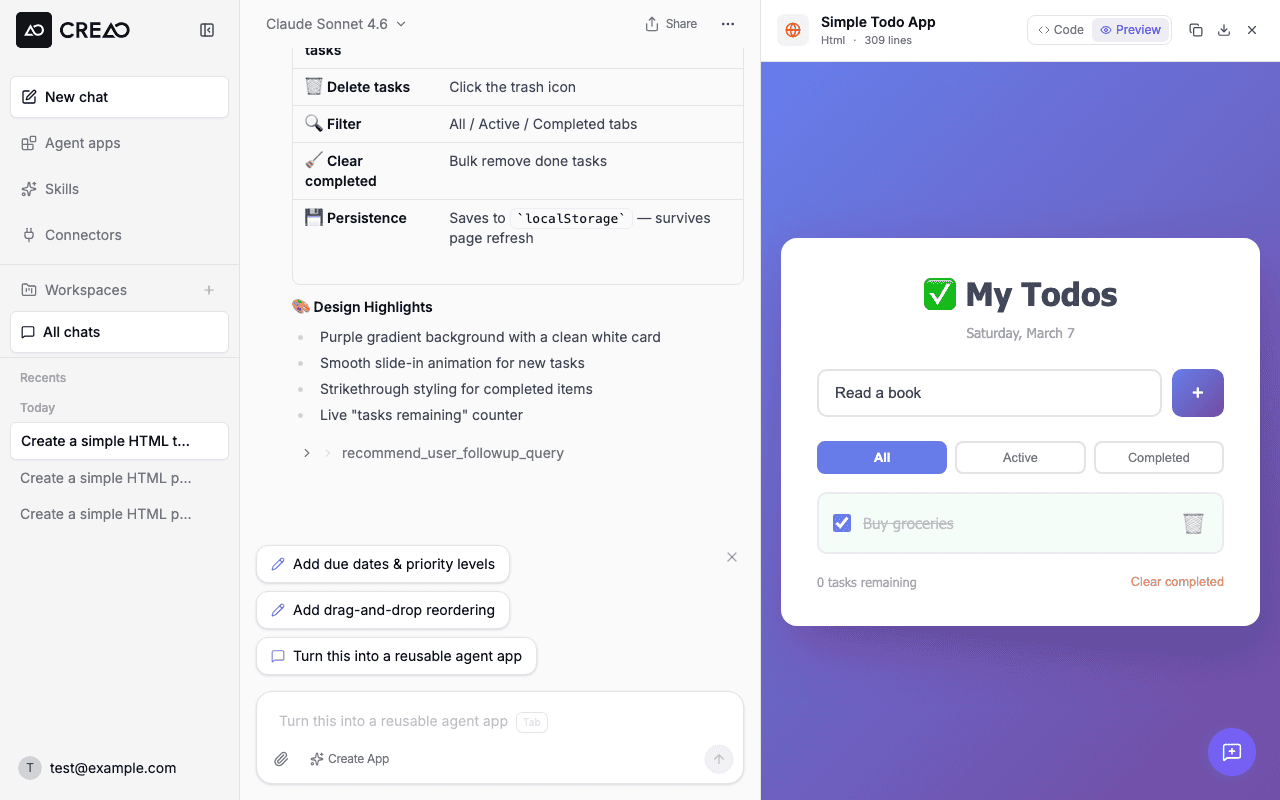
When the agent generates an HTML file, it opens automatically in the artifact preview panel. The result appears as a split view — chat on the left, interactive preview on the right.
The preview is fully interactive — you can click buttons, fill forms, check boxes, and test the app directly in the panel.
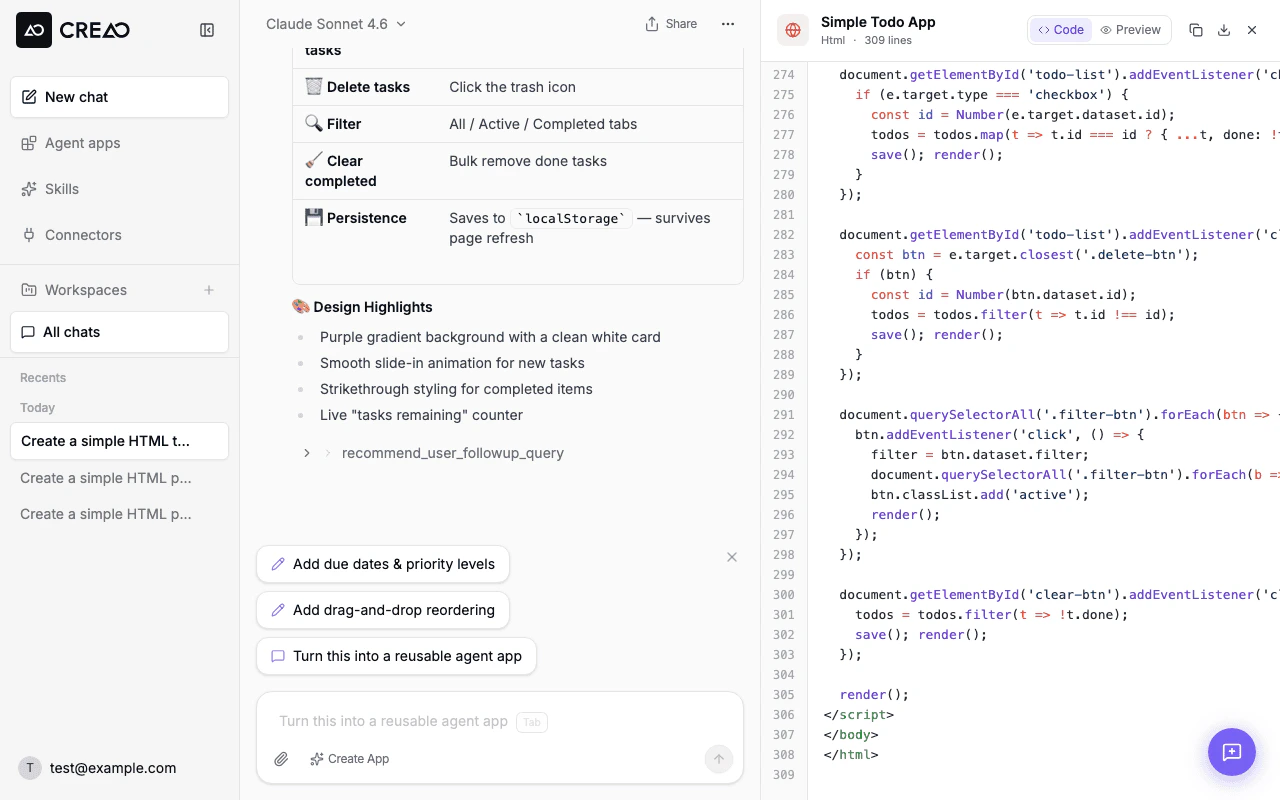
You can also switch to **Code** view to see the source:
Other actions available in the panel header:
* **Download** — save the file locally
* **Copy** — grab the source code to clipboard
* **Share** — generate a shareable link to the conversation
* **Close** — dismiss the panel
Send follow-up messages to refine the result:
```
Add a dark mode toggle and localStorage persistence
```
The agent builds on the previous context and generates an updated artifact. You can also queue follow-up messages while the agent is still working — they'll be processed in order.
When you're happy with the result, click **Create Agent** in the chat input bar. The super agent extracts the workflow into a reusable agent with:
* A structured input form
* The skill that powers execution
* Version history for every iteration
Your team can now run this agent repeatedly with different inputs from the **Agents** page in the sidebar.
## Next steps
Learn about file uploads, @ mentions, voice input, message queue, and more.
Browse, organize, and download uploaded and agent-generated files.
Explore built-in capabilities and how to connect external services.
Deep dive into creating, versioning, and sharing agents.
 The preview is fully interactive — you can click buttons, fill forms, check boxes, and test the app directly in the panel.
 You can also switch to **Code** view to see the source:
 Other actions available in the panel header:
* **Download** — save the file locally
* **Copy** — grab the source code to clipboard
* **Share** — generate a shareable link to the conversation
* **Close** — dismiss the panel
Other actions available in the panel header:
* **Download** — save the file locally
* **Copy** — grab the source code to clipboard
* **Share** — generate a shareable link to the conversation
* **Close** — dismiss the panel