

Core Features
The CREAO App Marketplace supports 4 main operations:- Publish Apps: Share your CREAO apps with the community and reach more users
- Manage Apps: Update published app information, view publishing history and review status
- Discover Apps: Browse and search other users’ apps, preview or clone them
- Track Data: View key metrics for your published apps, including views, likes, and clones
How to Publish Your App to the Marketplace
Easy Publishing Entry Points
You have two entry points to start publishing. Choose either one:-
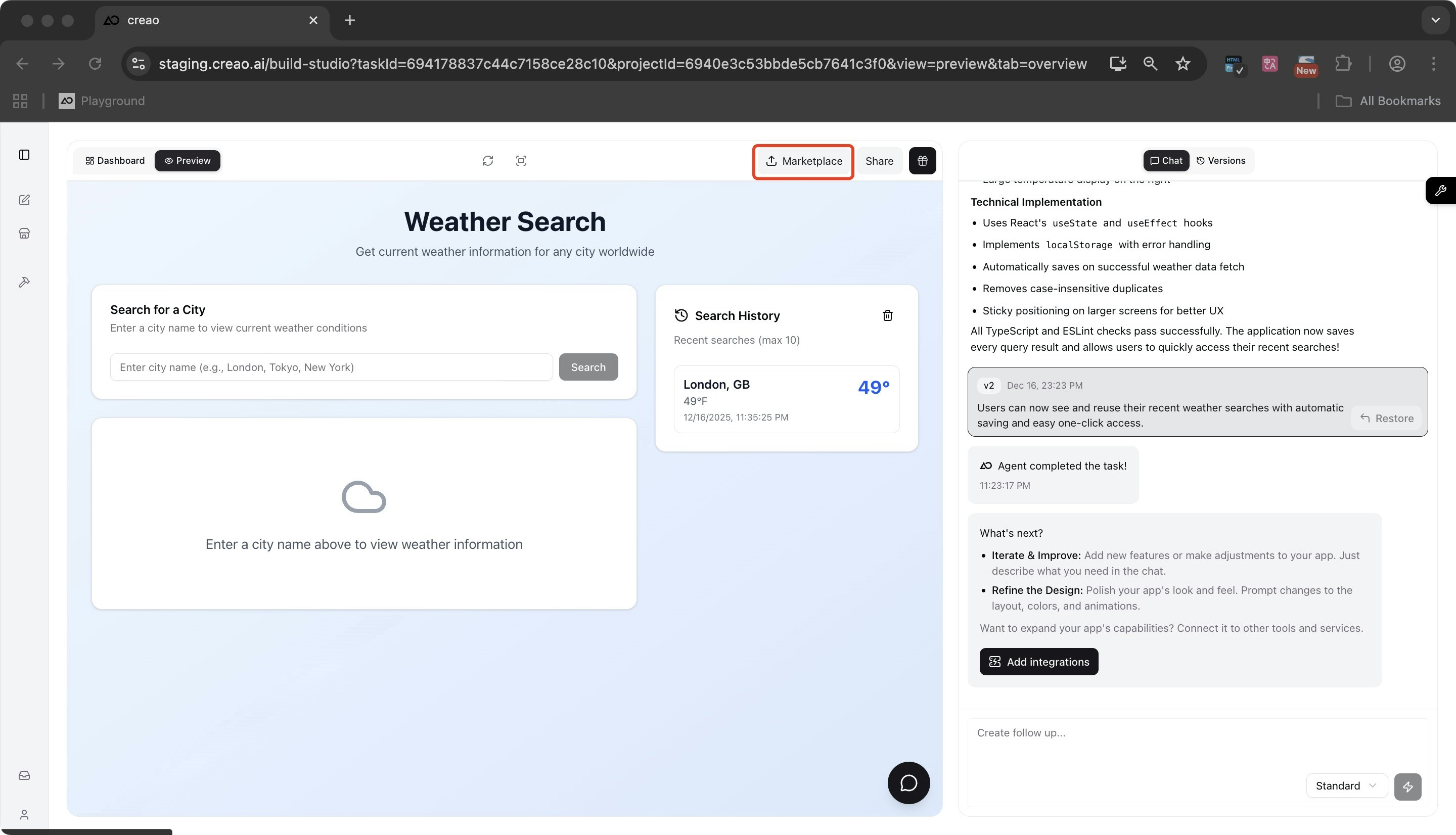
Publish directly from the app build page (recommended): Open your CREAO app build page and click the 【Publish to Marketplace】 button in the top right corner
-
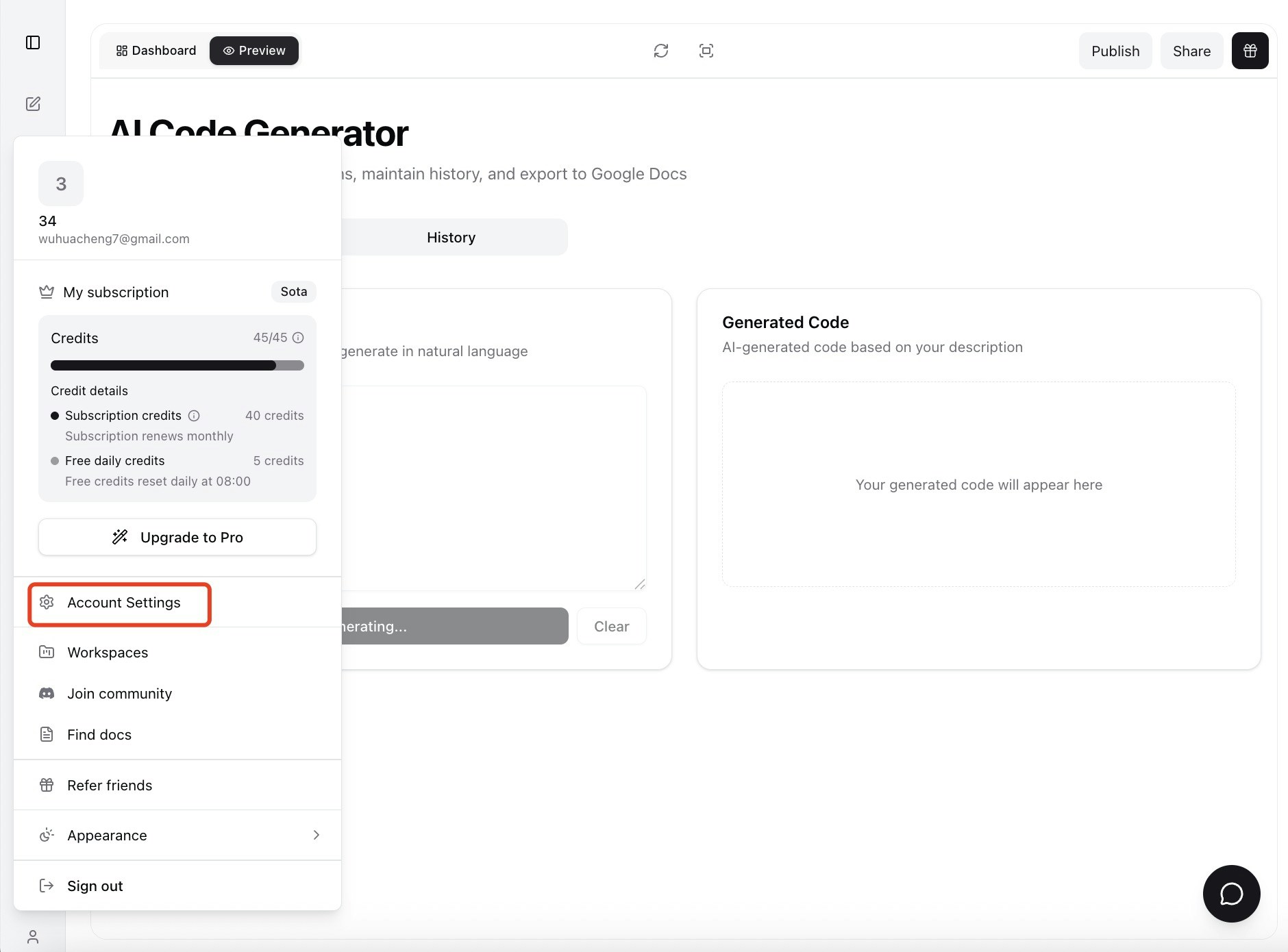
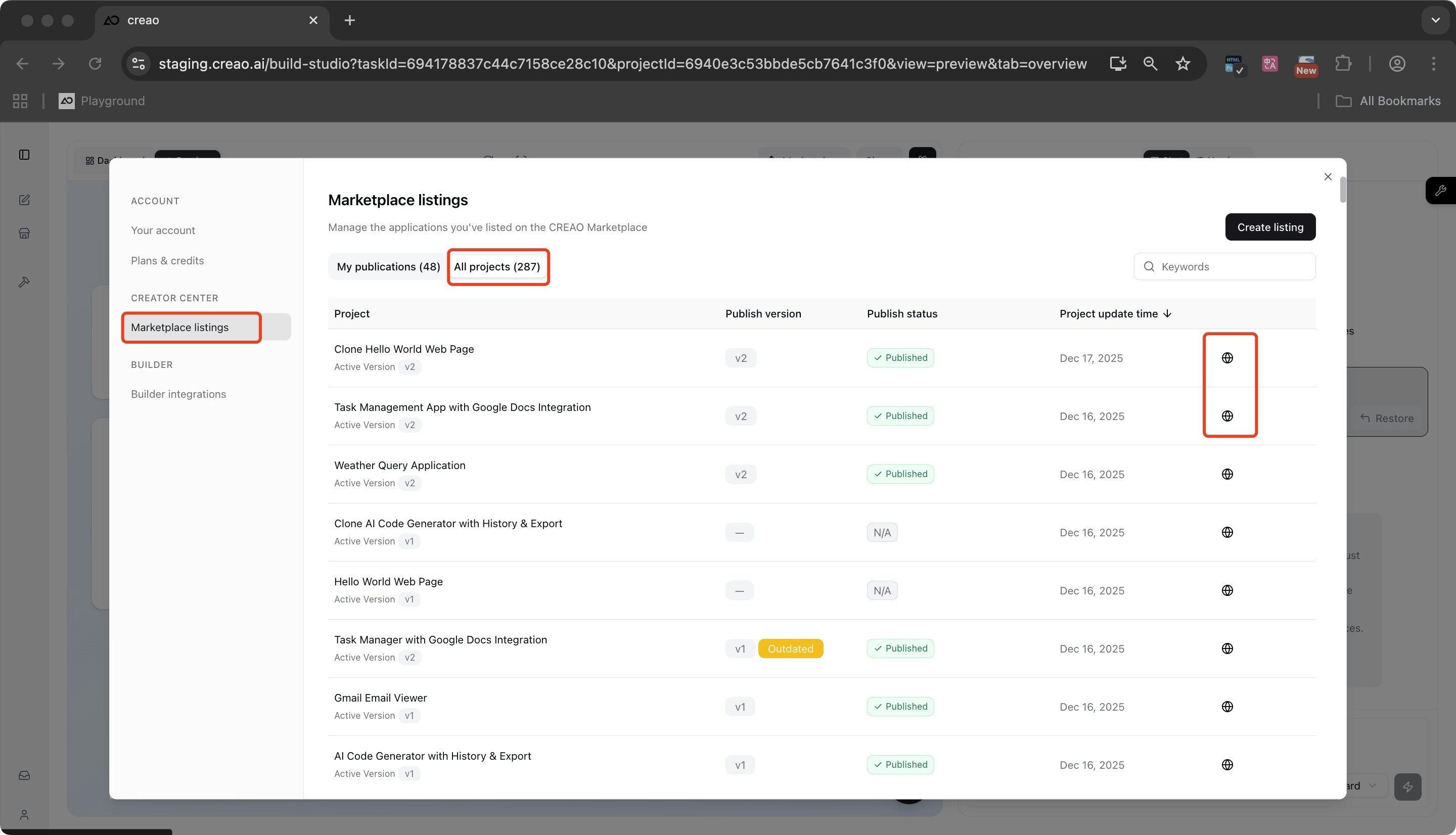
Publish from the Publishing Center: Go to the CREAO “Publishing Center”, find your target app in the app list, and click 【Publish to Marketplace】
Fill in App Display Information
After entering the publishing form, you need to fill in app information. Some information can be auto-generated by AI to save you time.AI-generated content (name, description, target audience) is for reference only. You can modify it before submitting to ensure the information accurately matches your app’s features.
Agree to Terms and Submit for Review
After filling in all required information, complete the following steps:Read and agree to service terms
Read the App Marketplace service terms and check 【Agree to service terms】
About Review
Here’s what you need to know:- Review Queue: Your app will be sorted by submission time and added to the reviewer’s “Pending Review Apps” list
- Review Results: After approval, the status will change to “Published”. If review fails, the status will change to “Review Failed” with rejection reasons. You can modify the app features or display information and resubmit
- Featured Opportunity: When approved, your app may be marked as a “Featured Template” for more exposure
How to Manage Published Apps
The “Publishing Center” is your main entry point for managing apps. Here you can update apps, track review status, and view data for your published apps.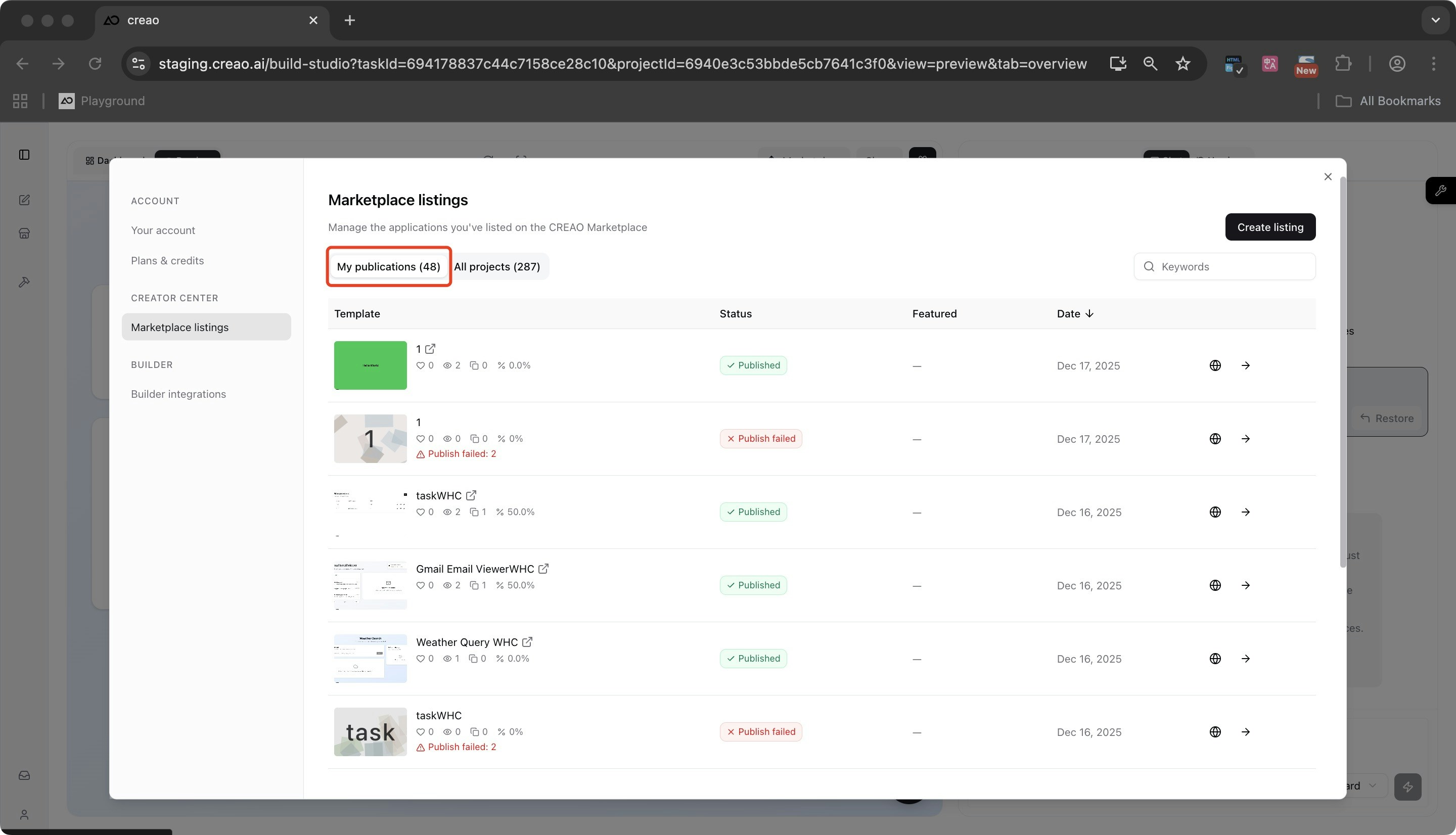
Update Published Apps
If you want to modify app display information (such as name or cover image) or update the app version, follow these steps:Choose update entry point
① Update from Publishing Center: Find the target app and click 「Update」; ② Update from build page: Open the app build page and click 「Publish」 in the top right corner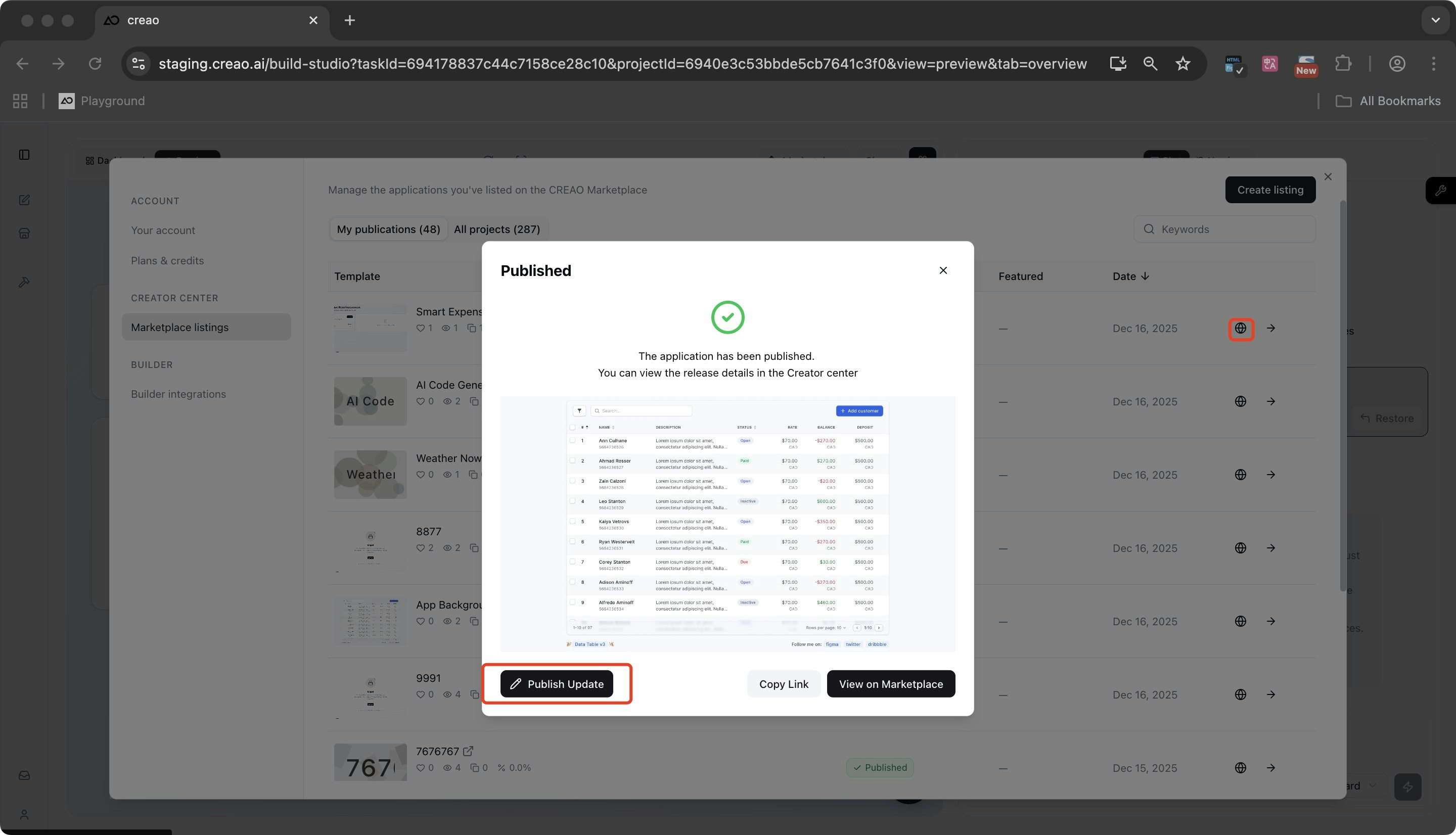
Modify content
Enter the update form. You can modify the name, cover image, brief description, category tags, and more
If you submit an update while the app is in “Pending Review” status, the new content will replace the original review request. Each app can only have one pending review request at a time.
View Publishing History and App Details
In the Publishing Center app list, you can view:- Basic Information: Published name, app cover image, marketplace detail page link, etc.
- Data Statistics: App views, likes, clones, and clone conversion rate
How to Discover and Use Other Users’ Apps
The App Marketplace homepage offers many ways to discover apps. You can easily find apps you’re interested in, preview them, and clone them for remixing.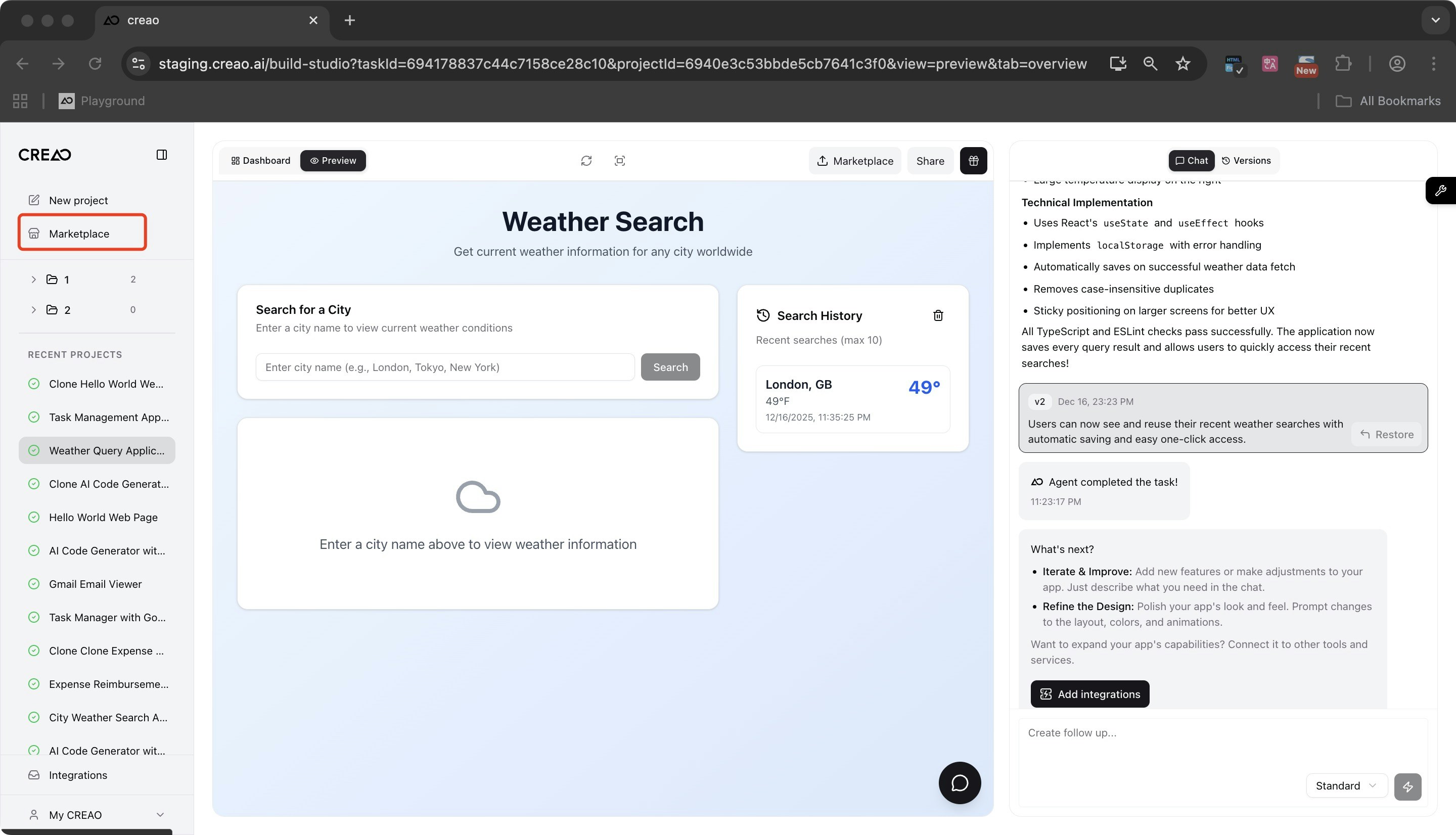
Browse and Search Apps
On the CREAO App Marketplace homepage, you can: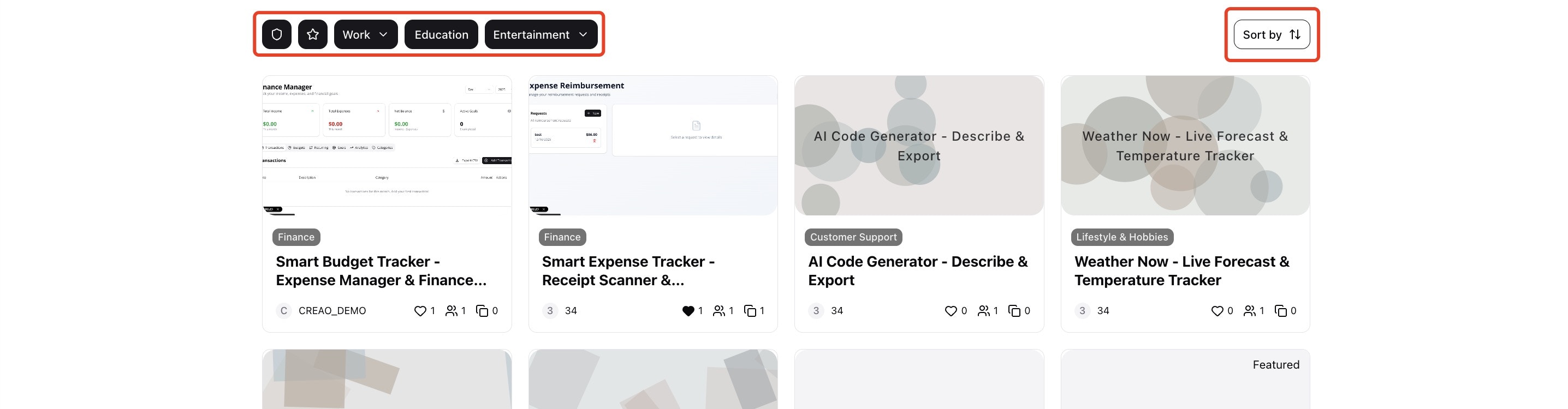
- Search: Use the top search bar to search by app name or description
- Filter: Use the filter panel to filter by “Category Tags” (multiple selection), “Publish Time” (newest/most popular), and “Likes” (most/least)
- Browse Featured: Click “Featured Templates” to view high-quality apps recommended by the platform
View App Details and Preview
Click an app card to enter the app detail page and view complete information.Clone Apps
If you want to remix or use someone else’s app, follow these steps to clone it: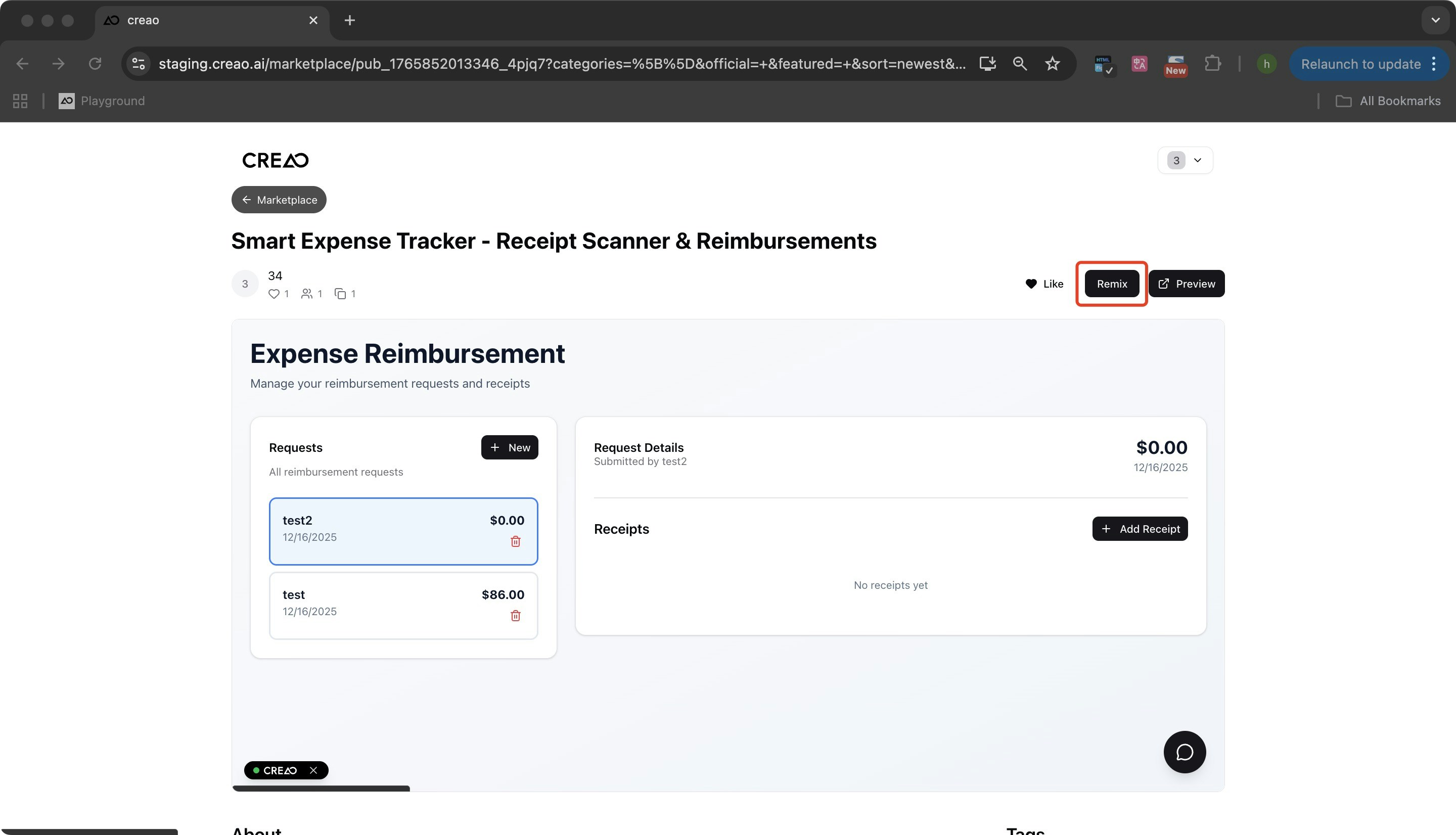
Authentication
If you’re not logged in, you’ll be redirected to the registration page. Register and log in to continue
Clone confirmation
If you’ve already cloned this app, you’ll see a prompt: “You have already installed this app. Do you want to clone it again?” Click confirm to proceed
How to View App Data
The Publishing Center provides key data for your published apps to help you track app performance. Key metrics are explained below: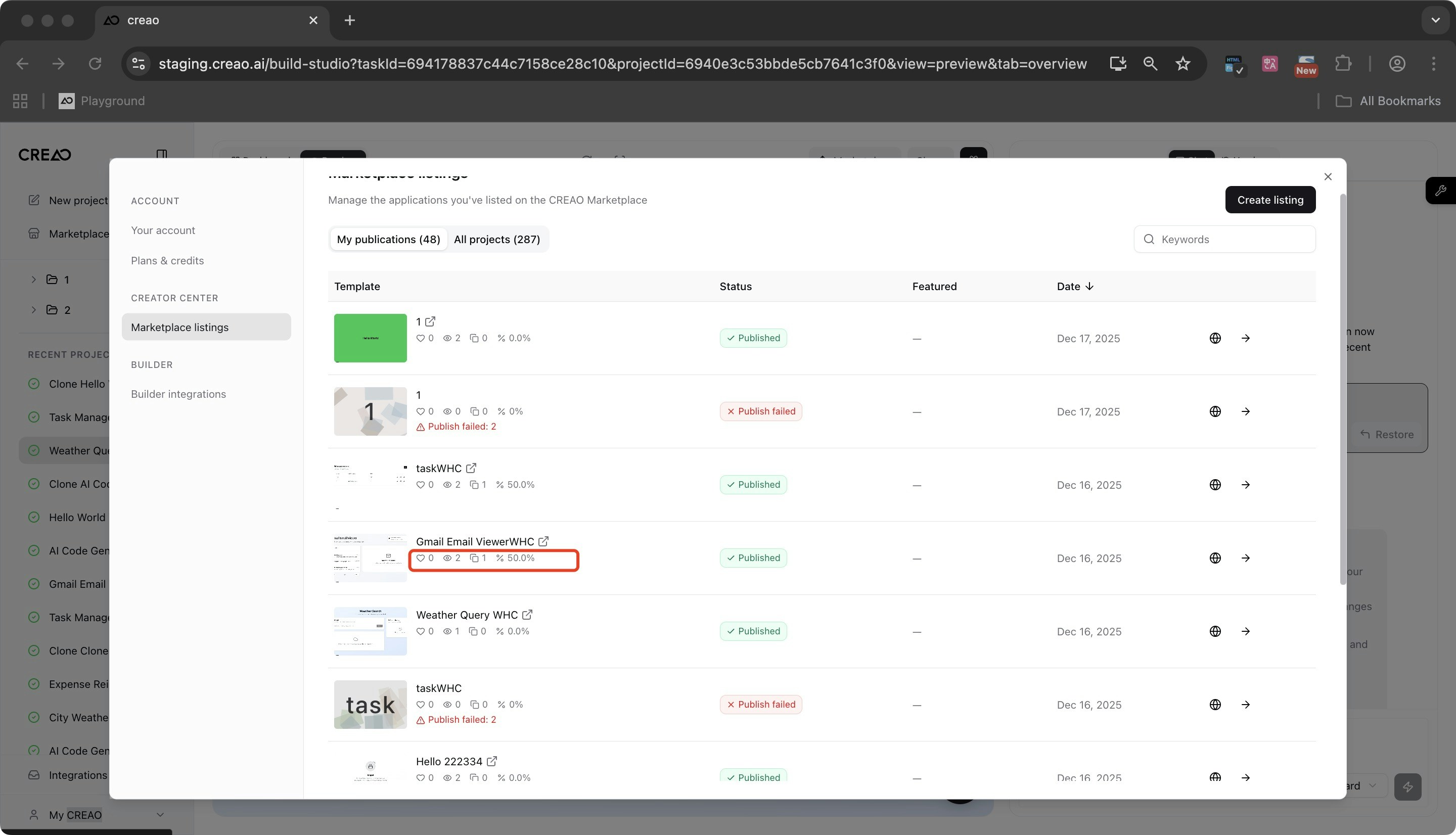
| Metric Name | Meaning |
|---|---|
| Views | Number of times the marketplace detail page was viewed |
| Likes | Number of times users liked the app |
| Clones | Number of times other users clicked “remix” on the marketplace detail page |
| Clone Conversion Rate | Key metric that measures app appeal |
All data is based on unique users/IP addresses to ensure accuracy without duplicates. You can adjust app display information (such as optimizing the cover image, description, or app features) based on the data to improve conversion.