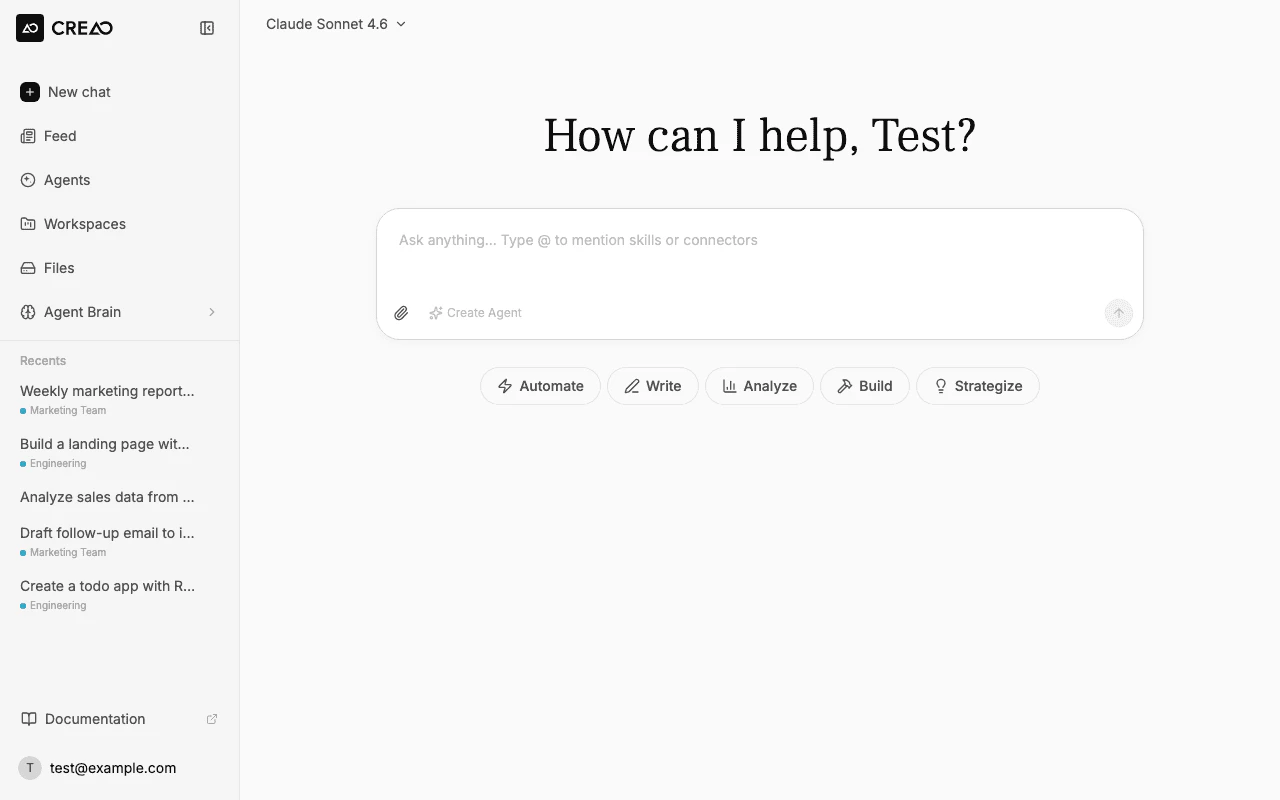
After signing in, you land on the chat page. The sidebar shows navigation (Feed, Agents, Workspaces, Files), your recent threads, and the Agent Brain section where you can manage skills and connectors.You can optionally select or create a workspace from the sidebar to organize your conversations, but it’s not required to get started.
The chat page with the sidebar, suggestion pills, and input bar
2
Send your first message
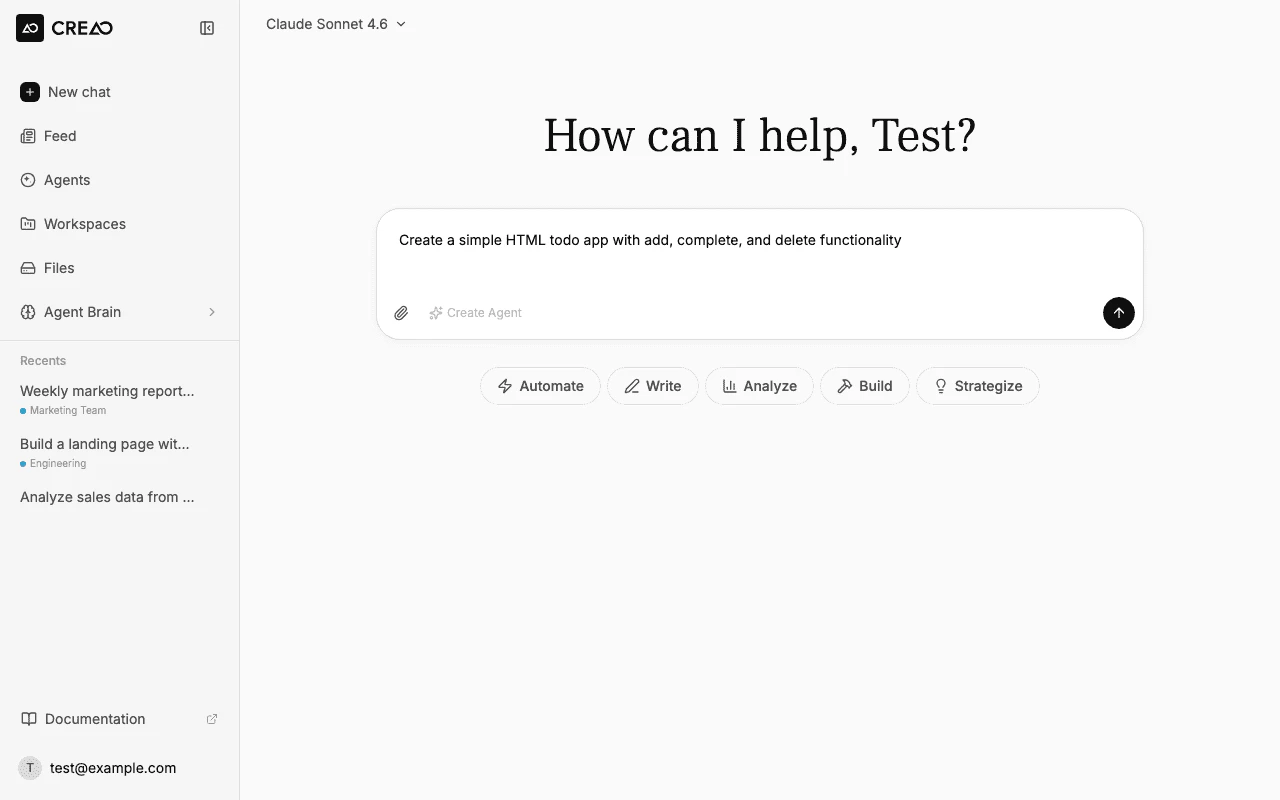
Type a request in the chat input at the bottom of the screen. For example:
Create a simple HTML todo app with add, complete, and delete functionality
Press Enter or click the send button. The agent starts streaming its response in real time.
A message typed in the chat input, ready to send
You can also click one of the suggestion pills — Automate, Write, Analyze, Build, or Strategize — to start with a guided prompt.
3
Watch the agent work
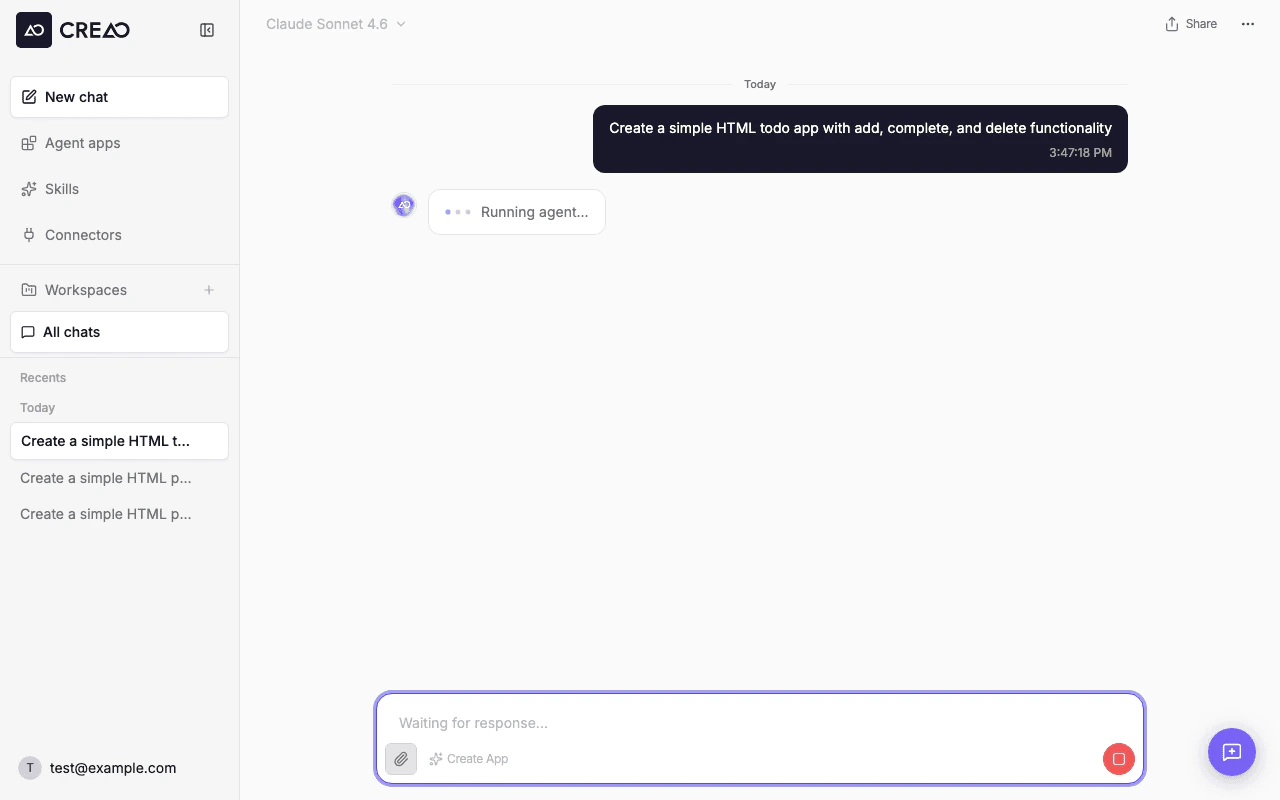
The agent executes your request step by step. You’ll see:
Thinking indicator — animated dots while the agent processes your request
Status updates — messages like “Starting sandbox…” or “Running agent…”
Tool execution — each tool call and its output stream in real time
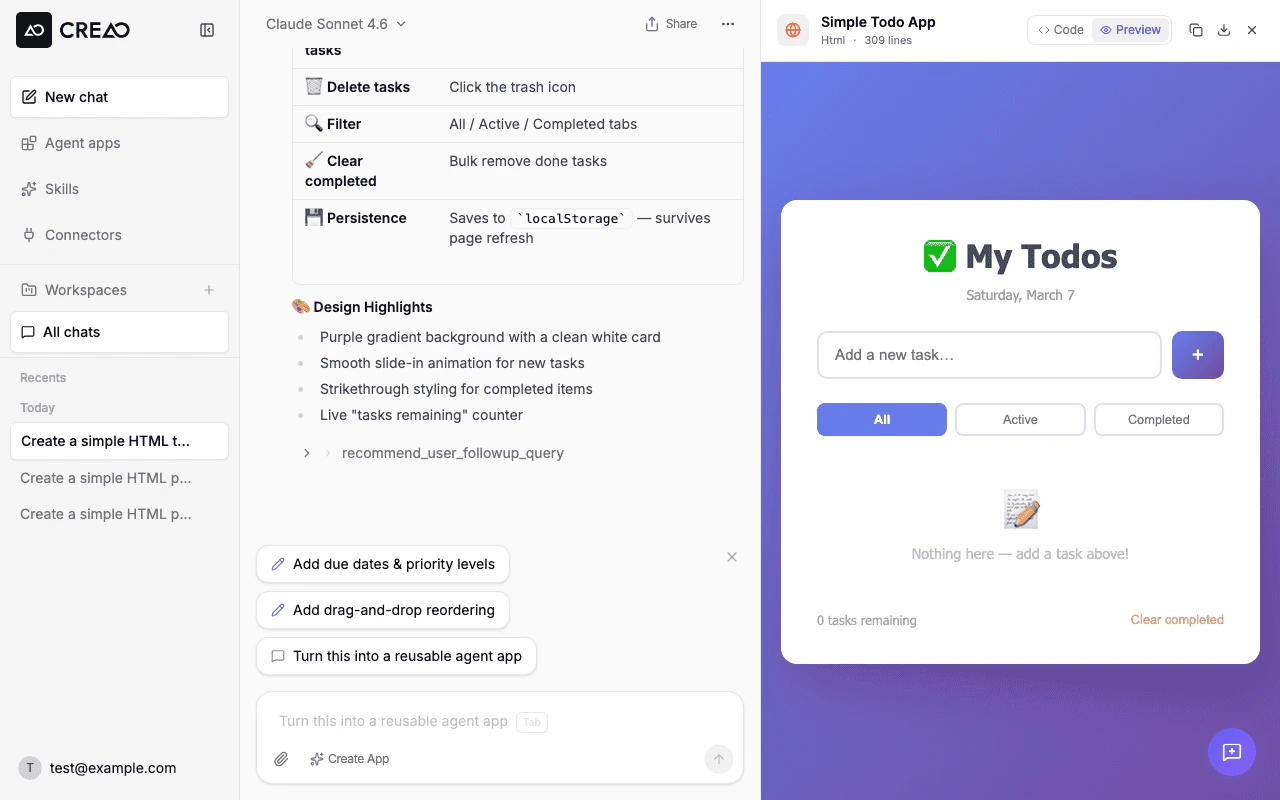
Artifact panel — generated files (HTML, SVG, PDF) open in an interactive preview on the right side
The agent processing your request with the Running agent indicator
You can click the Stop button (red square) at any time to interrupt the agent.
4
Interact with the artifact
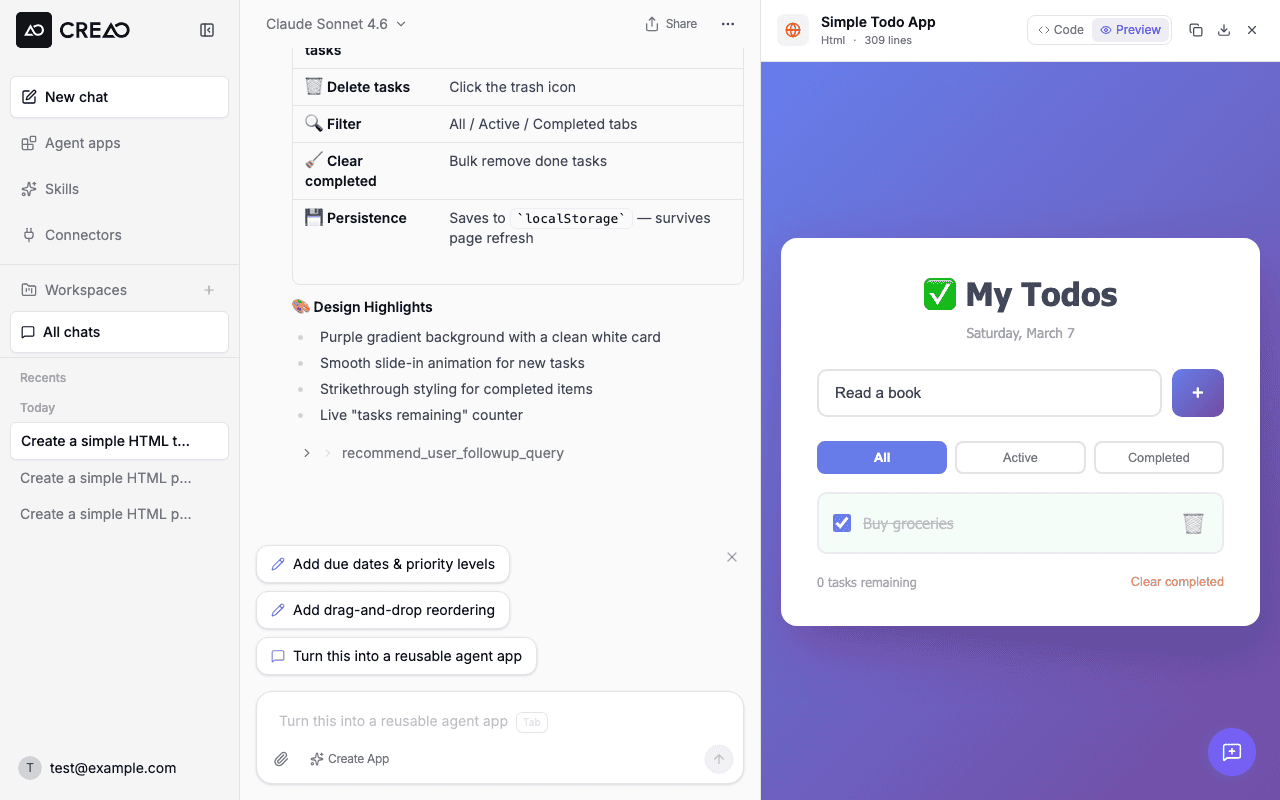
When the agent generates an HTML file, it opens automatically in the artifact preview panel. The result appears as a split view — chat on the left, interactive preview on the right.
The completed response with an interactive todo app in the artifact preview panel
The preview is fully interactive — you can click buttons, fill forms, check boxes, and test the app directly in the panel.
Interacting with the generated todo app — adding tasks, checking them off
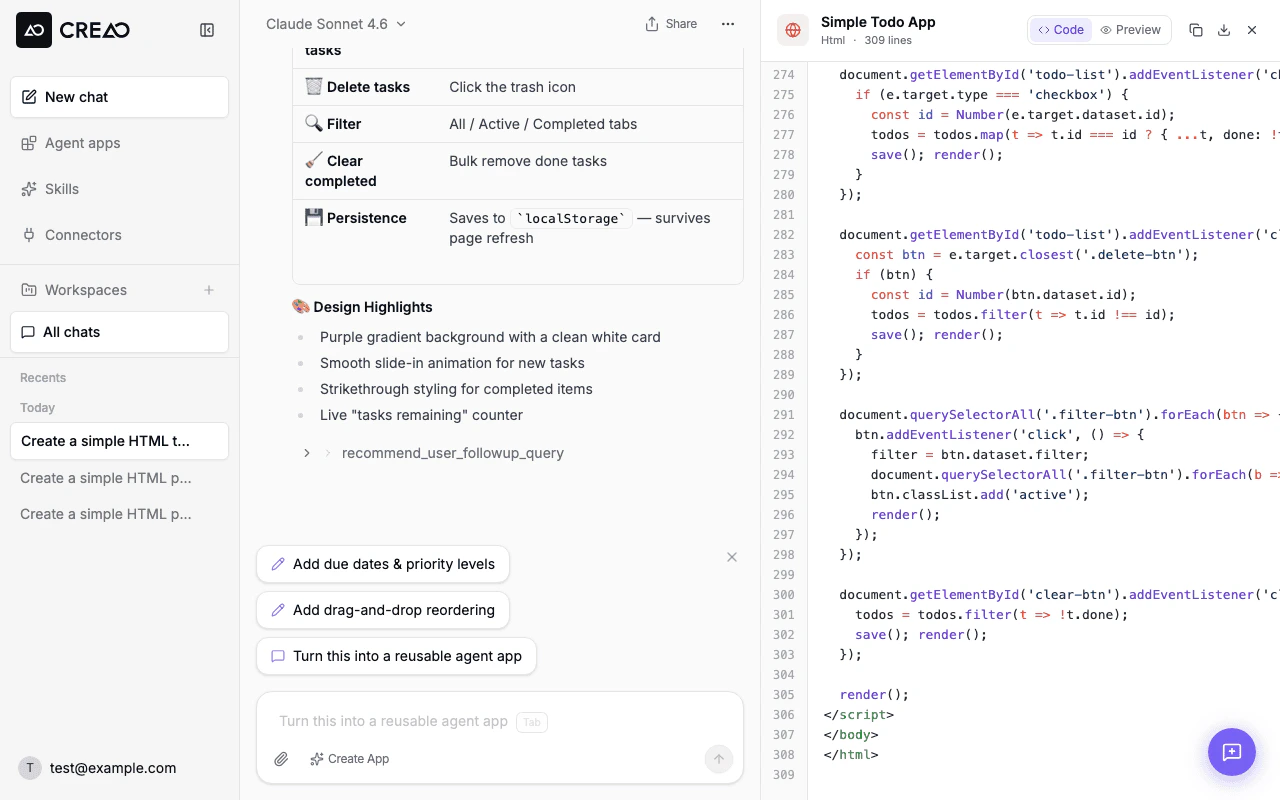
You can also switch to Code view to see the source:
The Code view showing syntax-highlighted HTML and JavaScript source
Other actions available in the panel header:
Download — save the file locally
Copy — grab the source code to clipboard
Share — generate a shareable link to the conversation
Close — dismiss the panel
5
Continue the conversation
Send follow-up messages to refine the result:
Add a dark mode toggle and localStorage persistence
The agent builds on the previous context and generates an updated artifact. You can also queue follow-up messages while the agent is still working — they’ll be processed in order.
6
Save as an agent (optional)
When you’re happy with the result, click Create Agent in the chat input bar. The super agent extracts the workflow into a reusable agent with:
A structured input form
The skill that powers execution
Version history for every iteration
Your team can now run this agent repeatedly with different inputs from the Agents page in the sidebar.