

What is Super Agent?
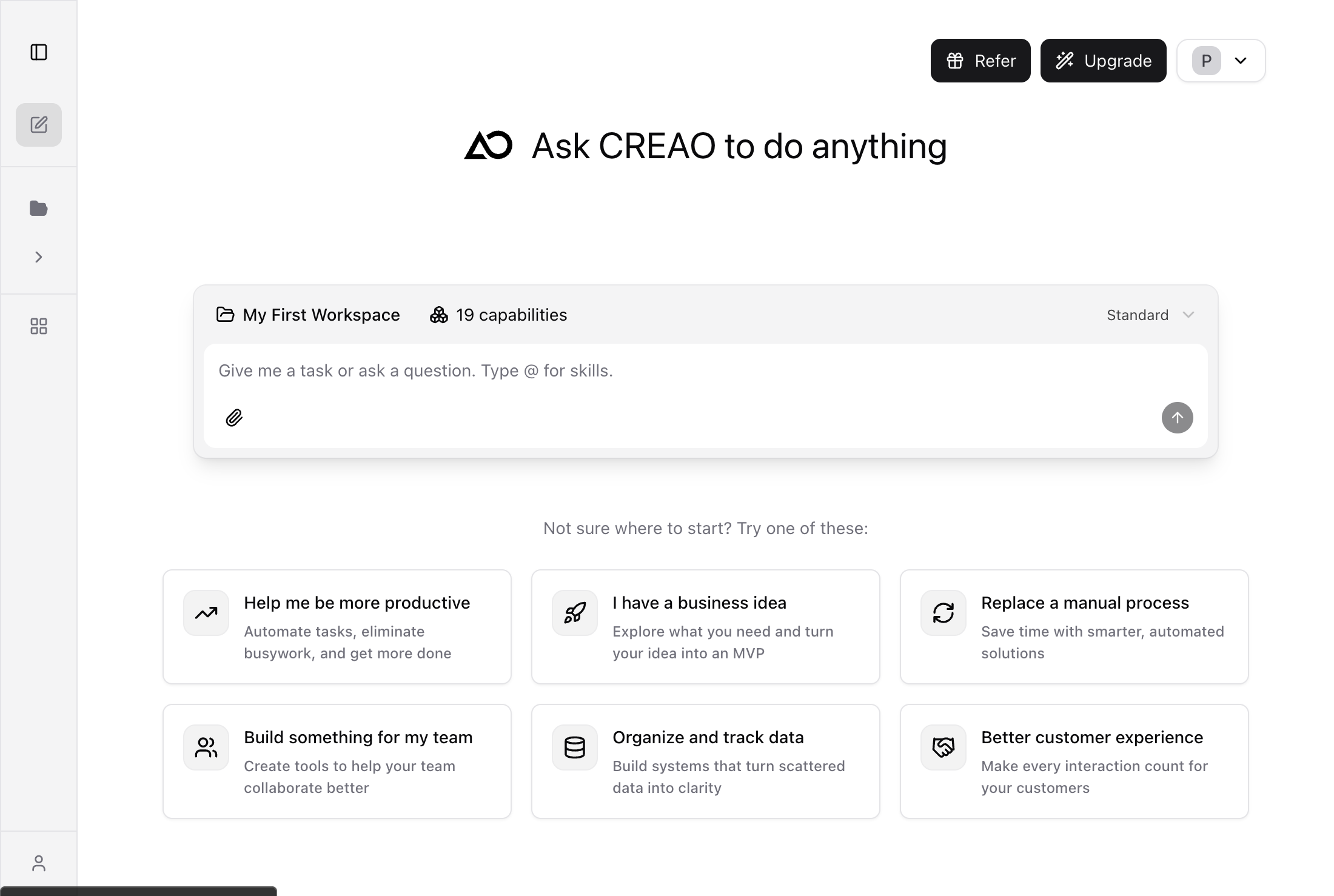
The built-in AI Super Agent is your smart assistant inside the workspace. It understands your context, executes tasks using Skills and Connectors, and delivers results — all through plain language. Just describe what you need, and the Super Agent handles the rest.Before you start
The chat bar
The Super Agent chat bar sits at the bottom of your workspace. It includes:- Chat input — type your request in plain language
- History button (clock icon) — view and continue previous conversations
- New chat button (pen icon) — start a fresh conversation
- Upload files — attach files for the Super Agent to process
- @ mention — type
@to quickly pick available Skills and context
Core capabilities
Built-in Skills
Available in every workspace without any setup:Web Search
Search the web for real-time information and data.
File Parsing
Extract and analyze content from images, text, and other common formats.
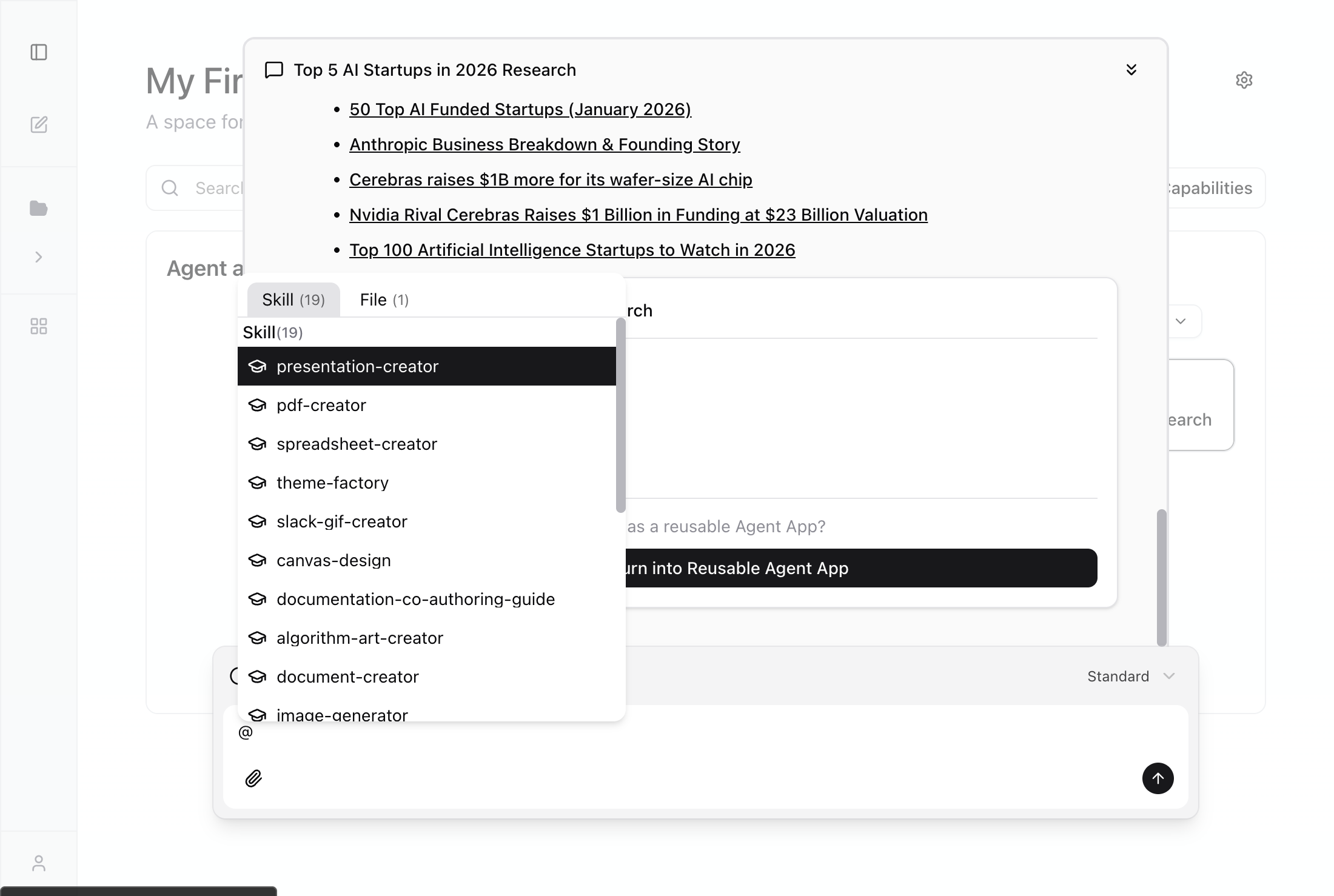
Skill selection with @
Type@ in the chat bar to see all available Skills in your workspace. Select a Skill to add it as context for your request — the Super Agent will use it during execution.
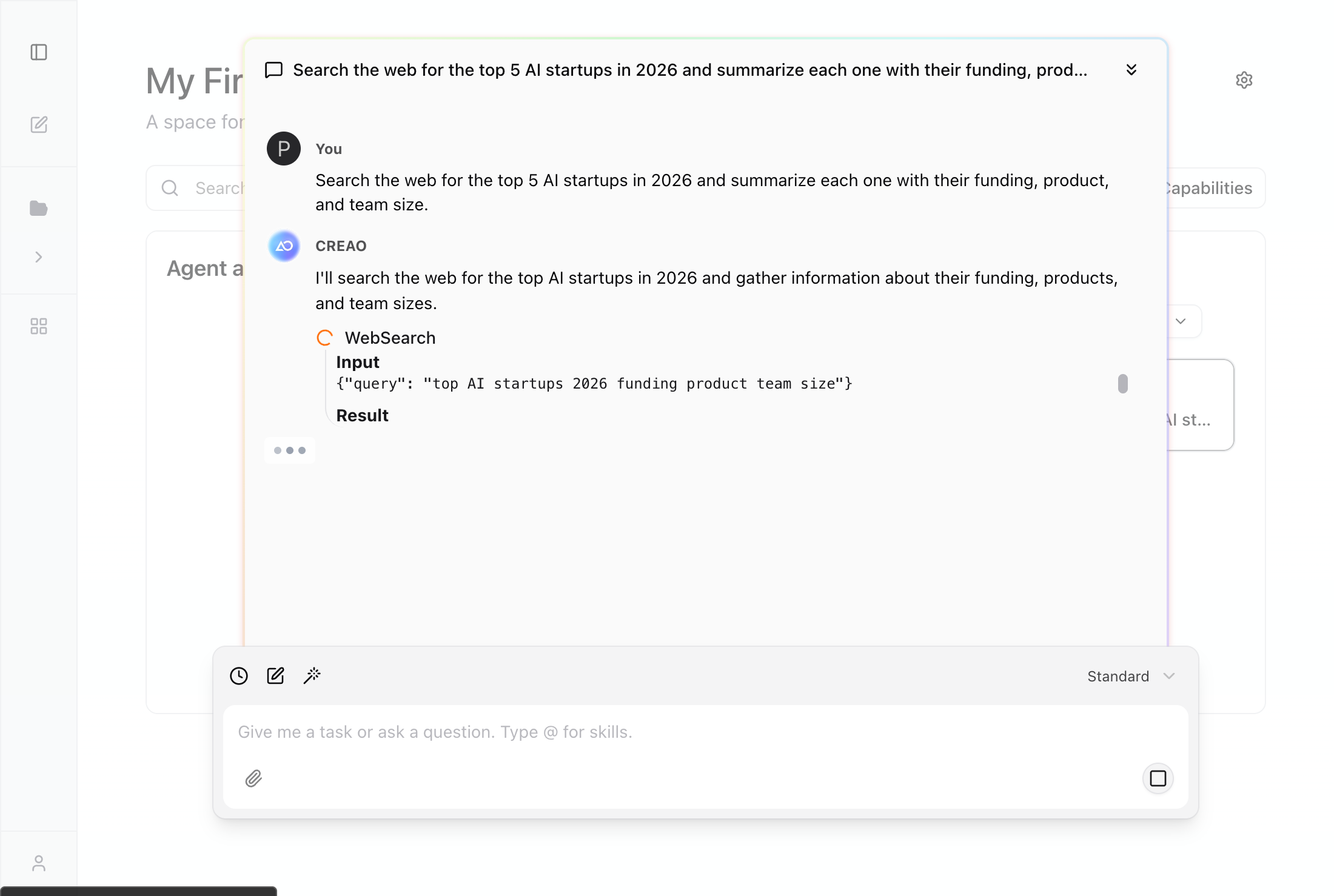
Tool calling
During execution, the Super Agent automatically selects the right tools for each step of your task. You can watch its progress in real time as it:- Searches the web
- Calls MCP integrations
- Reads and writes files
- Generates artifacts
Using the Super Agent
Start a conversation
Click the chat bar and describe what you need. Be specific about the task, inputs, and expected output.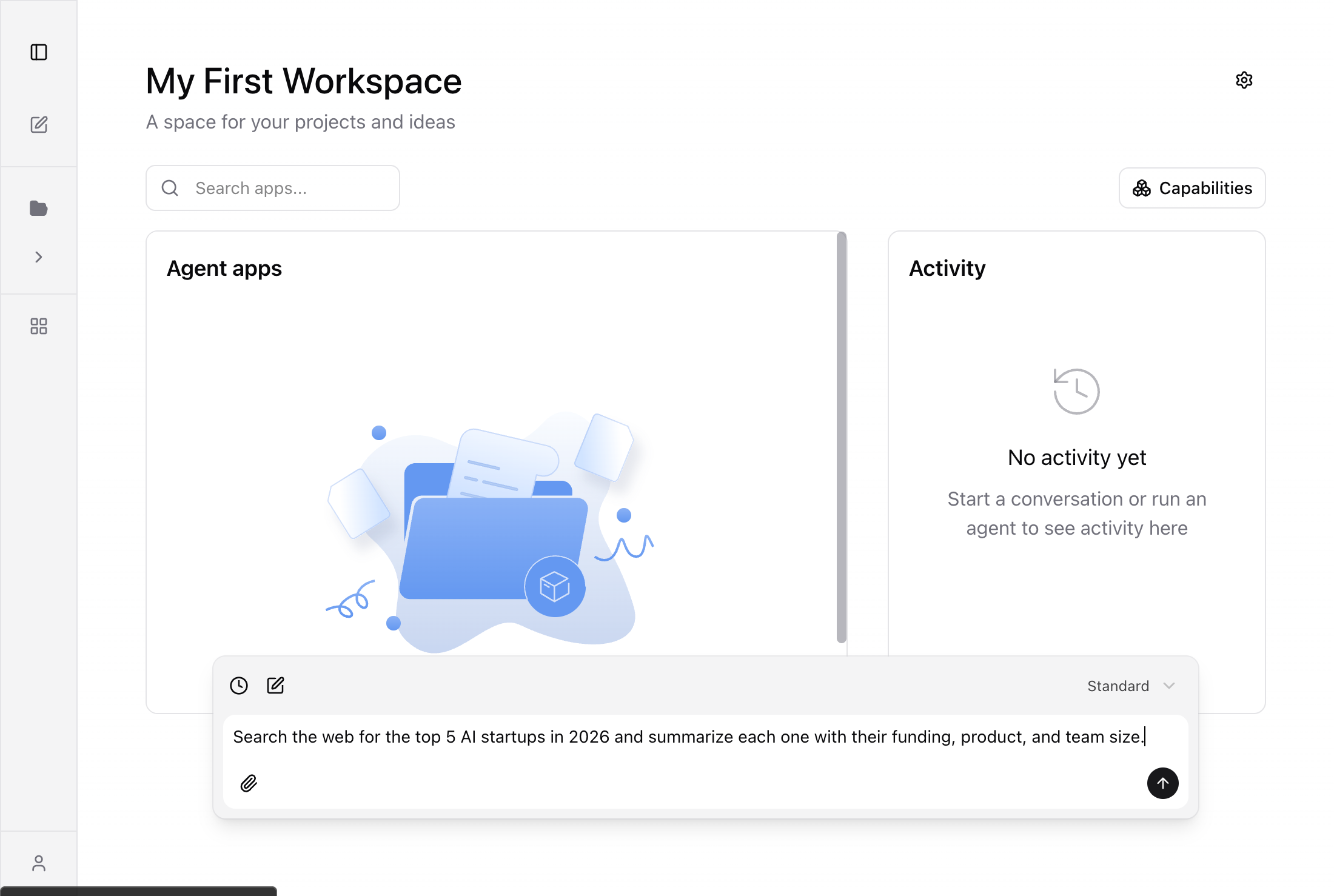
Review results
The Super Agent delivers results directly in the chat with structured output, sources, and follow-up suggestions.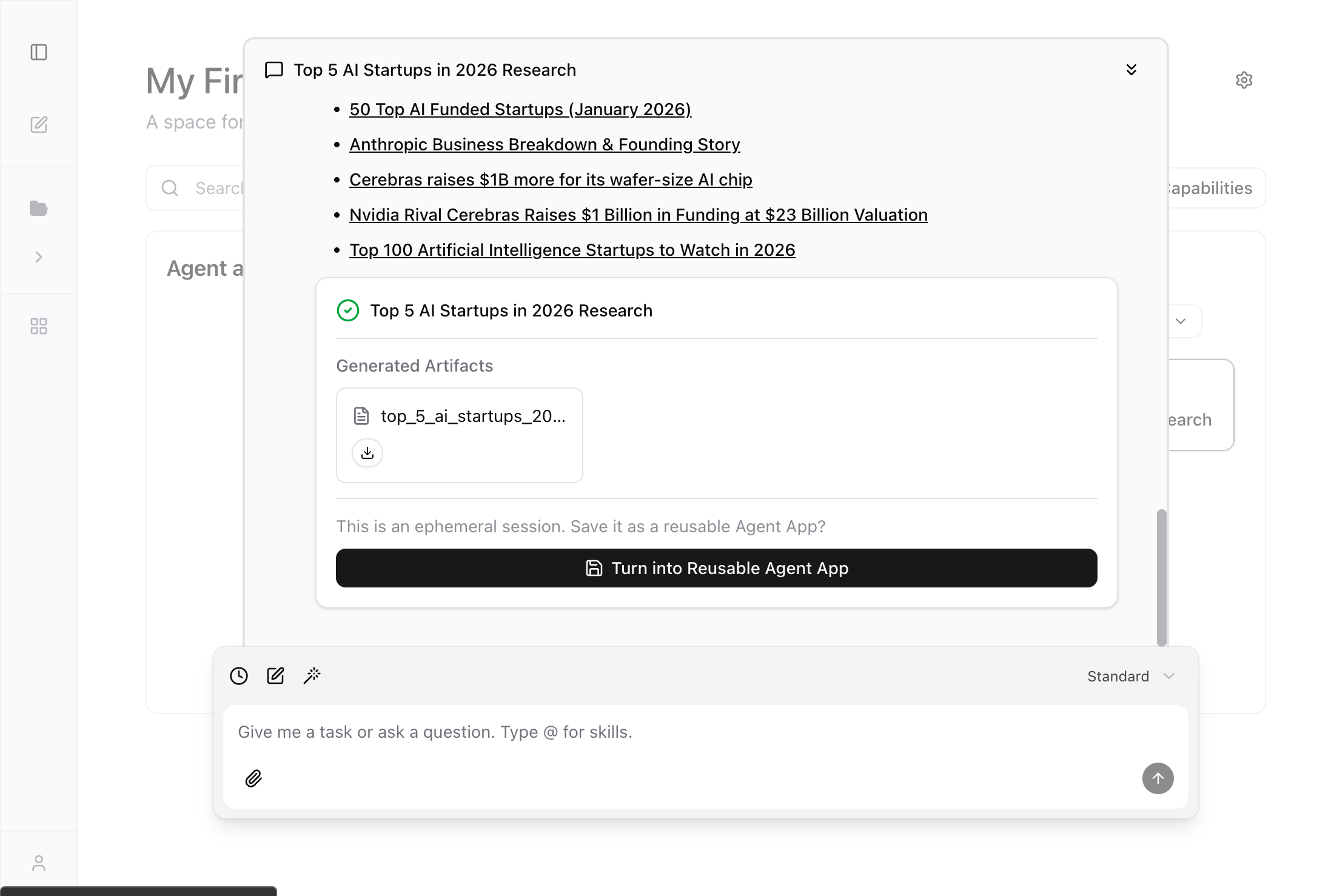
Turn it into an Agent App
When a session produces great results, you can save it as a reusable Agent App — either from the chat toolbar or from the completion card.Create an Agent App
Two ways to create an Agent App from a Super Agent session.
Chat history
Click the history button (clock icon) to view all previous conversations in the workspace. You can search, continue, or delete old chats.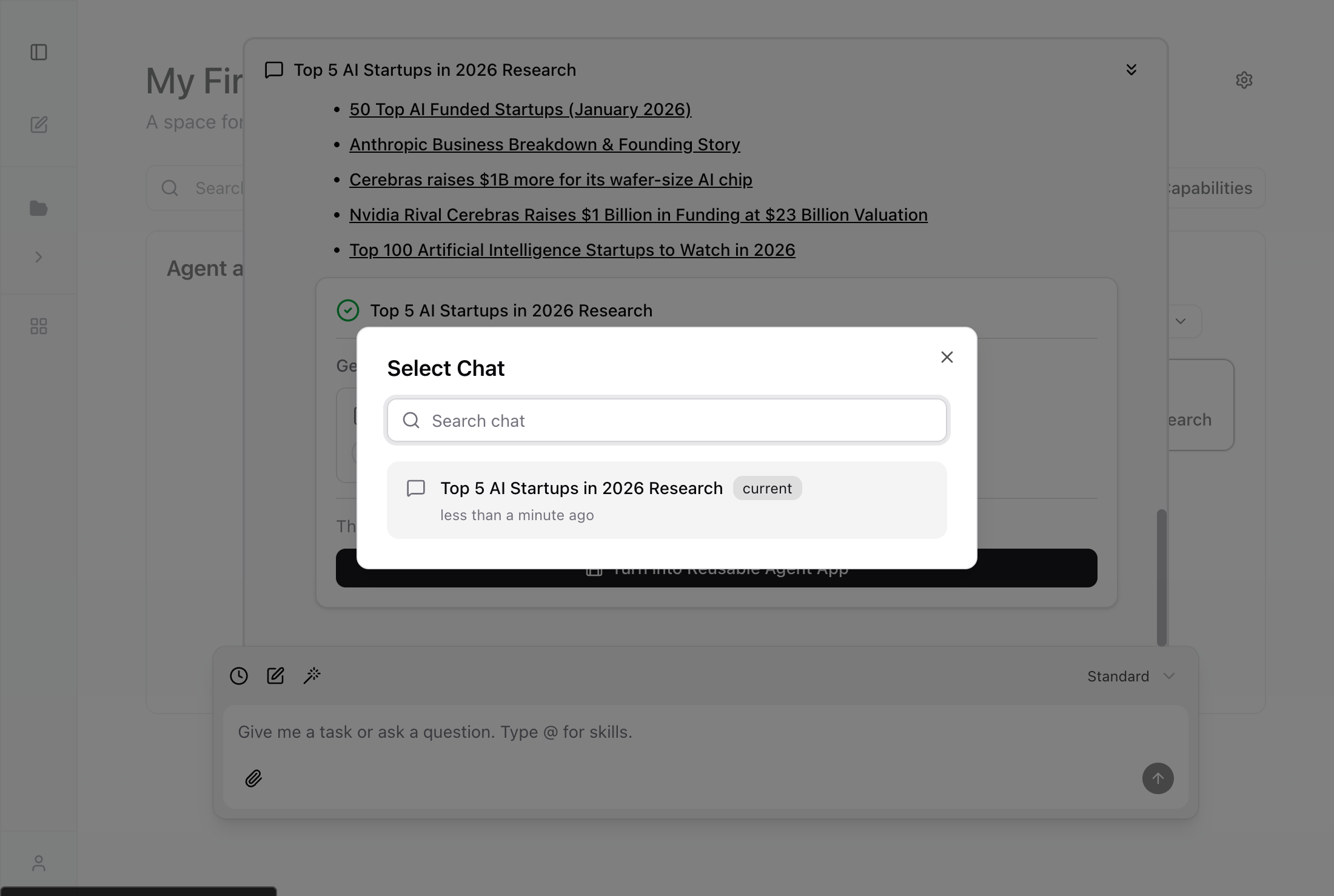
- Continue a chat — click any conversation to resume where you left off
- Search — use the search box to find a specific conversation
- New chat — click the pen icon to start a fresh conversation
- Delete — remove conversations you no longer need
Tips
- Use
@to quickly reference Skills, giving the Super Agent explicit context about which tools to use. - Be specific about output format — “summarize in a markdown file” or “generate an HTML report” helps the Super Agent produce the right artifact.
- If a Connector requires authorization (e.g., OAuth for Gmail), the Super Agent will prompt you to complete it before execution.
- Every Super Agent session can become a reusable Agent App — you never have to re-prompt the same workflow.