

Overview
Every Agent App is powered by capabilities — the things it can actually do. CREAO has two types of capabilities:- Skills — modular, reusable packages of instructions, metadata, and optional resources (scripts, templates) that extend what the agent can do
- Connectors — MCP and API integrations that give the agent access to external data and services
Skills
Modular capabilities that package instructions, code, and resources — teaching the agent how to perform specific tasks reliably.
Connectors
MCP servers and APIs that connect the agent to external services like Gmail, Google Sheets, Slack, and more.
Managing capabilities in your workspace
Click the Capabilities button at the top of your workspace to open the Capabilities panel. This is where you browse, enable, and manage all Skills and Connectors available to your workspace. The panel has four tabs:Connectors tab
Browse and connect MCP integrations like Firecrawl, GitHub, Gmail, Google Calendar, and more. Each connector is tagged with MCP and Official. Connect once and all Agent Apps in the workspace can use it.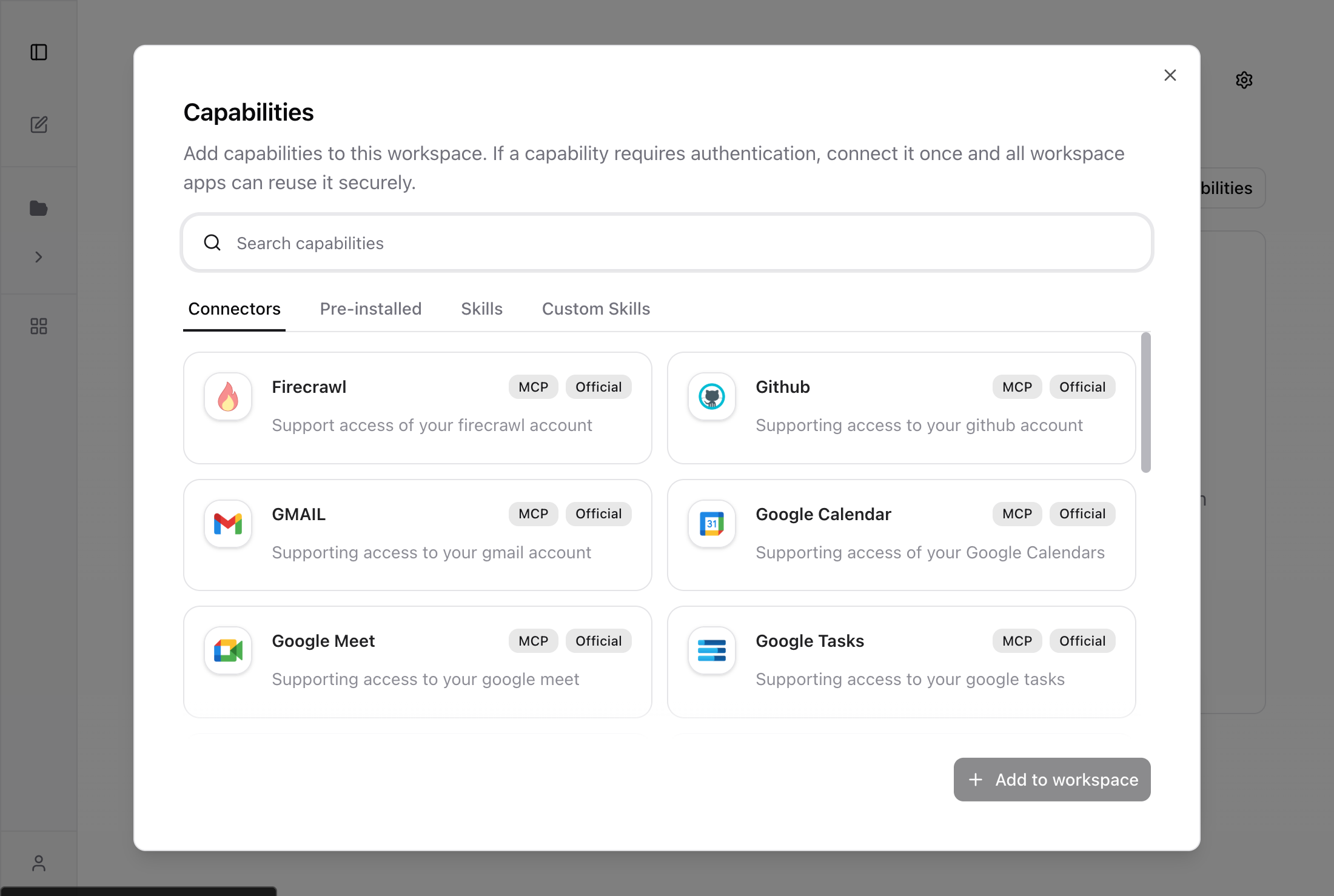
Pre-installed tab
View Skills that are already added to your workspace. These come pre-installed and are ready to use immediately — including document creation, web search, image generation, data analysis, and more.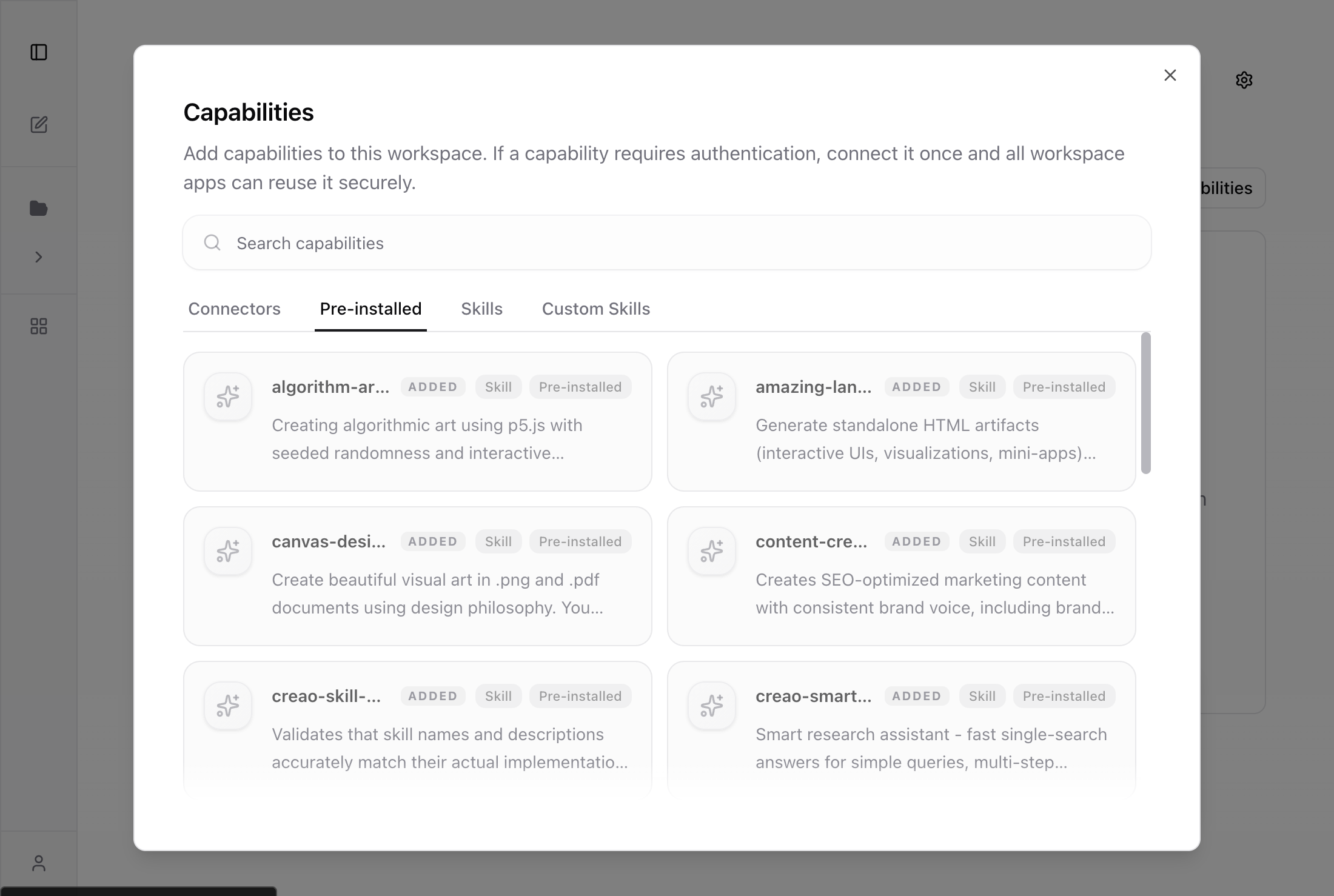
Skills tab
Browse the full library of official Skills you can enable for your workspace. Each Skill has a description and an Enable button. Once enabled, the Super Agent and Agent Apps can use it.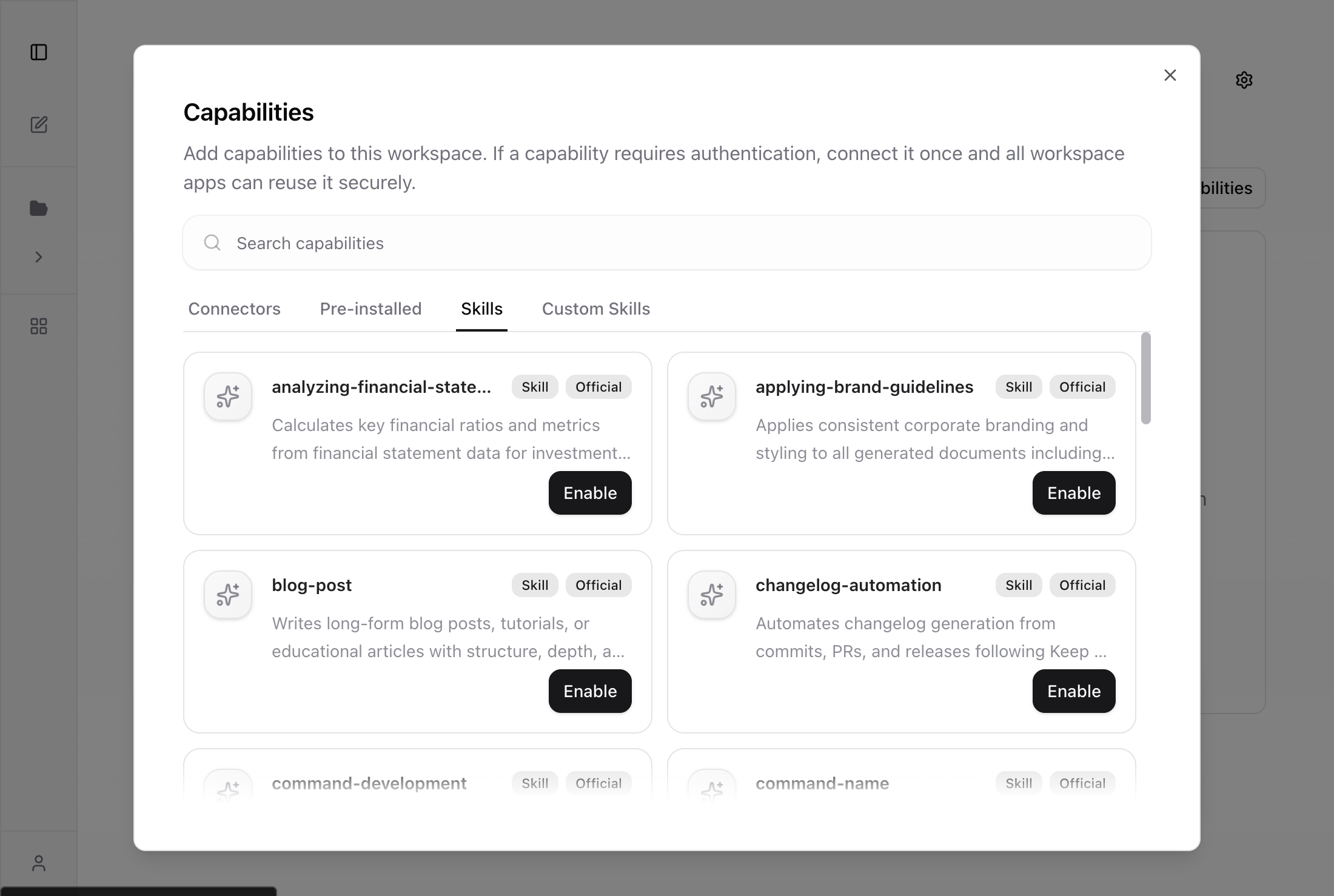
Custom Skills tab
Create and manage your own custom Skills by uploading a zip folder. Custom Skills let you extend the agent with proprietary workflows, domain-specific knowledge, and specialized scripts unique to your needs.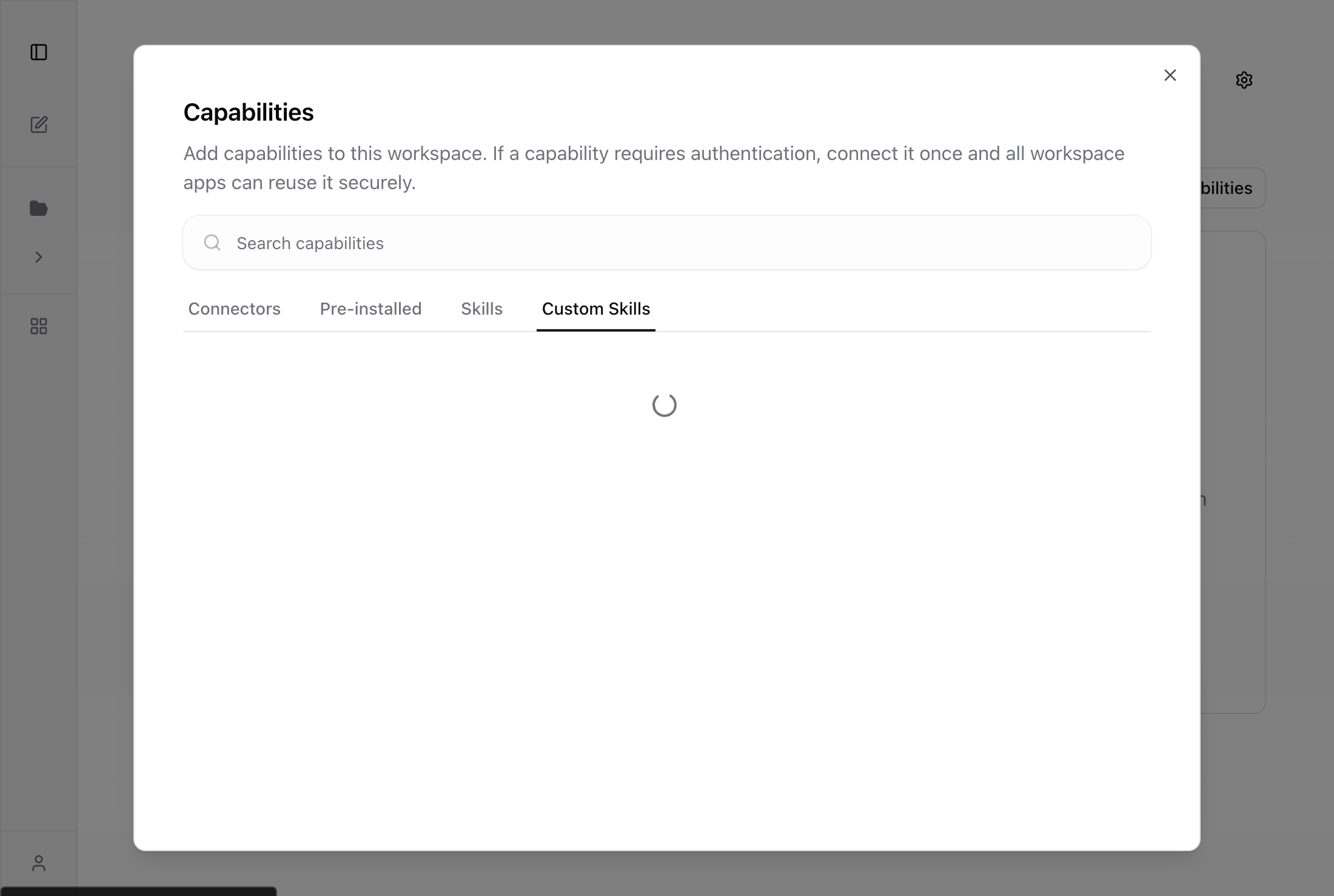
Custom Skills
Join our community for early access
Connect with other CREAO builders, get early access to new features, and share feedback directly with our team.
SKILL.md file with instructions and optional scripts, templates, or reference materials that the agent uses during execution.
Custom Skills follow the open Agent Skills specification and are compatible with the Claude Skills format.
Why Custom Skills
- Domain expertise — encode your organization’s specific processes, standards, and workflows
- Proprietary actions — add capabilities unique to your business that official Skills don’t cover
- Reusable across workspaces — create once, enable in any workspace
- Version through re-upload — update a skill by uploading a new zip, keeping the same name and workspace associations
Limits and rules
| Parameter | Specification |
|---|---|
| Maximum per user | 100 custom skills |
| Naming | Lowercase letters, numbers, and hyphens only. 3-50 characters. Must not duplicate an official skill name or your own existing custom skill name. |
| Skill conflicts | If your custom skill overlaps with an official skill, you’ll see a warning but can still create it. Be aware this may cause agent confusion during execution. |
Creating a Custom Skill
Here’s a complete walkthrough of creating a “weather-search” custom skill, enabling it, and disabling it.Start from your workspace
From the home page, you can see the workspace with its current capabilities count in the conversation bar.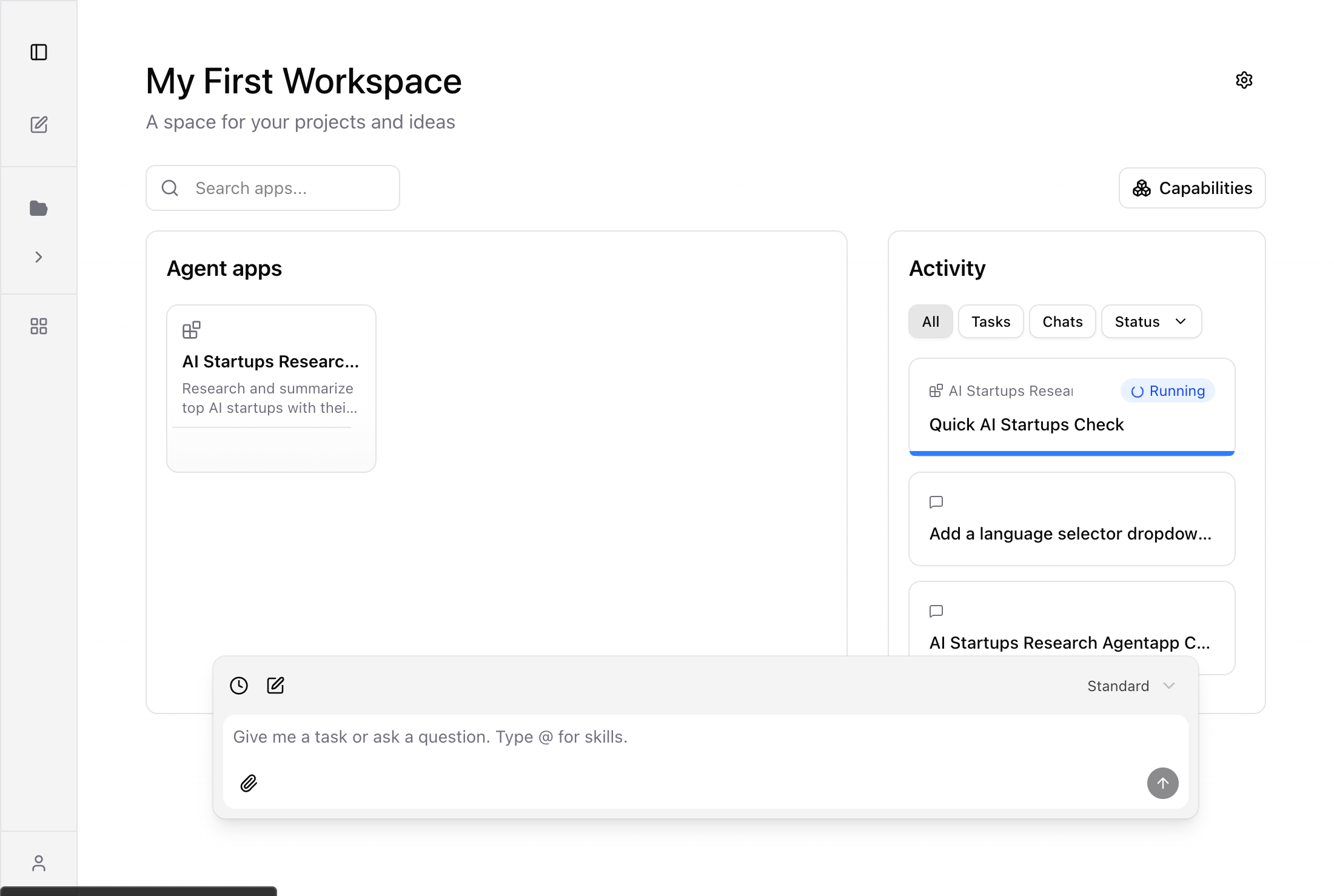
Open Capabilities and go to Custom Skills
Click the Capabilities button, then select the Custom Skills tab. If you haven’t created any skills yet, you’ll see an empty state with a prompt to upload a zip folder.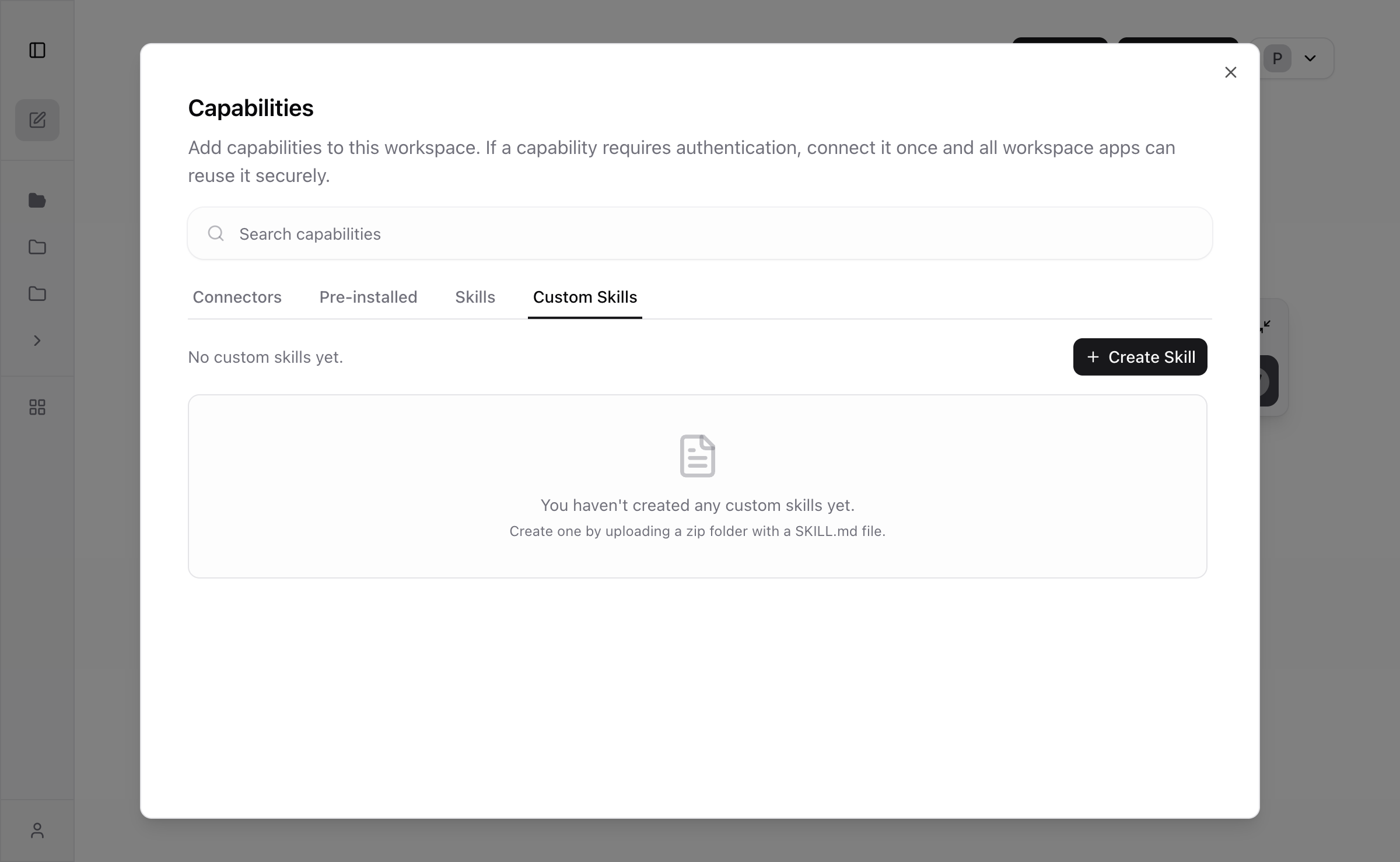
Fill in the Create Custom Skill form
Click + Create Skill. Enter a Skill Name (lowercase, hyphens allowed), a Description that tells the agent when to use this skill, and upload your 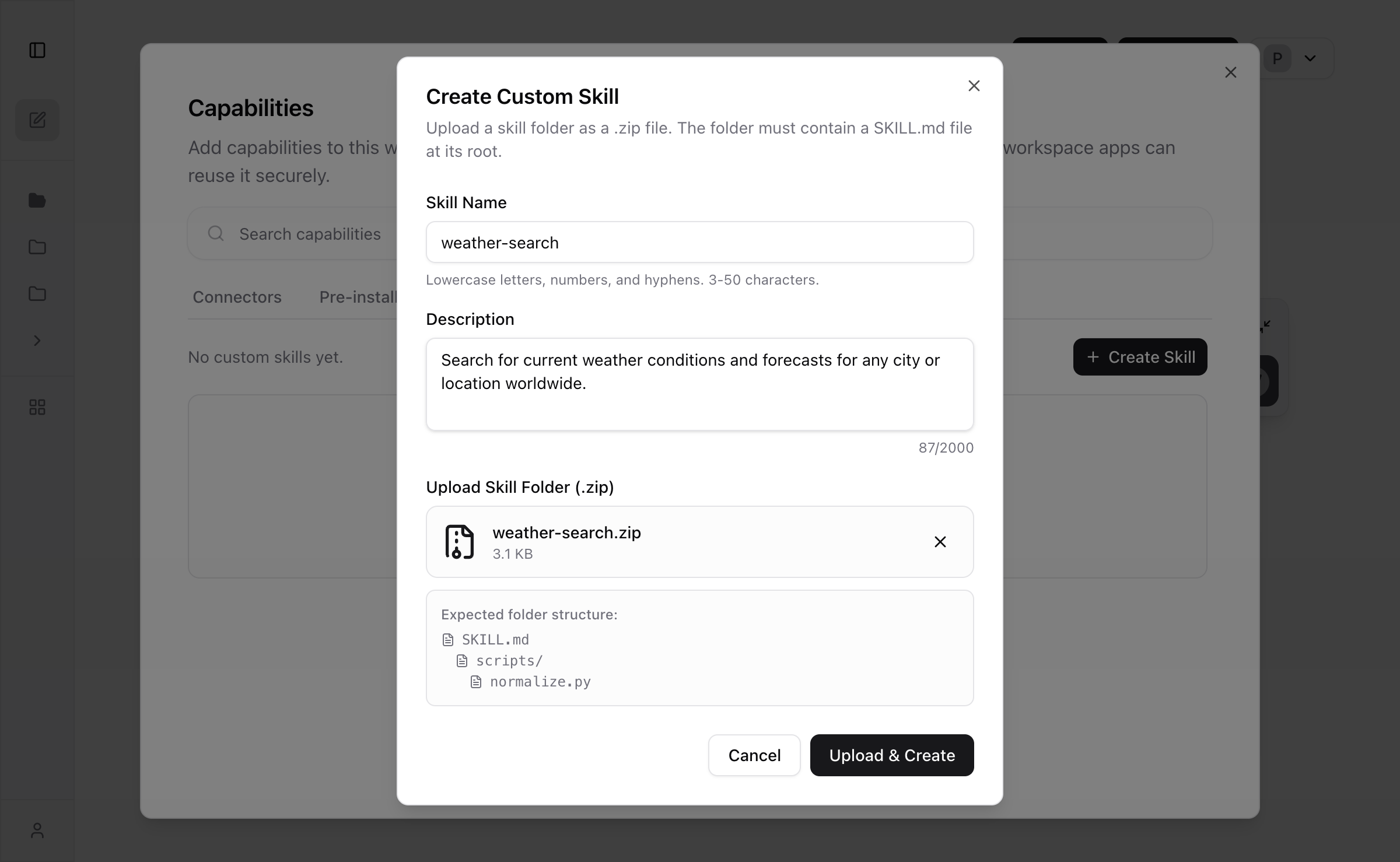
.zip file by clicking the upload area or dragging and dropping.Skill created successfully
Click Upload & Create. The system validates the zip structure (checks for 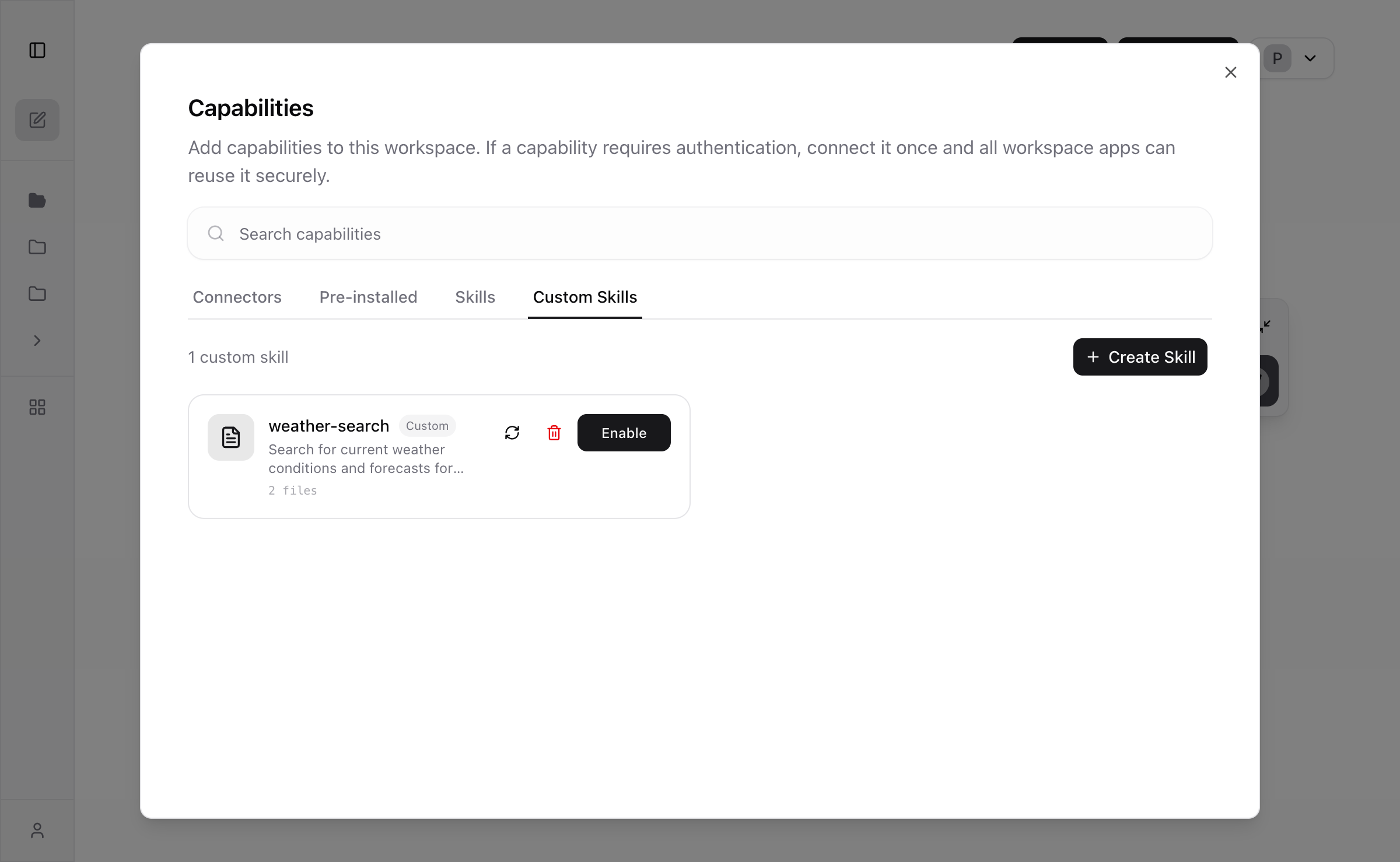
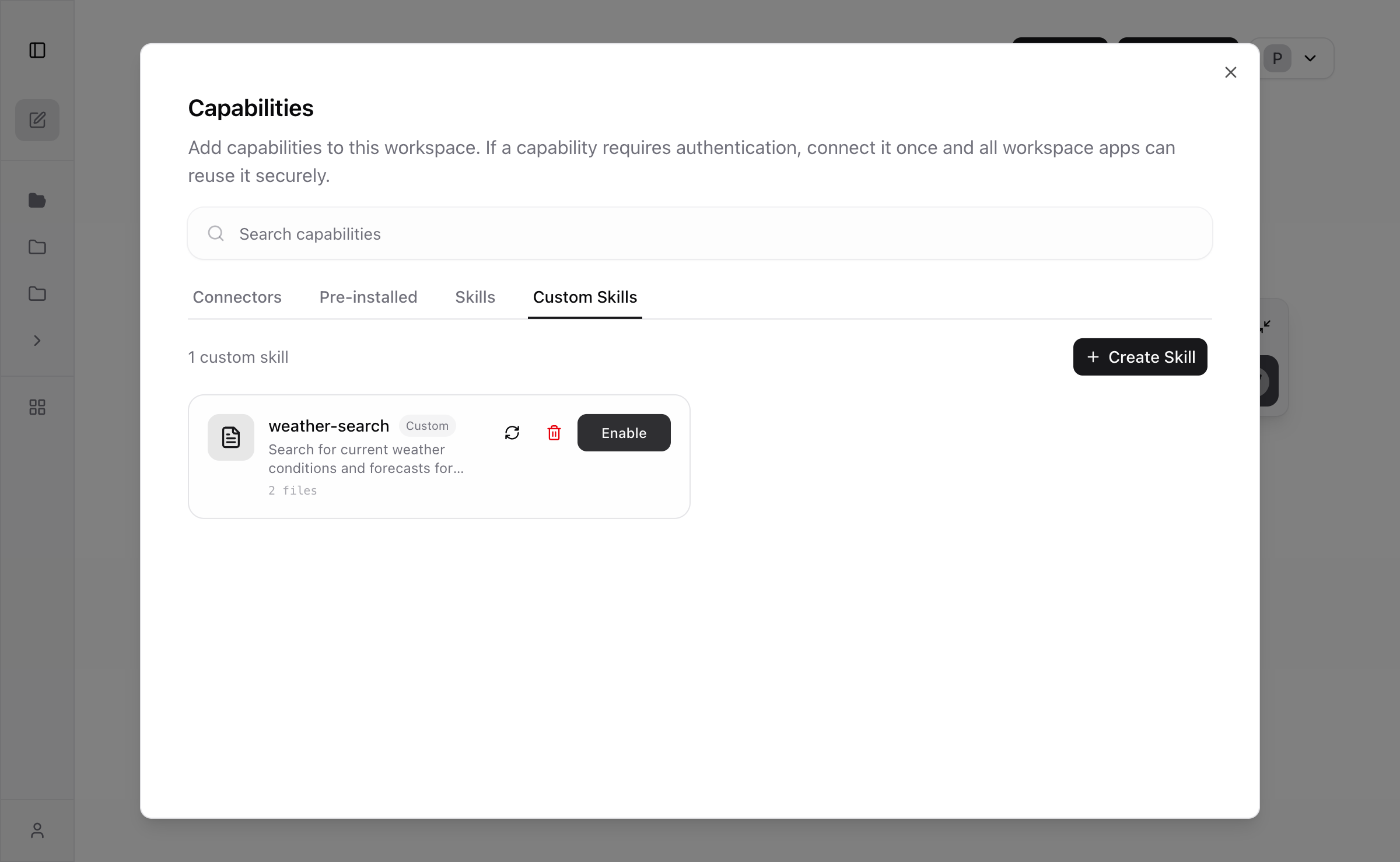
SKILL.md), uploads the files, and creates the skill. A success toast appears and the skill is now listed with its file count, a re-upload button, a delete button, and an Enable button.Enable the skill in your workspace
Click Enable to activate the skill for the current workspace. The capabilities count increases (19 to 20) and the button changes to Disable.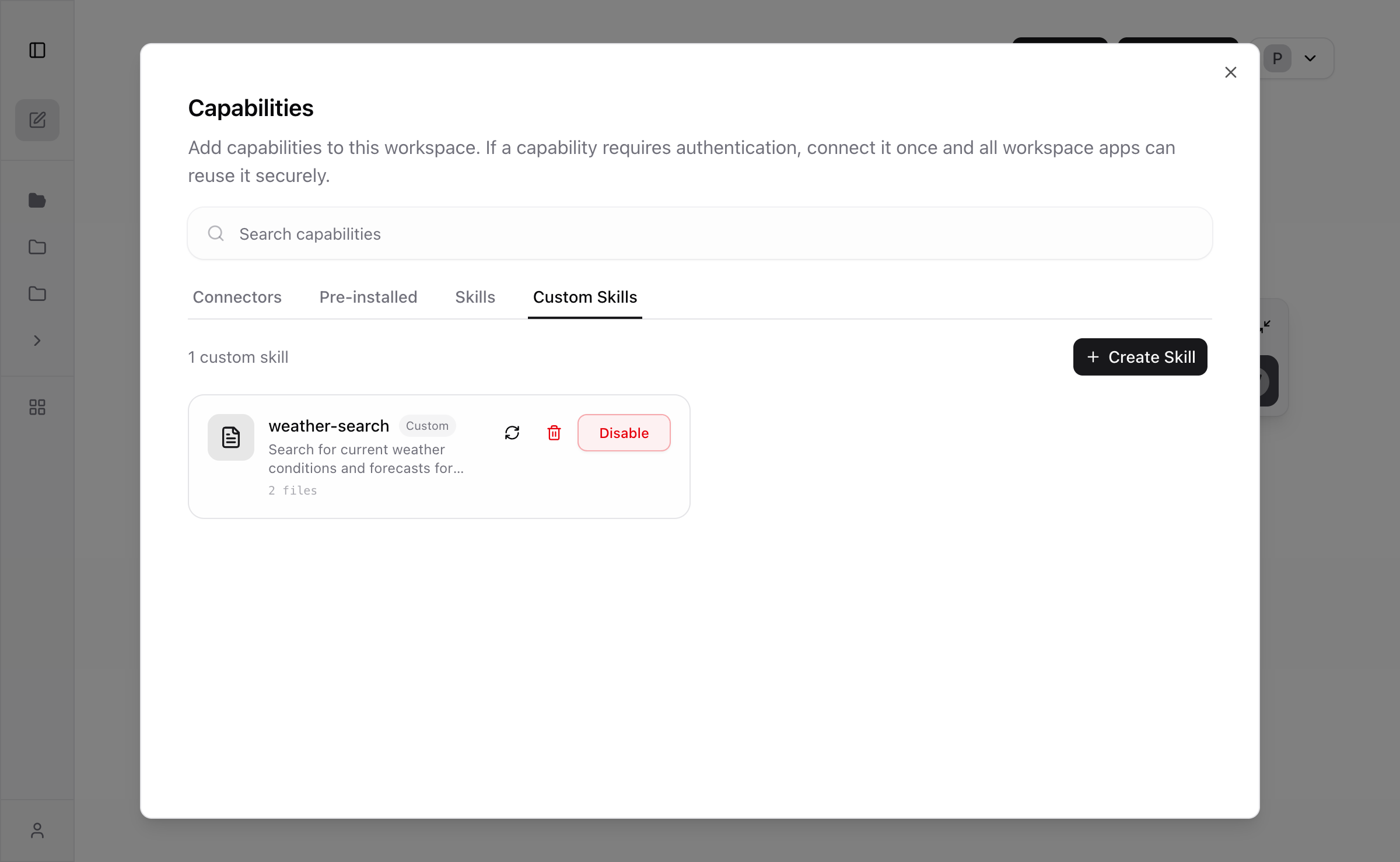
SKILL.md format
Every custom skill must include aSKILL.md file. This file uses YAML frontmatter for metadata and Markdown for instructions:
Skill folder structure
A skill zip can contain any files, but typically follows this structure:Managing Custom Skills
Once created, custom skills appear in the Custom Skills tab of the Capabilities panel:- Enable / Disable — toggle a skill on or off for the current workspace. Disabling temporarily removes it from agent use in that workspace.
- Re-upload — click the refresh icon to upload a new zip that completely replaces the skill’s files.
- Delete — permanently remove the skill. Existing workspaces retain the skill until it is explicitly disabled within them.
How Custom Skills are synced
When you open a workspace, enabled custom skills are automatically synced to the agent’s sandbox environment:- The skill zip is downloaded from storage
- Files are extracted to the agent’s skill directory
- The agent can then access the
SKILL.mdand all bundled resources during execution
Skills
A Skill is a modular capability that extends what the agent can do. Each Skill packages instructions, metadata, and optional resources (scripts, templates, reference files) that the agent uses automatically when relevant. Skills are reusable, filesystem-based resources that provide the agent with domain-specific expertise: workflows, context, and best practices that transform a general-purpose agent into a specialist. Unlike one-off prompts, Skills load on-demand and eliminate the need to repeatedly provide the same guidance across multiple sessions.Skills are the engine beneath Agent Apps. An Agent App orchestrates one or more Skills to execute a complete workflow.
Why Skills matter
- Specialize the agent — tailor capabilities for domain-specific tasks
- Reduce repetition — create once, use automatically across sessions
- Compose capabilities — combine Skills to build complex workflows
- Compound over time — each follow-up refines the Skill, making it more reliable
Skill structure
Every Skill is built around a set of instructions with metadata. In CREAO, a Skill contains:| Component | Description |
|---|---|
| Name | A human-readable identifier for the Skill |
| Description | What the Skill does and when the agent should use it |
| Instructions | Step-by-step guidance the agent follows — the logic prompt, workflows, and best practices |
| Resources | Optional bundled files — scripts, templates, reference docs, examples — that the Skill can use during execution |
How Skills load: progressive disclosure
Skills use a progressive disclosure model — only the content needed for the current task is loaded, keeping execution efficient:| Level | When loaded | What it contains |
|---|---|---|
| Metadata | Always (at startup) | Name and description — so the agent knows what Skills are available |
| Instructions | When the Skill is triggered | The full logic prompt with step-by-step guidance |
| Resources | As needed during execution | Scripts, templates, reference files — accessed only when relevant |
Types of Skill content
Skills can contain different types of content, each serving a different purpose: Instructions — the core of every Skill. Workflows, best practices, and procedural knowledge that guide the agent through a task. Code — executable scripts that the agent can run during execution. Scripts provide deterministic operations (data validation, file transformation, calculations) that are more reliable than having the agent generate code on the fly. Resources — reference materials like templates, example outputs, schemas, or documentation. The agent accesses these when it needs factual information or a format to follow.How Skills are created
Skills are created automatically when you build an Agent App:Turn it into an Agent App
The Super Agent extracts the workflow into a Skill — capturing the instructions, steps, and execution logic.
Skill powers the Agent App
Each time the Agent App runs, the agent follows the Skill’s instructions to produce consistent results.
Skills compound over time
This is the key difference from ad-hoc prompting:- Day 1: You run a Super Agent session to generate a competitor analysis. It works well.
- Day 3: You save it as an Agent App. The Super Agent extracts the workflow into a Skill with clear steps.
- Day 10: You follow up to handle edge cases and improve the output format. A new version is created.
- Day 30: Your team runs the Agent App weekly. The Skill handles it reliably every time.
Viewing Skills
You can see the Skill (logic prompt) attached to any Agent App in the Settings > Overview tab of the Agent App panel, under Agent Logic & Steps.Connectors
A Connector gives the agent access to an external service or data source. Connectors are the bridge between your Agent App and the outside world.Types of Connectors
MCP Integrations
Connect to services using the Model Context Protocol. Gmail, Google Sheets, Slack, GitHub, and more — with OAuth-based authentication.
Custom APIs
Bring any REST API. Provide the endpoint details and the agent can call it during execution.
Built-in capabilities
Every workspace has access to built-in capabilities without any setup:- Web search — search the internet for real-time information
- File parsing — extract and analyze content from images, text, and common file formats
How Connectors work
When a Connector is added to an Agent App, it is registered as a capability with:- Type — MCP integration or API call
- Capability ID — a unique identifier for the connected service
- Call instruction — guidance for the agent on when and how to use this Connector
Adding Connectors
Connectors are added in two ways: Automatically during creation — when you create an Agent App from a Super Agent session, the system captures all integrations used during that session and registers them as capabilities. Through follow-up — request new integrations when following up on an Agent App. The agent connects the service and adds it as a capability.One-click integrations
Learn how to add MCP and API integrations to your workspace.
Authorization
Some Connectors require OAuth authorization before they can be used. If an Agent App tries to use a Connector that hasn’t been authorized, the system will prompt you to complete the sign-in flow.How Skills and Connectors work together
An Agent App combines both:- Skills define the workflow — the steps, logic, and output format
- Connectors provide the tools the Skills call — fetching data, sending messages, reading files
Skills guide the execution
The instructions tell the agent what steps to follow, what to look for, and how to structure the output.
Connectors execute external actions
At each step, the agent calls the relevant Connectors — searching the web, pulling data from Google Sheets, or sending a Slack message.
Version control
Both Skills and Connectors are versioned together with the Agent App. When you restore a previous version, the entire set — instructions, form, and capabilities — reverts to that version’s state.Version control
Learn how to manage and restore Agent App versions.
Tips
- The Overview tab in Agent App settings shows both the Skill (logic prompt) and all attached Connectors.
- Skills use progressive disclosure — metadata is always loaded, full instructions load on-demand, and resources load only when needed.
- Built-in capabilities (web search, file parsing) are always available without any setup.
- Connectors are shared across your workspace — once connected, any Agent App can use them.
- Following up on an Agent App refines the Skill. Each follow-up creates a new version you can roll back to.