

What are scheduled runs?
Scheduled runs let you automate your Agent Apps to execute on a recurring basis — daily, weekly, monthly, or at a custom interval. Instead of manually filling in the form and clicking Run each time, you configure a schedule once and the Agent App runs automatically. This is useful for tasks like:- Daily research reports
- Weekly data summaries
- Monthly analytics digests
- Periodic monitoring or alerting
Setting up a schedule
Fill in the form
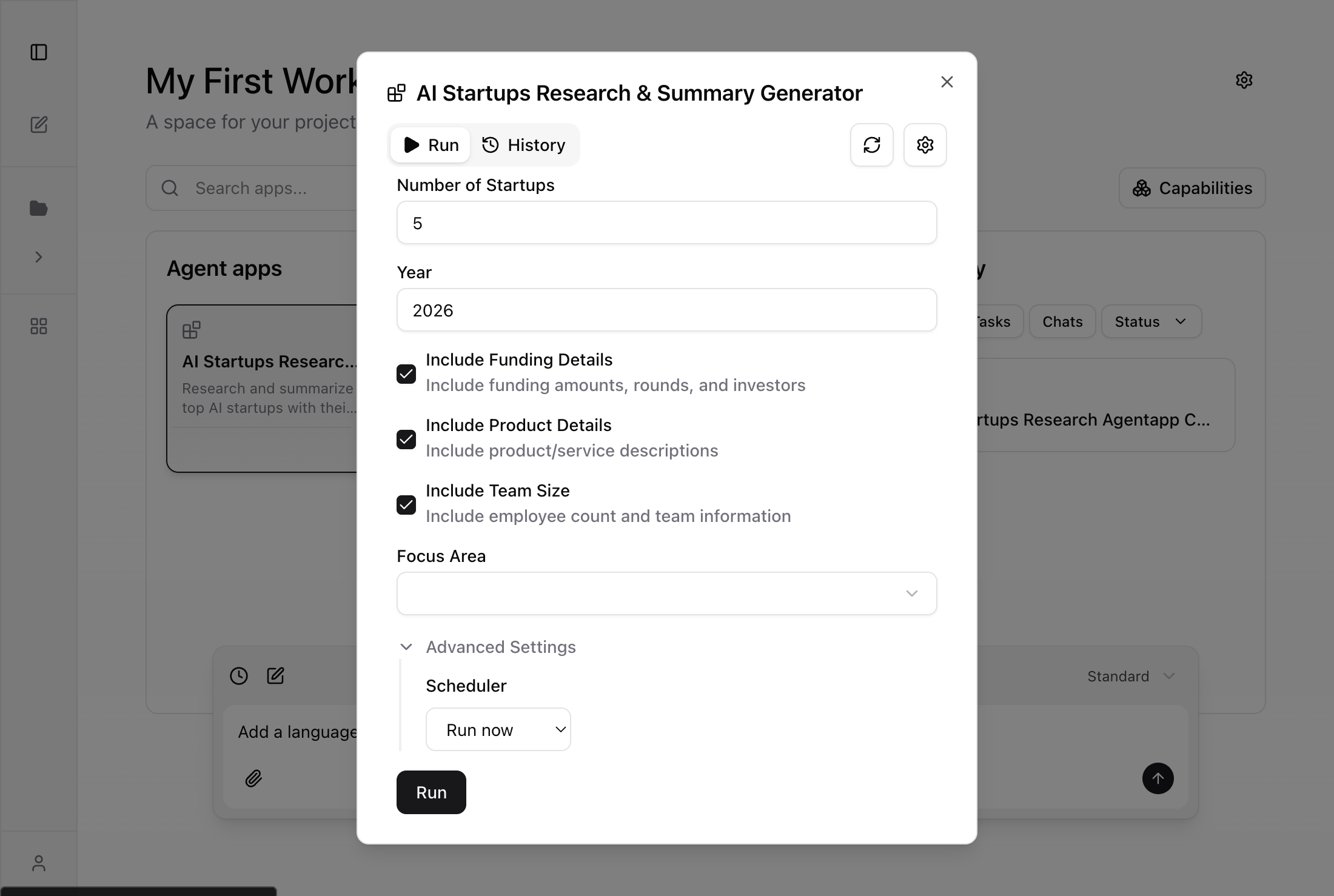
On the Run tab, fill in the form fields with the inputs you want the Agent App to use for each scheduled run.
Choose a schedule type
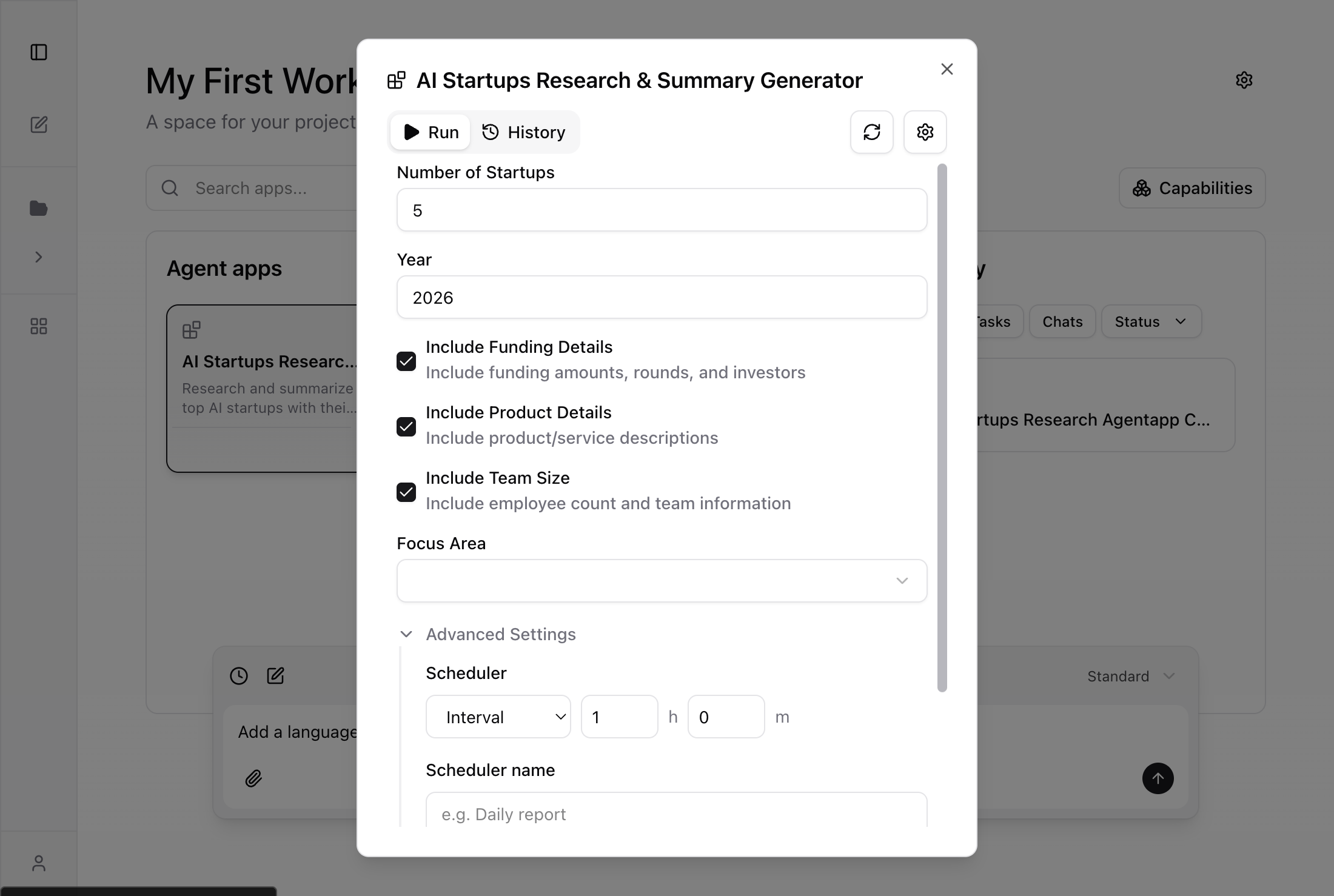
Select a schedule from the Scheduler dropdown:
- Run now — execute immediately (default, no schedule)
- Daily — run once per day at a specified time
- Weekly — run once per week on a chosen day and time
- Monthly — run once per month on a chosen day and time
- Interval — run at a custom interval (e.g., every 1 minute, every 2 hours)
Configure schedule details
Depending on the schedule type, configure the additional options:
- Time — the time of day to run (for daily, weekly, monthly)
- Day of week — which day to run (for weekly)
- Day of month — which day to run (for monthly)
- Hours / Minutes — interval between runs (for interval)
- Scheduler name — a label for this schedule (e.g., “Quick AI Startups Check”)
-
Timezone — the timezone for the schedule (defaults to UTC)
Managing schedules
You can view and manage all schedules for an Agent App in the Settings > Schedules tab.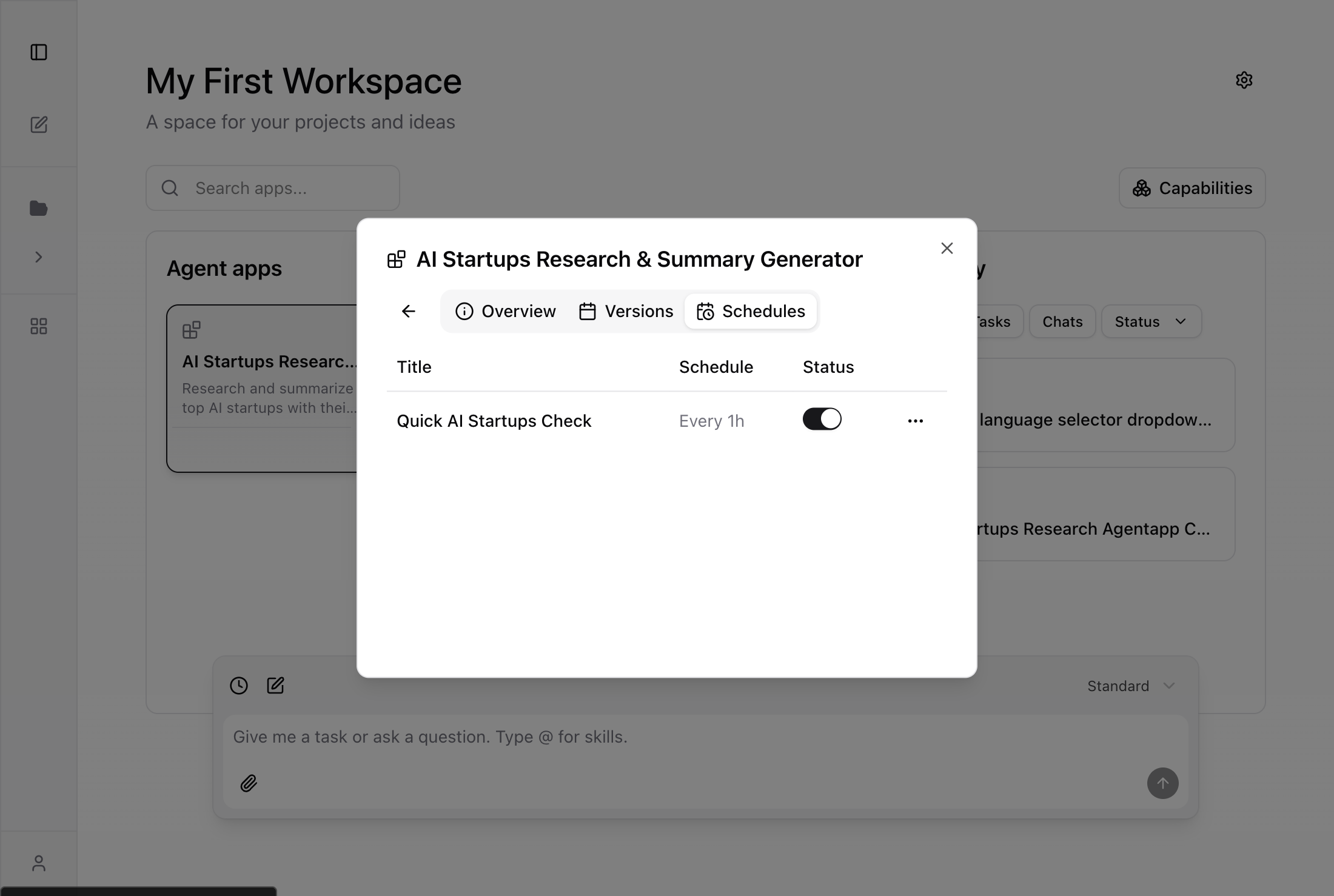
- Title — the name you gave the schedule
- Schedule — the frequency (e.g., “Every 1h 1m”, “Daily at 09:00”)
- Status — toggle switch to enable or pause the schedule
Schedule actions
Click the … menu on any schedule to access management actions: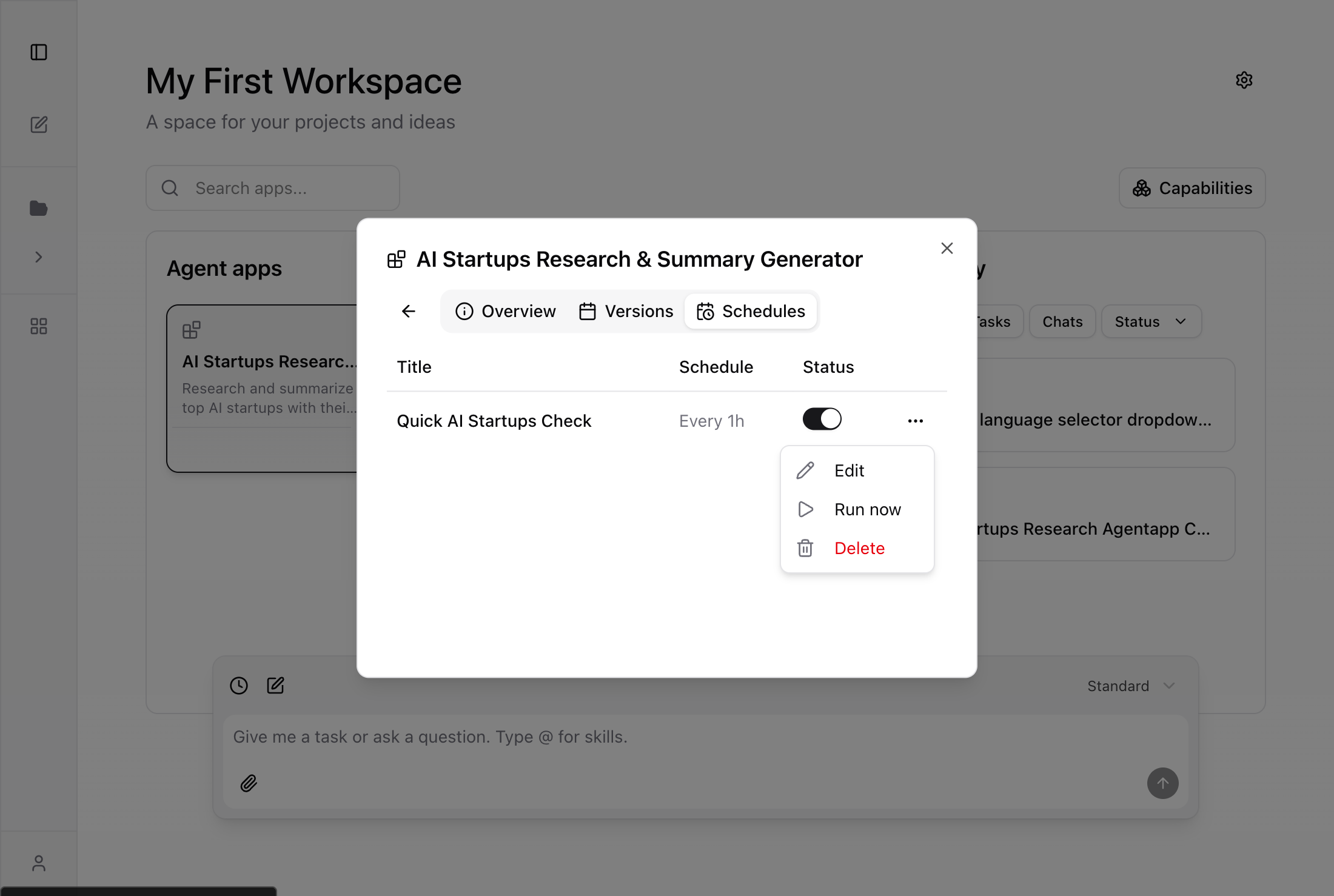
- Edit — modify the schedule configuration (frequency, time, timezone)
- Run now — trigger an immediate execution of the scheduled task
- Delete — permanently remove the schedule
How scheduled runs work
When a schedule triggers:- The Agent App runs with the form values you saved when creating the schedule
- The Skill executes the workflow, calling Connectors as needed
- Results appear in the Agent App’s History tab, just like manual runs
- If the run produces artifacts, they are available for download from the session
Scheduled runs use the same form values you provided when creating the schedule. To change the inputs, edit the schedule or create a new one.
Tips
- You can have multiple schedules for the same Agent App with different form values — for example, a daily report for one region and a weekly summary for another.
- Use descriptive scheduler names to keep track of multiple schedules.
- Check the History tab to verify scheduled runs are executing as expected.
- Use the toggle switch in the Schedules tab to quickly pause and resume a schedule without deleting it.
- The Run now action is useful for testing a schedule before waiting for the next trigger.