

What is version control?
Every time you follow up on an Agent App, CREAO automatically saves the current state as a version. Versions let you view past iterations, compare changes, and restore a previous state if something goes wrong.Viewing versions
Each version card shows:
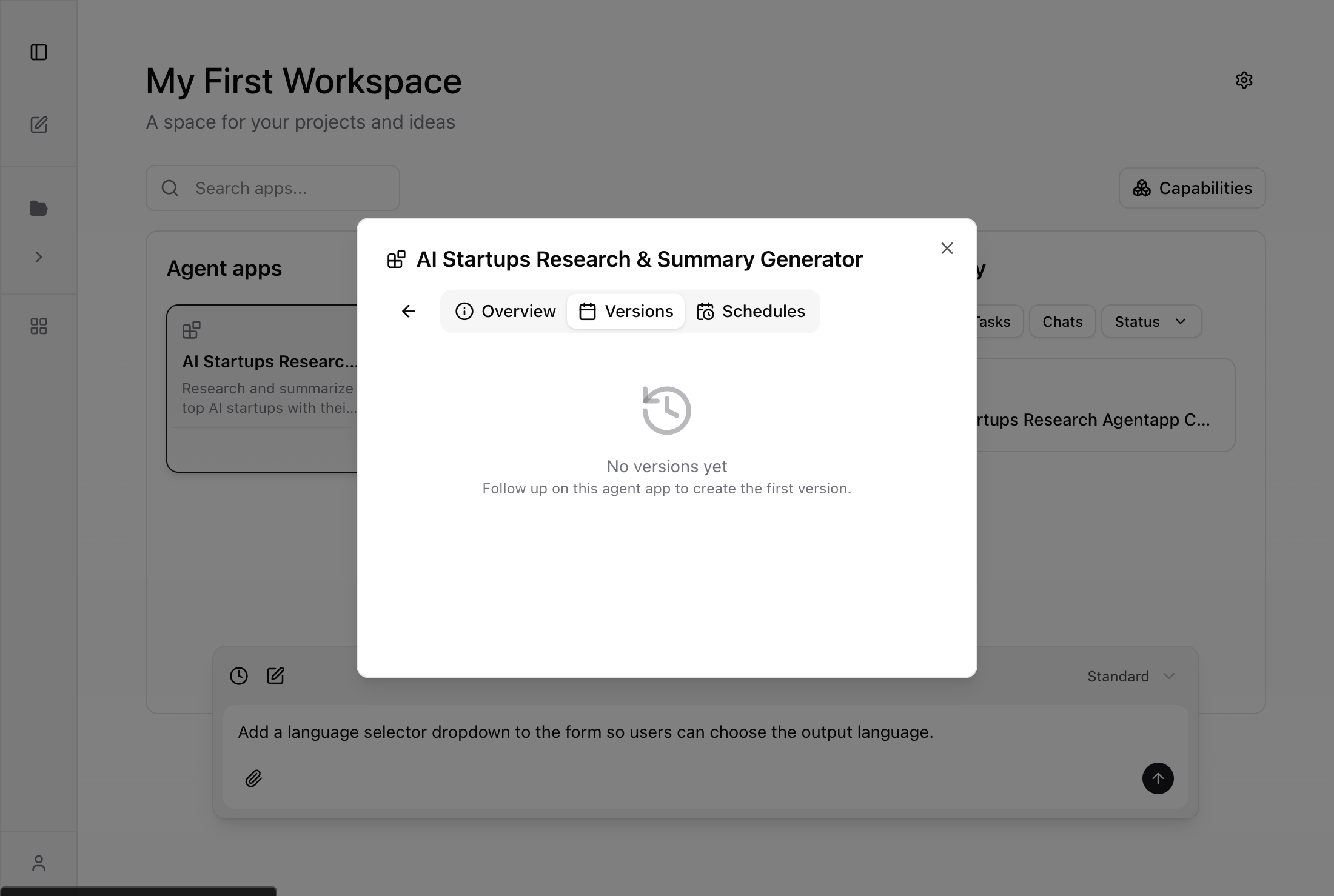
- Version number (e.g., v1, v2, v3)
- Summary of what changed in that version
- Timestamp of when the version was created
- Current badge on the active version
- Draft badge on versions still being built
Restoring a previous version
If a follow-up didn’t produce the result you wanted, you can roll back to any completed version.Find the version you want
Open the Agent App panel, go to Settings > Versions, and locate the version you want to restore.
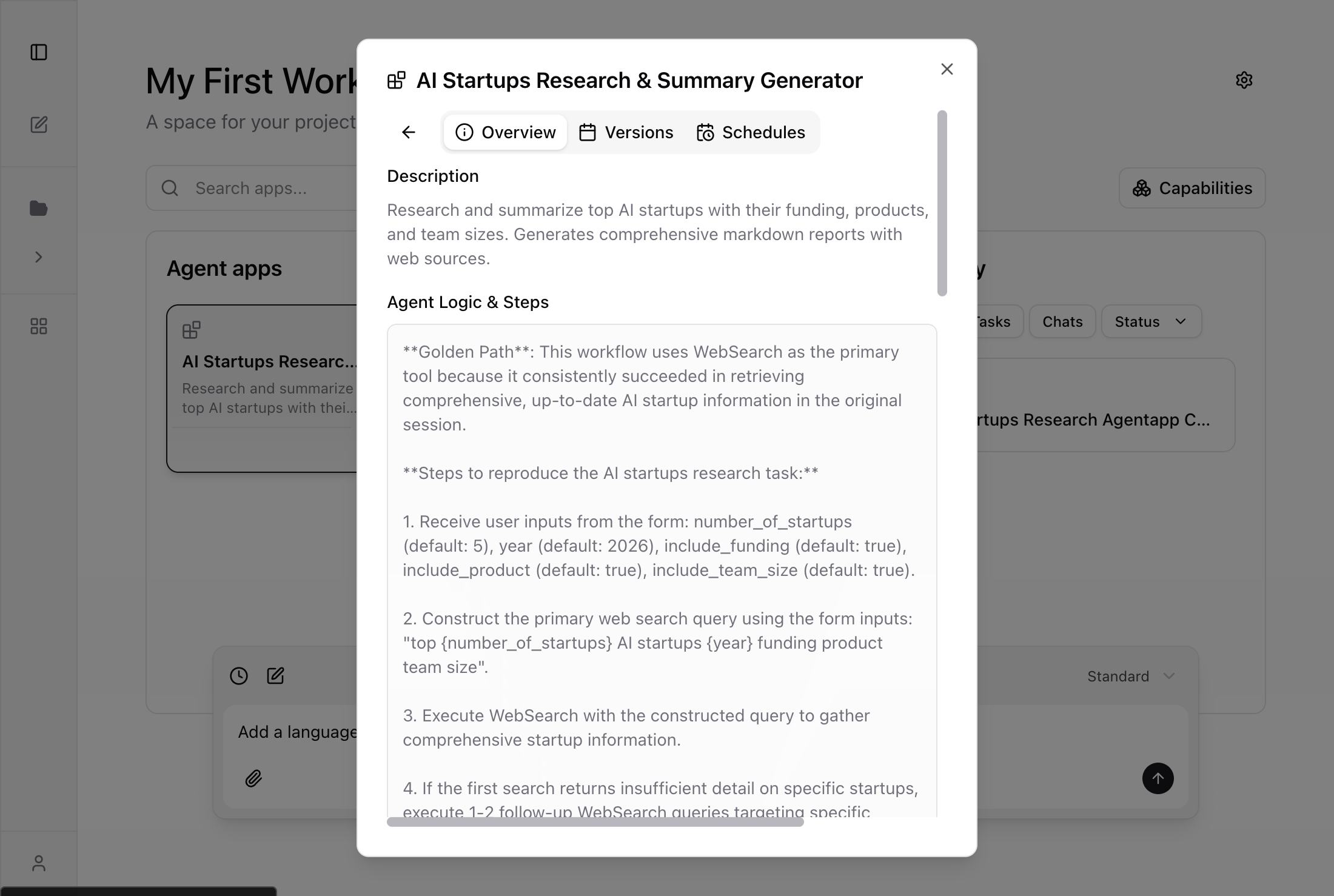
Overview tab
The Settings panel also includes an Overview tab that shows read-only details about your Agent App:- Description — what the Agent App does
- Agent Logic & Steps — the internal workflow and prompt
- Capabilities — integrations and tools the Agent App can use
Tips
- Versions are only created through follow-up requests. Running the Agent App does not create a new version.
- Only completed versions can be restored. Draft versions (still being built) cannot be restored.
- After restoring a version, the form on the Execute tab automatically resets to match the restored version’s fields.
- Use the refresh button (next to the gear icon) to reload the latest Agent App data after a restore.