

Why bundled scripts matter
Without bundled scripts, every run asks the language model to re-read your agent’s text procedure and re-write the code. That leads to drift:- “Blue” becomes navy one run, cornflower the next
- Edge-case handling quietly changes each time
- A function accepting three inputs might silently take four next run
- Metric definitions (annual return, volume, high/low) shift between runs
The full lifecycle
Create — the first session writes a script to disk
.py file (via the Write tool or a cat > bash command) and runs it. This is the working version, the one you see producing the output you like.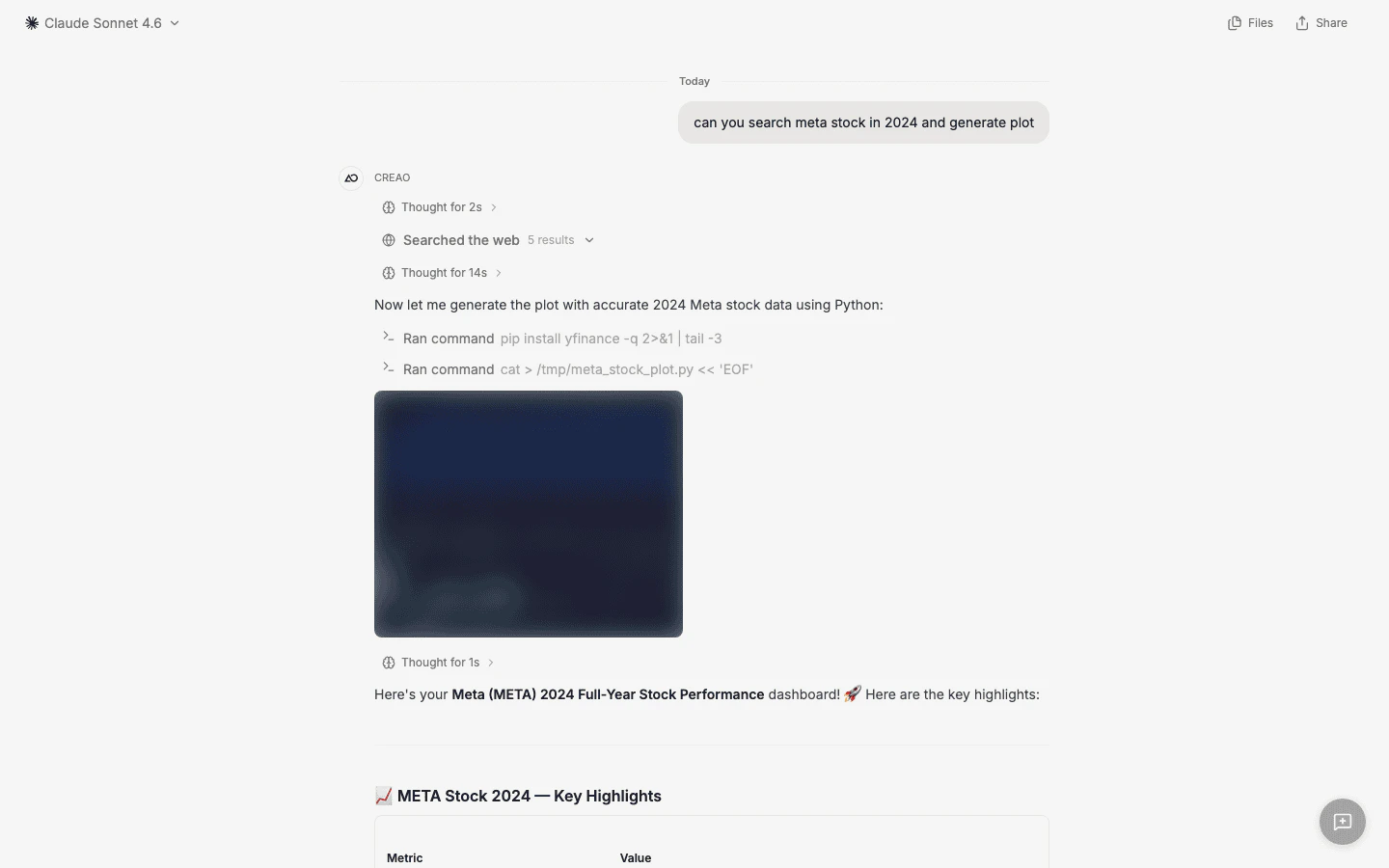
Original session: the agent writes meta_stock_plot.py to /tmp and executes it. Artifact chip shows the script streaming live.
Persist — clicking 'Turn into reusable agent' bundles the script
*.py, because the sandbox can hold files unrelated to this task. Staged files are uploaded to cloud storage under the new agent’s identity and registered as attached files. If no reusable script was written, nothing is bundled and the agent keeps a written procedure instead.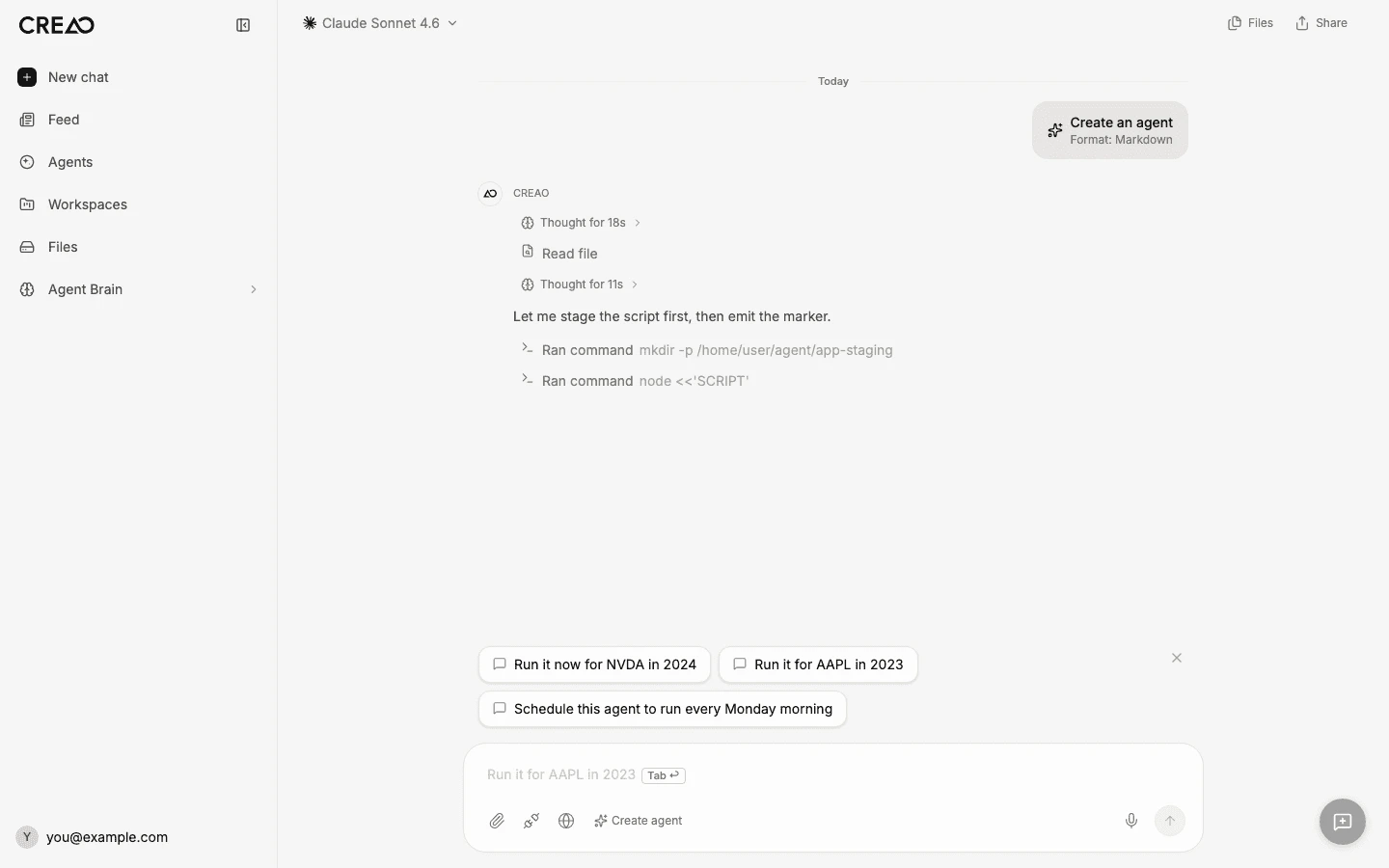
Persist turn: the agent stages meta_stock_plot.py, emits the [APP_CREATED] marker, and the platform promotes the staged file.
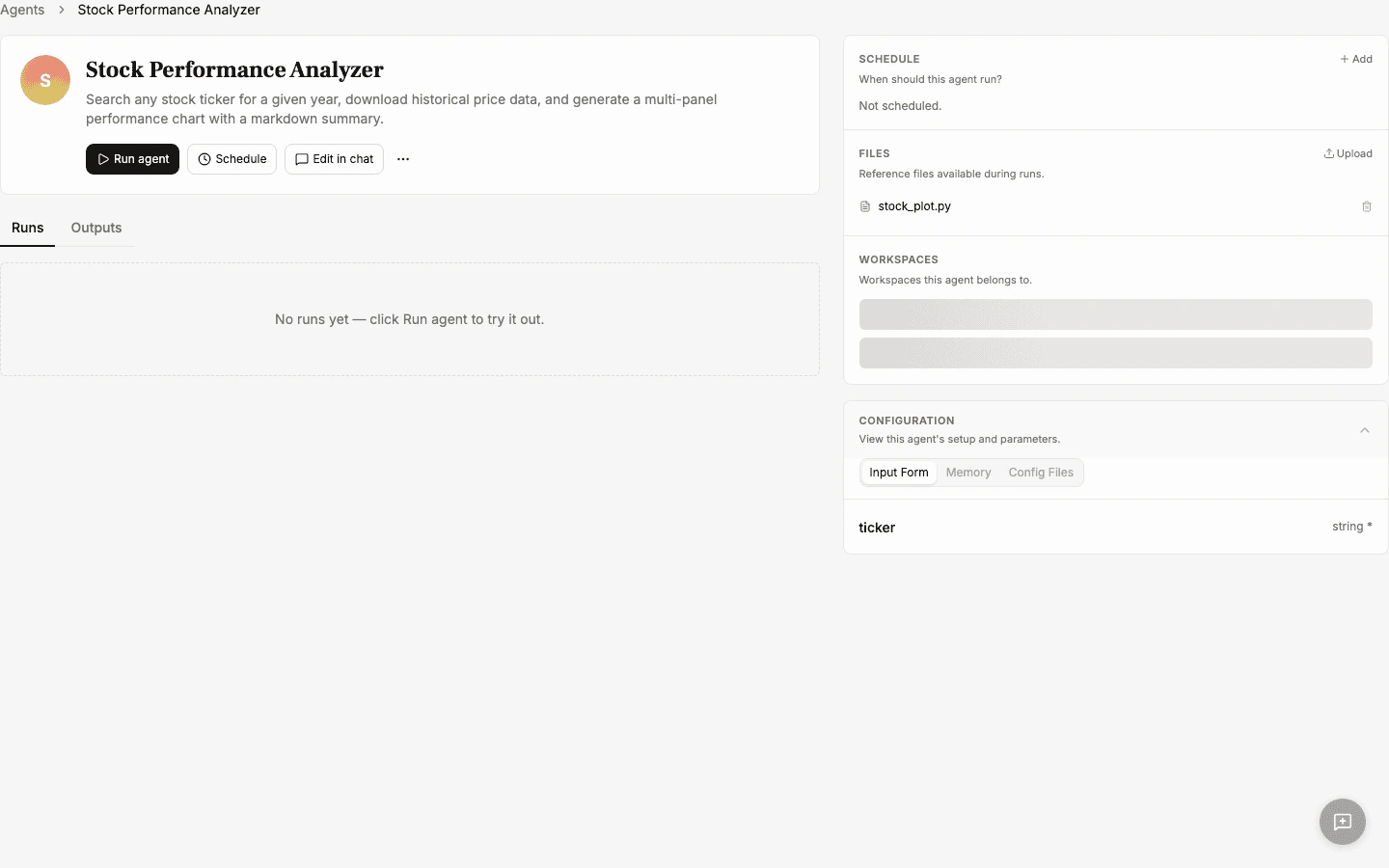
Files panel on the new agent's page, showing the bundled script alongside Schedule, Workspaces, and Configuration.
Run — the agent reads a manifest and executes the bundled file directly
/home/user/agent/app-files.json — a manifest that maps the logical file name (meta_stock_plot.py) to its mounted path (/home/user/workspaces/apps/<appId>/meta_stock_plot.py). It then runs that path verbatim, passing your form inputs as environment variables.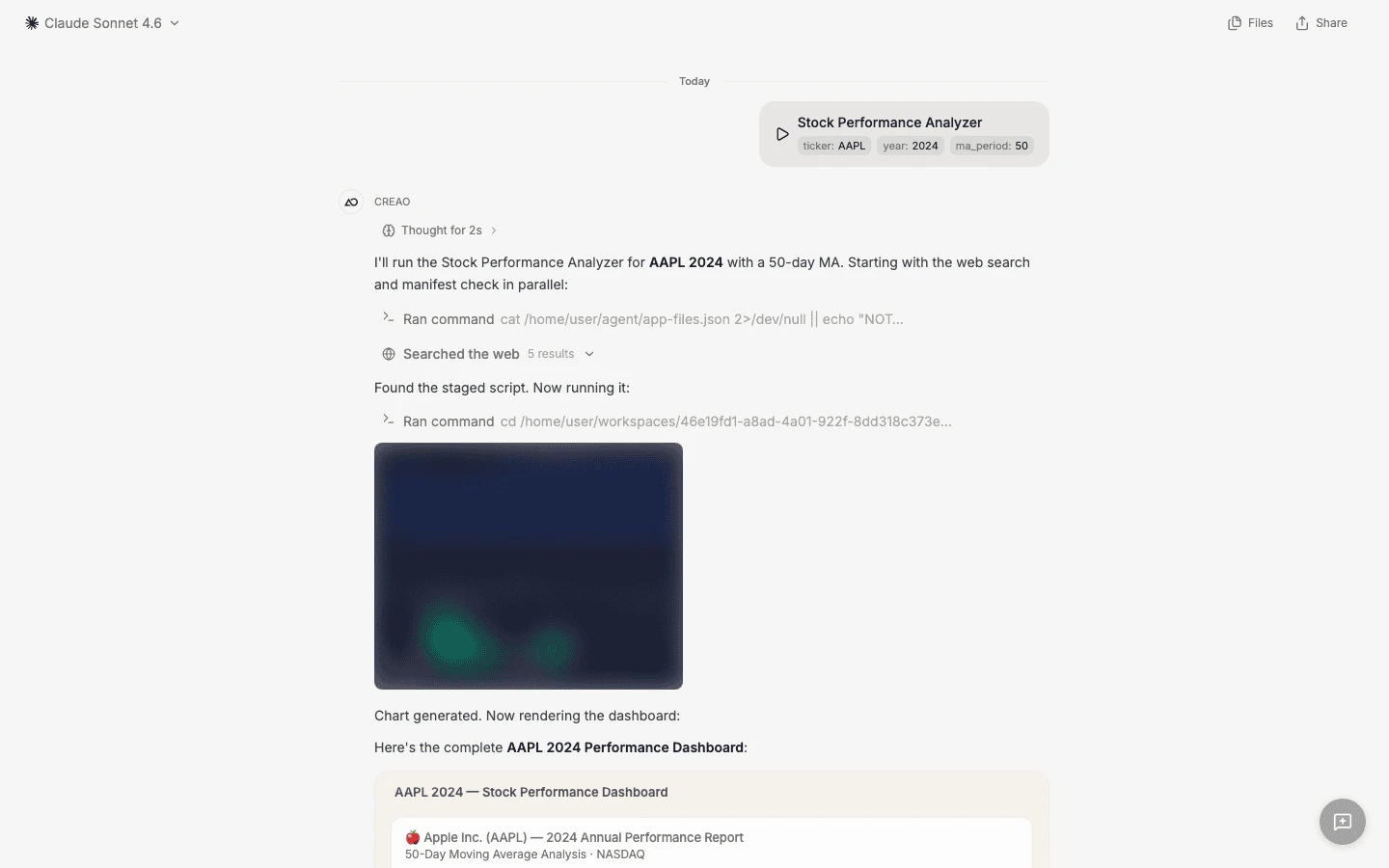
Run turn: the agent's first bash call reads the manifest, the second runs the bundled script at the exact path from the manifest.
Improve — follow-up messages replace the bundled file
- “Change the color palette to three shades of blue”
- “Add a 200-day moving average overlay”
- “Output the metrics as CSV instead of JSON”
- “Fix the high/low annotations to show dates on the x-axis”
- “Rename this agent to ‘Portfolio Tracker’”
- “Reword the description”
- “Add a second form field for a comparison ticker”
Parameterize via environment variables
Bundled scripts should read runtime inputs from environment variables, not hardcoded literals. That way one bundled file handles every form submission.id. A form field ticker becomes $TICKER; ma_period becomes $MA_PERIOD.
Managing bundled files
Inspect what’s attached
Open the agent’s detail page and look at the Files panel on the right. Every reference file currently bundled is listed there; click a file to preview its contents. This is useful when you’re debugging unexpected behavior or want to verify a follow-up actually updated the script.Upload manually
Beyond auto-bundled scripts, you can click Upload on the Files panel to add any file up to 10 MB — templates, reference datasets, style guides, SQL fixtures. Uploaded files mount into the sandbox at the same predictable paths as auto-bundled ones and appear in the same manifest.Removing a file
Click the trash icon next to any file in the Files panel to delete it permanently. The agent will stop mounting it on subsequent runs.Troubleshooting
My agent regenerates its script on every run instead of using the bundled version.
My agent regenerates its script on every run instead of using the bundled version.
- The original script was piped via stdin. Nothing made it to disk, so nothing was staged. Re-create the agent from a fresh session where the script is written to a file first.
- The bundled script has hardcoded values instead of env vars. If your form says
ticker = AAPLbut the bundled script always runsMETA, the agent will rewrite the script every time to get the right input. Parameterize via env vars and the bundled file becomes reusable.
.py file listed, the first issue applies. If there is one, preview it and look for hardcoded literals.A follow-up changed behavior, but past sessions still show the old style.
A follow-up changed behavior, but past sessions still show the old style.
The Files tab shows my script but the agent isn't running it.
The Files tab shows my script but the agent isn't running it.
Can I edit a bundled script directly without going through chat?
Can I edit a bundled script directly without going through chat?