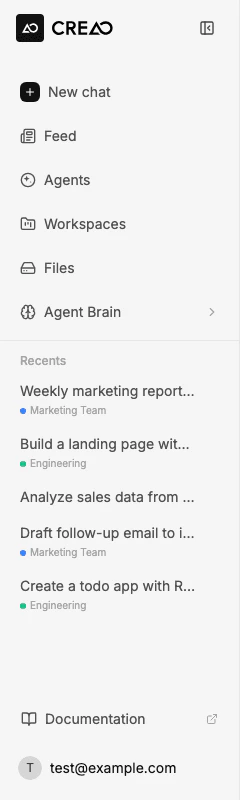
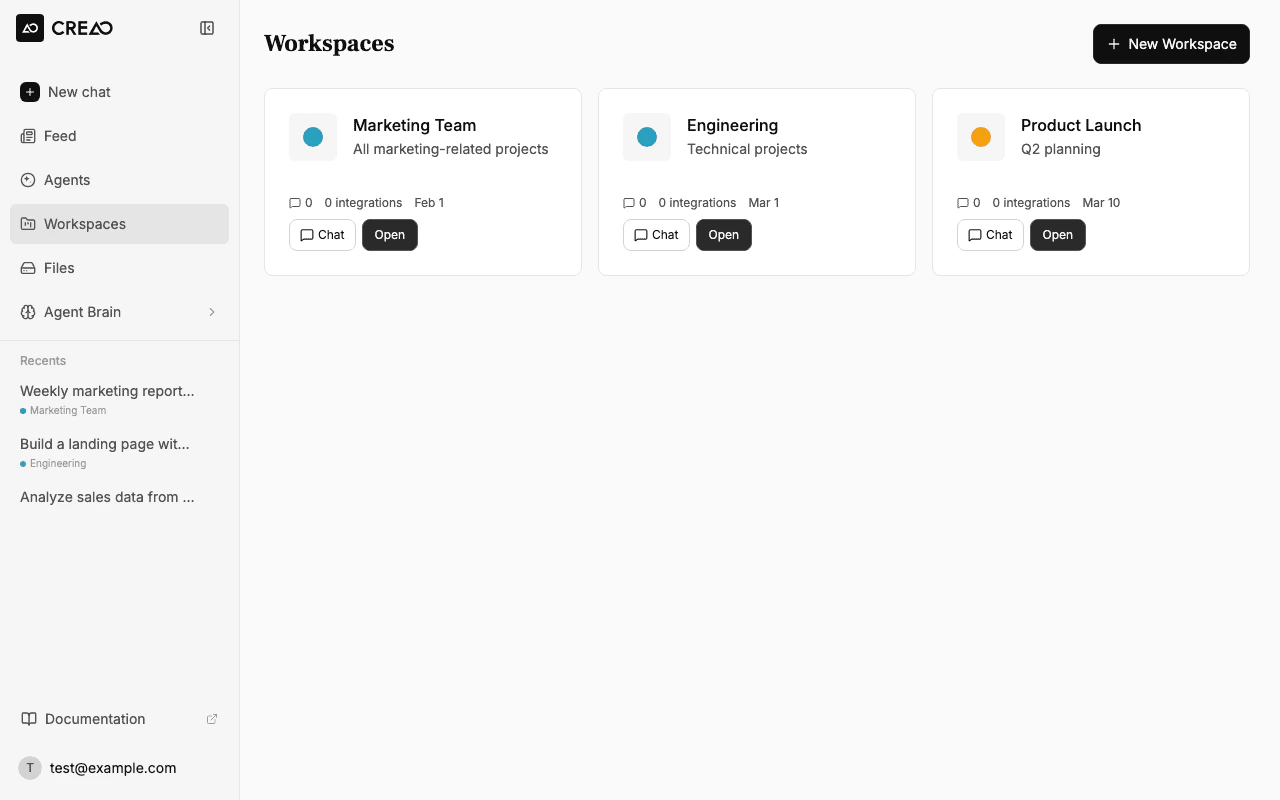
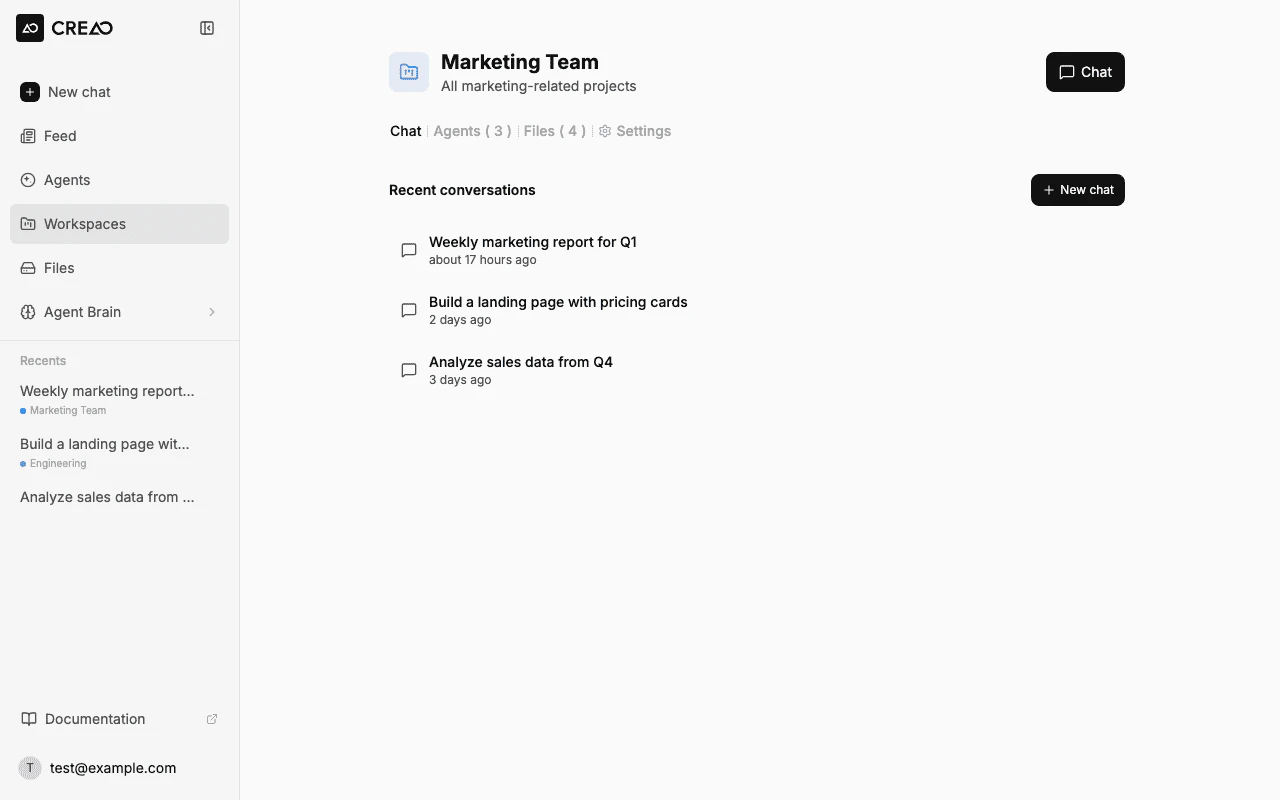
Workspaces are organizational containers that group related agents and files together. Think of them as project folders — each workspace has its own file system, a collection of assigned agents, and a dedicated view in the sidebar.Use workspaces to:
Organize by project — keep all agents and files for a client, product, or initiative in one place
Manage shared files — upload reference documents, images, and data that the super agent can access across conversations
Group agents — assign agents to one or more workspaces so they appear together and share context
In the sidebar, find the Workspaces section and click the + button next to the heading.
The sidebar showing the Workspaces section with the + button to create a new workspace
2
Name and configure
Enter a name for your workspace and optionally select agents to include from the start.
The Create Workspace dialog from the Workspaces listing page
3
Open your workspace
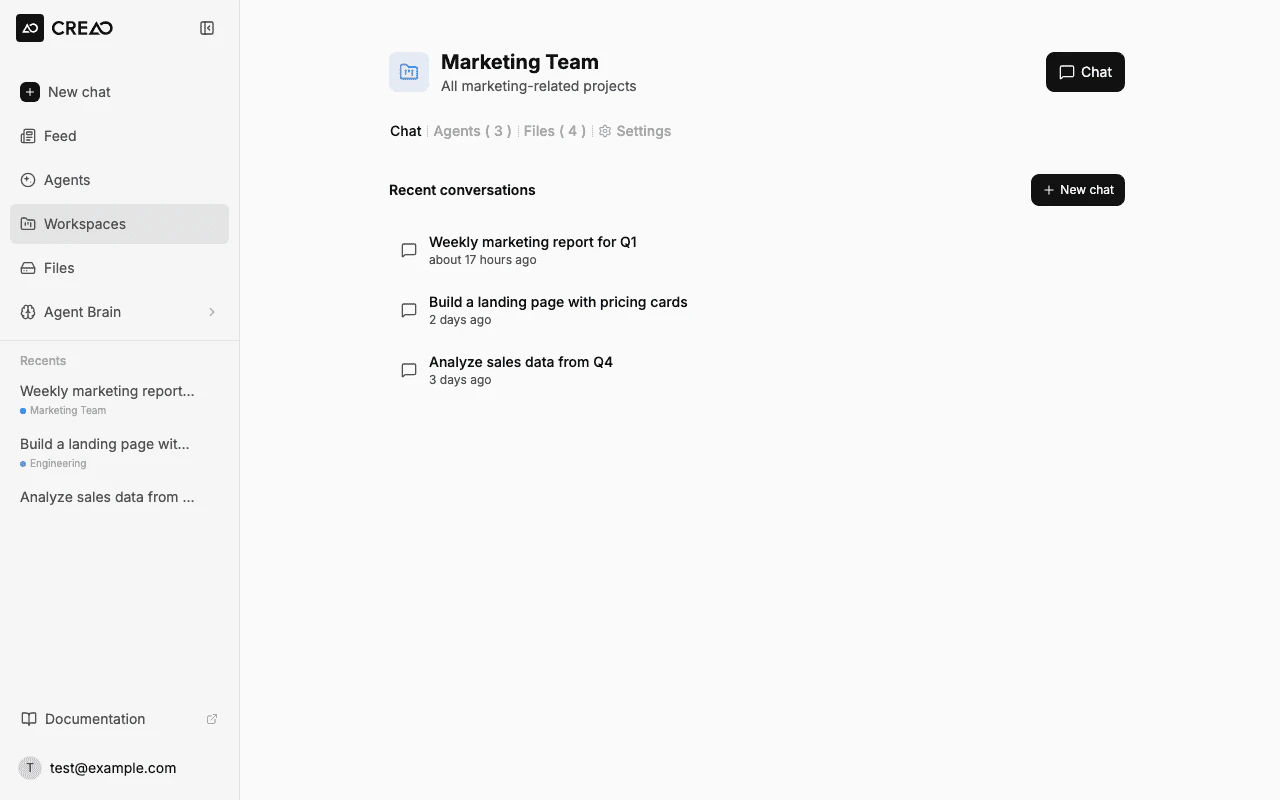
Click the workspace name in the sidebar to open its edit panel. This is your workspace command center — manage the name, agents, and files all in one view.
The workspace edit panel with sections for name, Agents, and Files
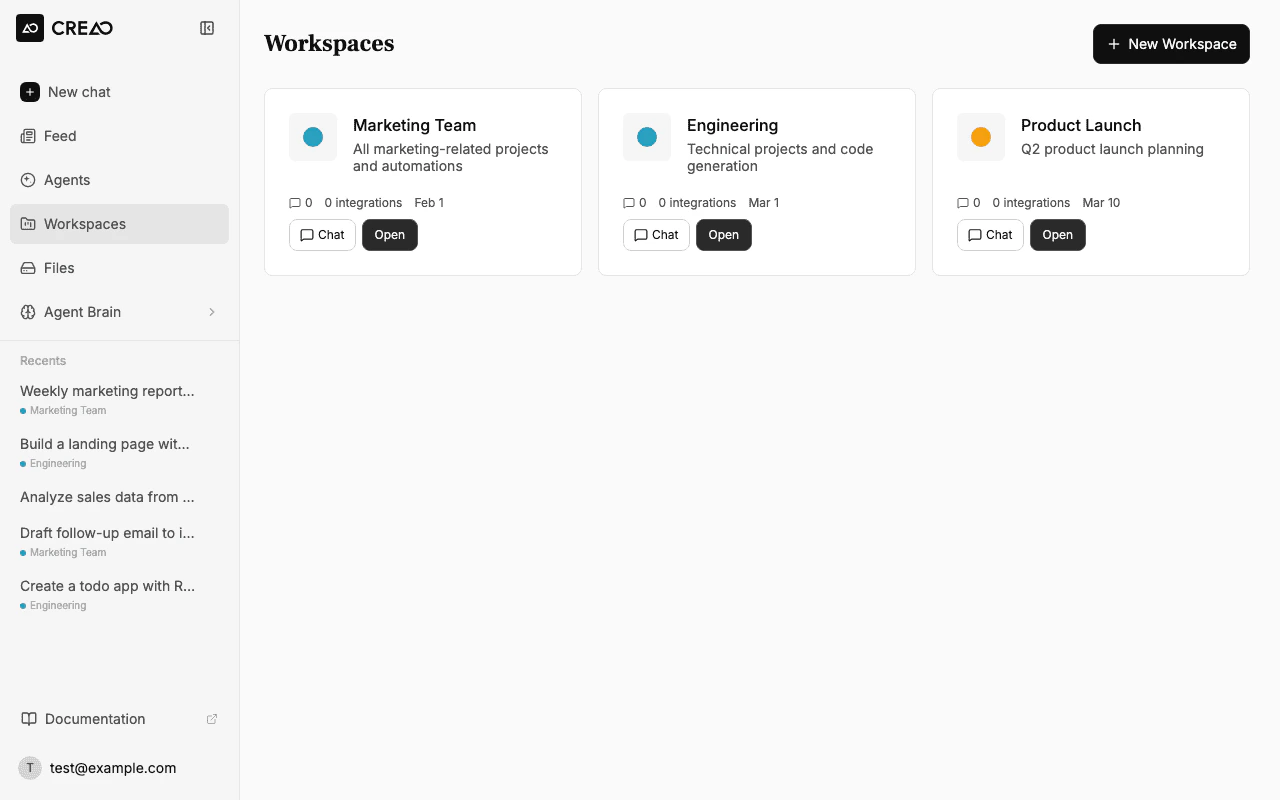
You can also view all your workspaces at a glance from the Workspaces page (accessible via the sidebar). Each workspace appears as a card showing its name, description, and resource counts.
Each workspace has its own file storage area. Files uploaded to a workspace are persistent — they survive across chat sessions and are available to any agent assigned to that workspace.
From the workspace edit panel, click the Upload button or drag and drop files directly into the Files section. Files generated during workspace chat sessions also appear here automatically.
The Files section with drag-and-drop upload and the Upload button
Agents can belong to multiple workspaces simultaneously, making it easy to reuse the same agent across different projects.
1
Open the workspace
Click the workspace name in the sidebar to open its edit panel.
2
Click + Add
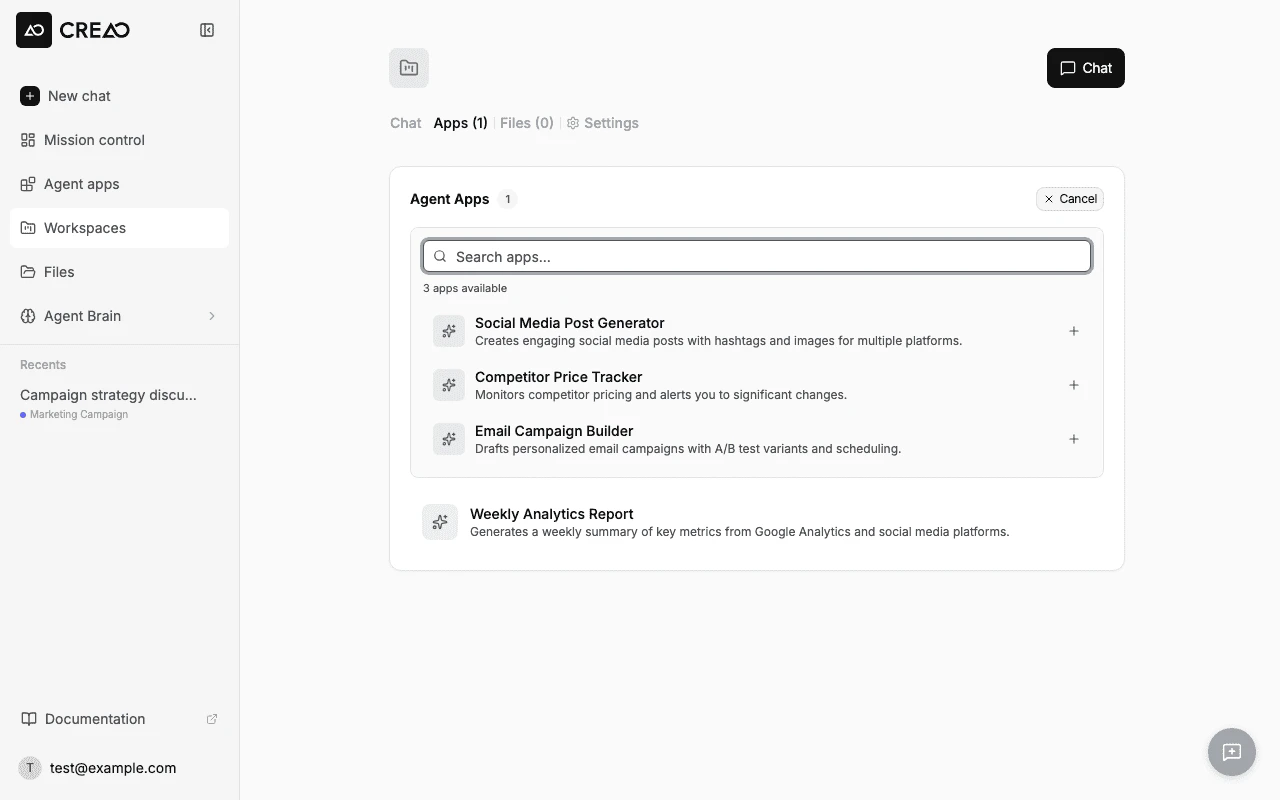
In the Agents section, click the + Add button. A search picker appears showing all your available agents — including agents already assigned to other workspaces. Search by name or description to find the right one.
The Agents picker with search, result count, and agent descriptions
3
Select an agent
Click the + icon next to an agent to add it to the workspace. The agent immediately appears in the workspace’s Agents section.
Click the × button on any agent card in the workspace to unassign it. The agent itself is not deleted — it remains available in any other workspaces it belongs to and can be reassigned later.
Active workspaces appear in the sidebar under the Workspaces section. Clicking a workspace name opens its edit panel. Below each workspace, you’ll see:
Recent threads — chat conversations that were started in the workspace context
Quick actions — start a new chat within the workspace, or jump into the edit panel
This makes it easy to switch between projects without losing context.
Each workspace gets a color indicator for quick visual identification in the sidebar and on cards. Colors are assigned automatically when you create the workspace.
Use descriptive workspace names that reflect the project or client they represent — “Q1 Marketing Campaign”, “Product Launch”, “Client: Acme Corp”.
Assistant
Responses are generated using AI and may contain mistakes.