

Overview
A dynamic workflow turns a single complex request into a structured, multi-step plan that the super agent runs end-to-end. Instead of working through a large task in one long back-and-forth, you describe the goal, the super agent proposes a set of connected tasks shown as a visual graph, and — once you approve — each step runs in turn with live progress, summaries, and results. Workflows are ideal when a request naturally breaks into parts: comparing several options, researching multiple sources in parallel, or producing a deliverable that depends on earlier steps.Describe a goal and run the workflow directly — then, once it works the way you want, save it as an agent to re-run it with different inputs or put it on a schedule.
Starting a workflow
Type the/workflow command in the chat input, followed by your goal:
Referencing skills with @
While describing your goal, type @ to reference a specific skill or connected service inline. The super agent factors those capabilities into the plan it proposes:
@ menu lists your enabled skills and connected services so you can pick the exact capability you want a step to use.
Approving the plan
Before anything runs, the super agent proposes the workflow as a structured block in the chat — not just text. The proposal shows:- A name and description for the workflow
- The phases and tasks it will run, with how many run at once
- A visual graph connecting the phases, so you can see how steps depend on one another
- A Needs approval badge while it waits for you
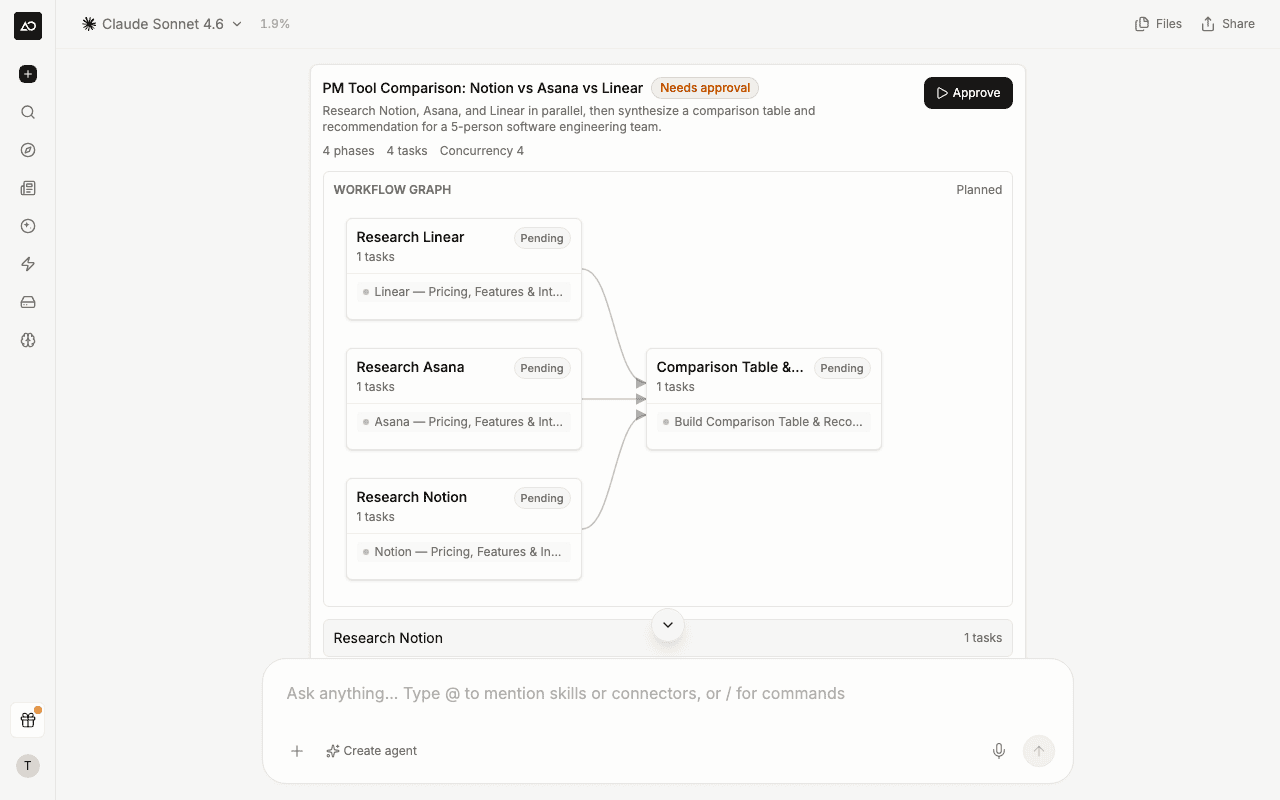
A workflow proposal: name, description, the connected phase graph, and a Needs approval badge — review it, then click Approve to run.
1
Describe the goal
Send a
/workflow command with what you want to accomplish.2
Review the proposed plan
The super agent responds with a workflow proposal — a visual graph of connected tasks plus an expandable breakdown of each phase.
3
Approve to run
Click Approve. The plan is locked in and execution begins immediately, with progress appearing in the same thread.
Approval is required — a workflow never runs until you click Approve. If a proposal isn’t what you wanted, just describe the change or send a new request instead of approving.
Watching it run
Once approved, the workflow graph updates live as the super agent works. Each task carries a status so you always know where things stand: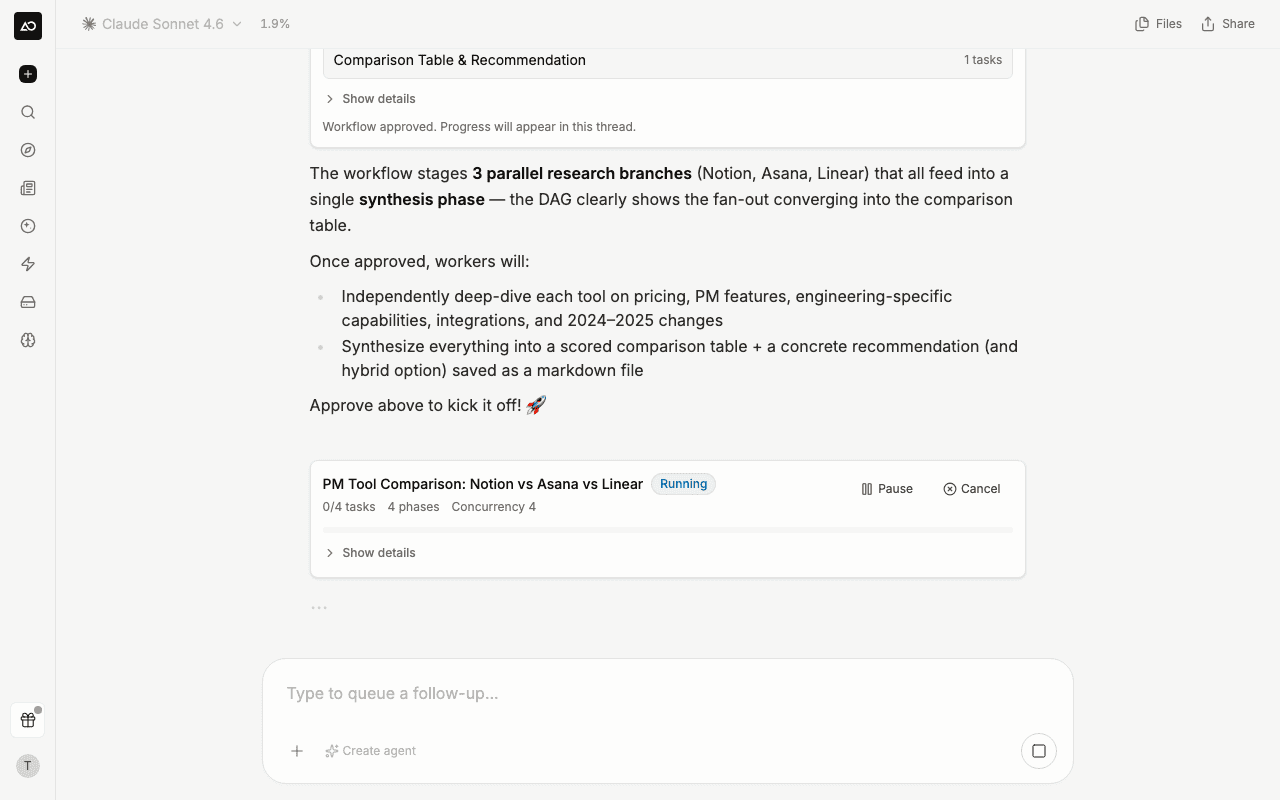
A running workflow: a Running badge, the overall task counter and concurrency, a progress bar, and Pause and Cancel controls.
The workflow block also shows an overall progress counter (for example, 3/12 tasks) and a running cost estimate as tasks complete. Phases that depend on earlier phases are connected with arrows, so you can follow how results flow through the plan.
Controlling a running workflow
While a workflow is active, controls appear in the workflow block:- Pause — stop new tasks from starting while preserving completed work
- Resume — pick up again from where you paused
- Cancel — stop the entire workflow
- Retry — re-run an individual task that failed
Inspecting a task
Click any task in the plan to open a side panel showing exactly what that step’s sub-agent is doing — its thinking, tool calls, and generated output stream in real time, using the same rendering as the main chat. This makes a multi-step run transparent: instead of waiting for a final summary, you can open any task — running or finished — and follow its work step by step. A task that hasn’t started yet shows as queued; once it begins, its activity streams in and scrolls to the latest as it arrives.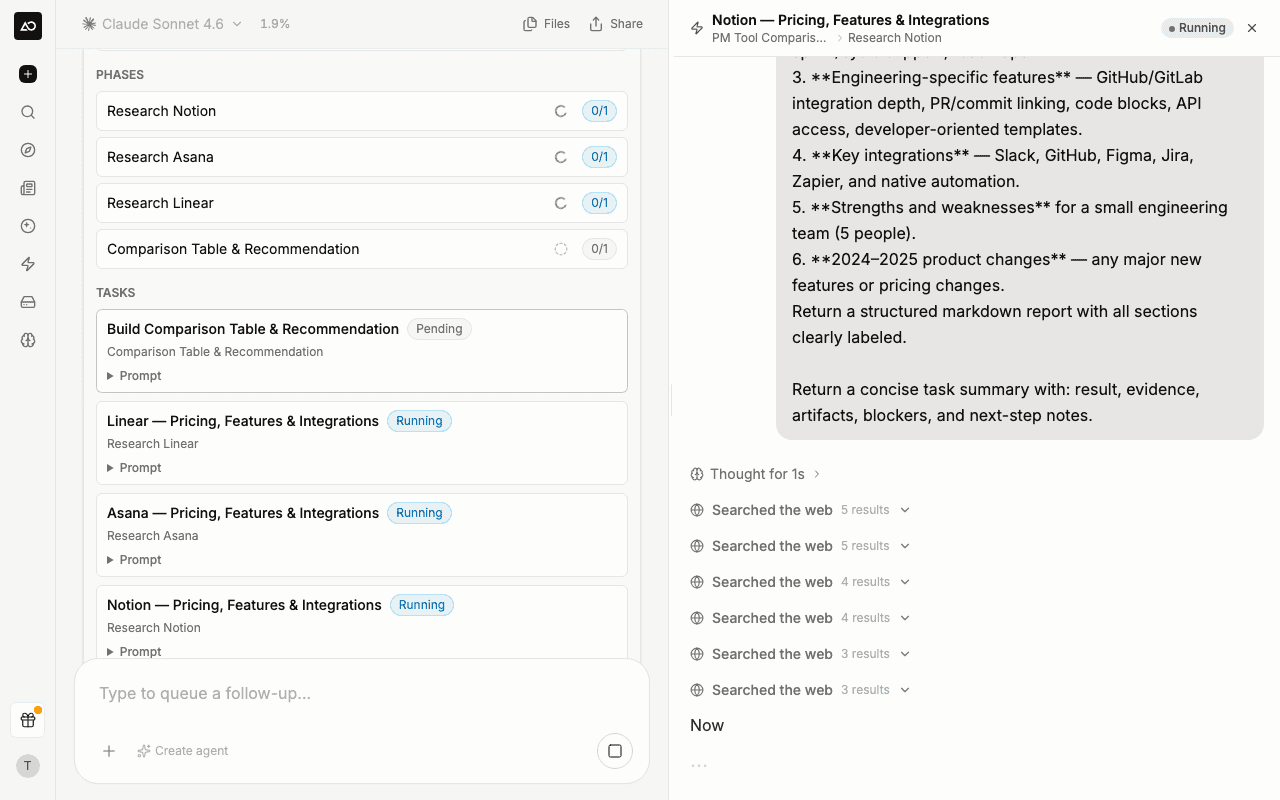
Open any task to watch its sub-agent work — thinking, tool calls, and output — stream live in a side panel next to the chat.
Save a workflow as an agent
A dynamic workflow runs your goal once. When a run produces something you’ll want again — a weekly competitor scan, a recurring research brief — you can save the exact plan as a reusable workflow agent instead of re-describing it each time. After a workflow run, click Save as agent, give it a name (and an optional description), and the plan is saved as a workflow agent on its own agent page. From the agent page you can:- Run it again — fill in a structured input form and re-run the same steps with new inputs
- Ask for it in chat — describe what you want in a new message and the super agent recognizes which saved workflow agent fits, gathers what it needs, and streams progress and the result into the conversation
- Edit its steps — adjust the plan directly in the workflow spec editor
- Schedule it — run it automatically on a daily, weekly, or custom cadence
- Trigger it over the API
You can also start one from scratch: in the create-agent dialog, choose Workflow Agent and describe the multi-step process you want packaged.
Good to know
- You approve, the super agent structures. The super agent decides how to break the goal into phases and tasks based on what you describe — the plan isn’t hand-edited before it runs.
- Workflows run on credits, like any other session. The proposal shows an estimate, and the actual cost depends on the models and tools each task uses. Larger plans with many parallel tasks cost more.
- Shared threads are read-only. When you open a shared, read-only thread, workflow controls don’t appear — viewers can follow along but can’t start or approve a run.
- For processes you repeat, save the workflow as an agent. A dynamic workflow runs your goal a single time. If you run the same multi-step process regularly, save it as a workflow agent — an Agent with structured inputs you can re-run and put on a schedule.