Overview

Widgets are the building blocks of dashboards. Each dashboard rendered in chat or agent sessions is composed of individual widgets — KPI cards, charts, tables, progress bars, and layout containers. The Widgets page in Agent Brain lets you browse all available components, see live previews with mock data, and customize the visual theme applied to all your dashboards.
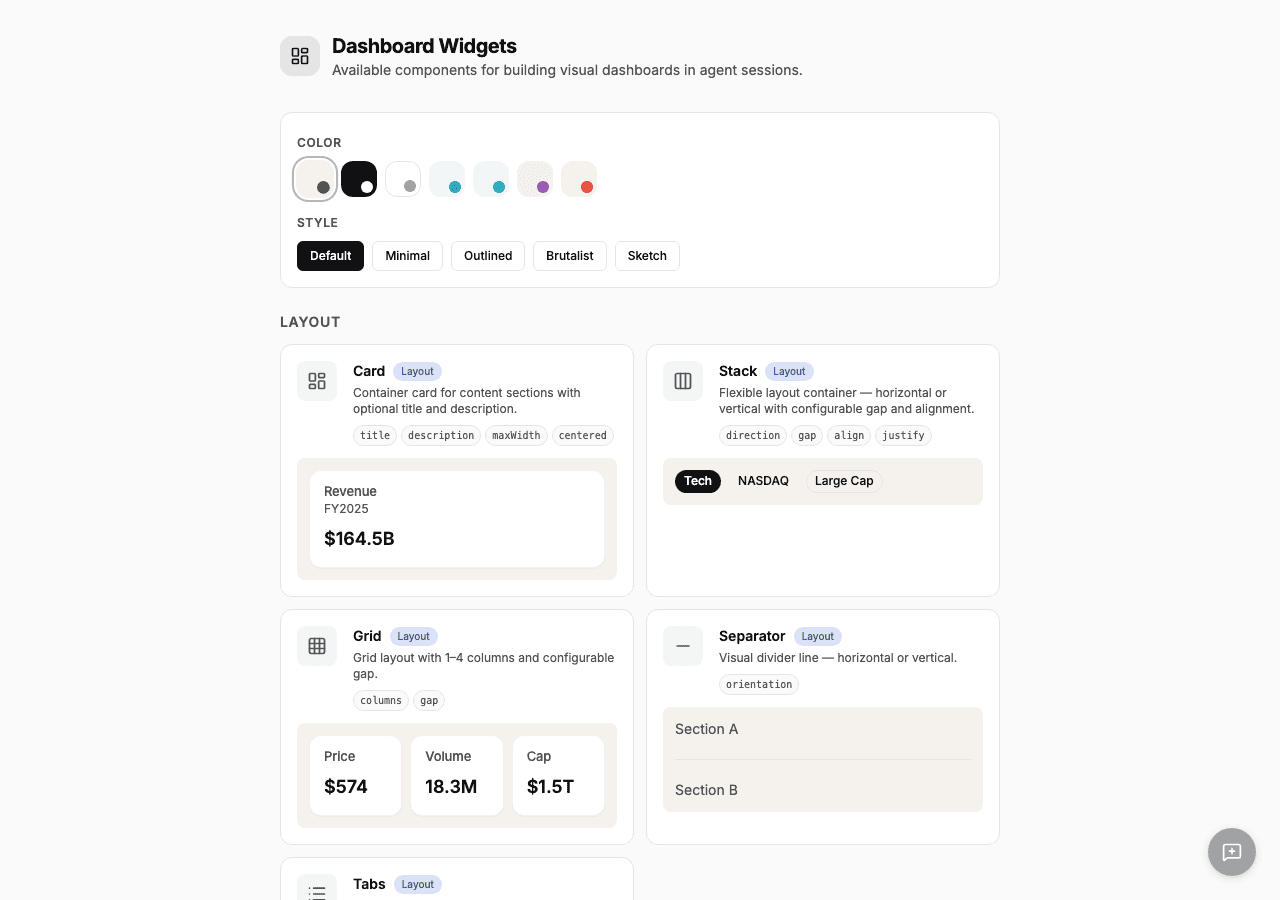
Widgets page with color and style picker, and Layout category showing Card, Stack, Grid, and Separator widgets with live previews

Widget categories

Layout

Layout widgets control how other widgets are arranged:
WidgetDescription
CardContainer with optional title and description — the most common wrapper for KPI values
StackFlexible horizontal or vertical layout with configurable gap and alignment
GridGrid layout with 1–4 columns
SeparatorVisual divider line
TabsTab navigation with multiple content panels

Data Display

Data widgets show values, text, and structured information:
WidgetDescription
HeadingLarge text for KPI values and section titles (h1–h4)
TextParagraph text with variants: body, caption, muted, lead, code
BadgeCompact label for status indicators, growth rates, and tags
AlertBanner for important messages — info, success, warning, or error
ProgressProgress bar showing a value from 0 to 100
TableData table with column headers and rows
ImageImage display (HTTPS sources only)

Charts

Chart widgets visualize time-series and categorical data:
WidgetDescription
LineChartLine chart for trends with multiple series support
AreaChartFilled area chart — ideal for growth metrics and price trends
BarChartBar chart for categorical comparisons and volume data
CandlestickChartProfessional TradingView-style chart with OHLCV data and volume bars

Theme customization

The theme picker at the top of the Widgets page lets you choose a color and style that apply to all dashboards across the app — chat, agent sessions, and the widget previews themselves.

Colors

Seven color presets are available, each with a matching container background and accent color:
  • Neutral — warm beige with dark slate accent (default)
  • Dark — monochrome black and white
  • Light — clean white with gray accents
  • Blue — soft blue tones (Peter River)
  • Green — teal-green tones (Turquoise)
  • Purple — soft violet tones (Amethyst)
  • Rose — warm red tones (Alizarin)

Styles

Five style variants control the visual treatment of cards and components:
  • Default — subtle border, light shadow, rounded corners
  • Minimal — no border, no shadow, tinted background only
  • Outlined — accent-colored border, transparent cards
  • Brutalist — sharp corners, thick black borders, hard drop shadows
  • Sketch — hand-drawn feel with dashed borders, paper texture, and handwriting font
Theme changes are saved to your profile and apply immediately to all dashboards — including previously generated ones. Changing the theme doesn’t modify dashboard data, only how it’s displayed.

How dashboards use widgets

When the agent generates a dashboard (in chat or during an agent run), it assembles widgets into a tree structure:
  1. A layout widget (Stack or Grid) at the root organizes the sections
  2. Card widgets wrap each metric or data group
  3. Data widgets (Heading, Badge, Text) display values inside cards
  4. Chart widgets render visualizations at full width
  5. Table and Alert widgets add structured data and callouts
The agent decides which widgets to use based on the data it gathered. The dashboard template (captured when you create an agent) preserves the layout structure so future runs produce consistent output.