

Desktop app (macOS)
Terminal and Linux servers
How it works
- Tools run on your computer, with your user account’s access. The result goes back to the chat so your agent can continue.
- You stay in control. Each tool is Off, Ask or Allow for each caller. Nothing set means Ask.
- The connection is outbound only. Your computer connects to CREAO. You don’t need to open ports or set up a VPN.
Install and pair
You need a Mac with Apple silicon and a CREAO account with early access.Download the app
Move it to Applications and open it
Name this computer
Approve the pairing code in CREAO
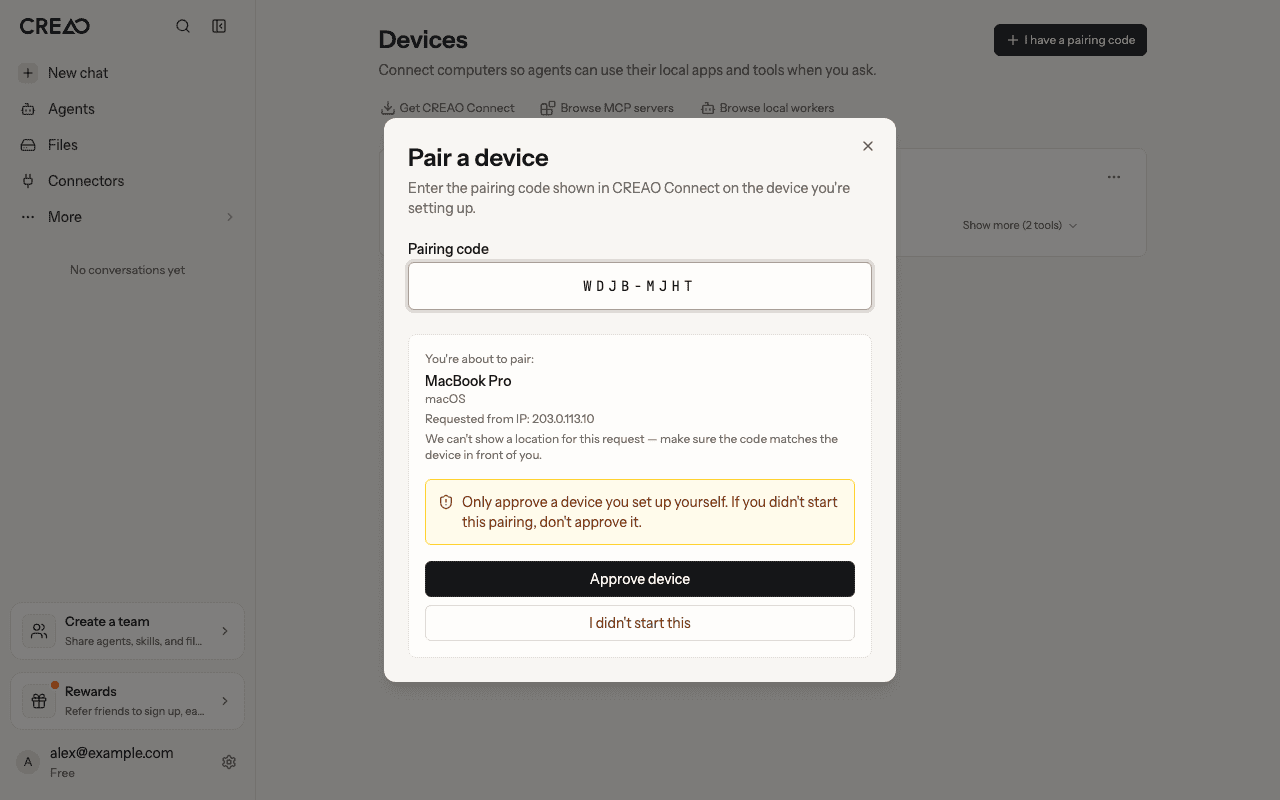
Approve the pairing in CREAO. Approve only a device you set up yourself.
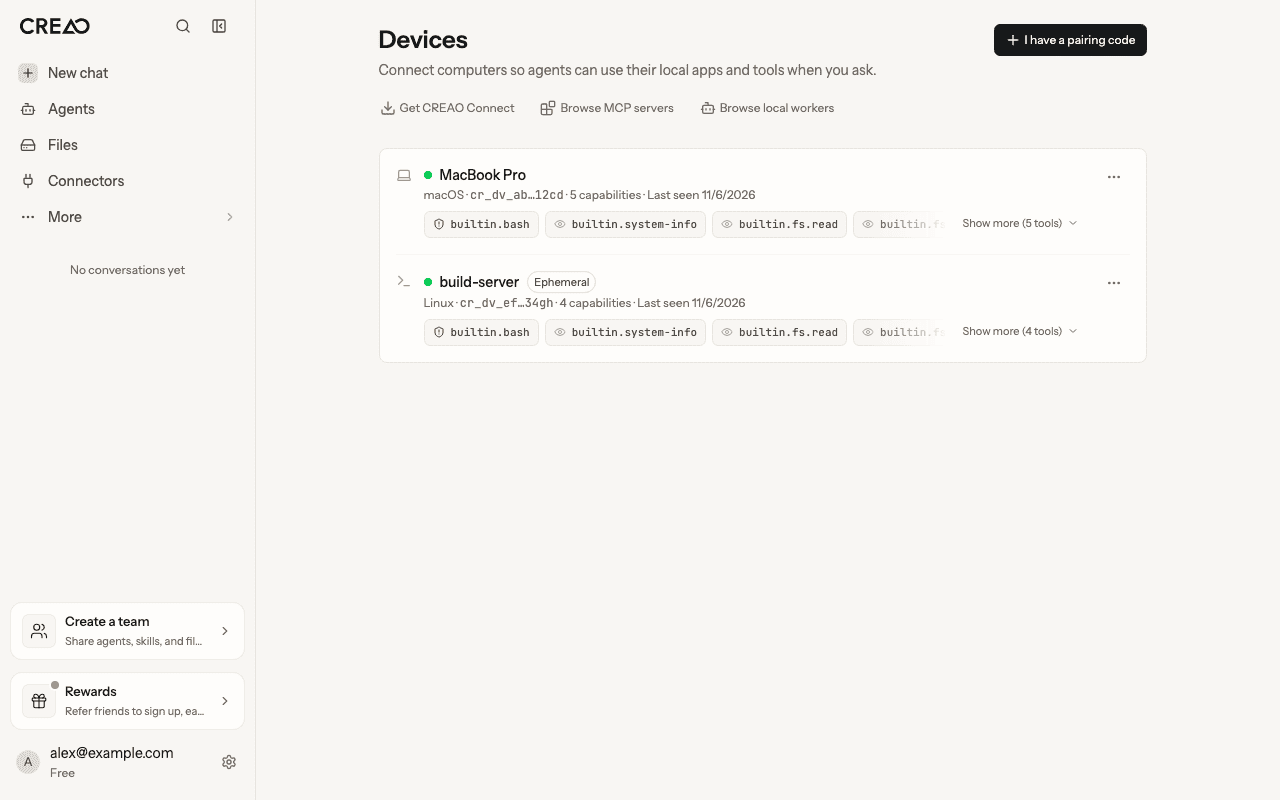
Paired devices on the Devices page, with status, platform and what each one offers.
The app
The CREAO Connect window has five tabs. The header shows the connection status, Open CREAO and the Agent access switch. Close the window and the app keeps running in the menu bar. Quit it and your agents can’t reach the computer until you open the app again.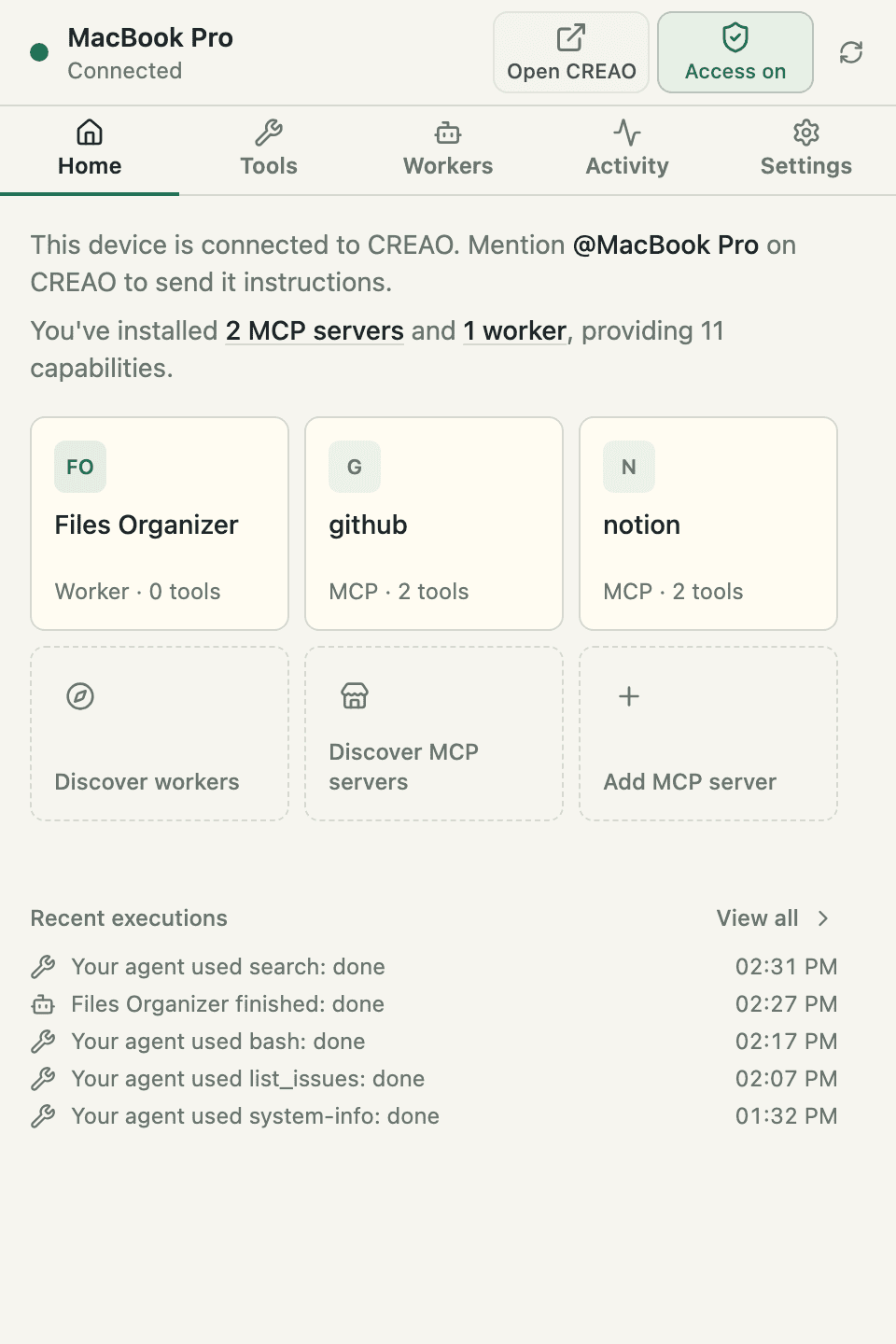
Home shows what this computer offers your agents and what ran recently.
Use your device from chat
Type@ in the CREAO message box, choose Devices, pick your computer, then describe the task. For example: “@MacBook Pro list the PDFs in my Reports folder”. Your agent picks the tool it needs.
Each tool call appears in the chat as a Device task card with its status: Waiting for approval, Running, Completed or Refused. You can Stop a task from the card. A task keeps running on your device even if you leave the chat.
Tool access: Off, Ask, Allow
Open Tools, then open a row’s ⋯ menu and choose Configure…. All tools sets the default for the whole server, and each tool can override it. Every tool has one setting per caller:- Agents in cloud: your CREAO agents in chat, agents and scheduled runs.
- Local workers: workers running on this computer.
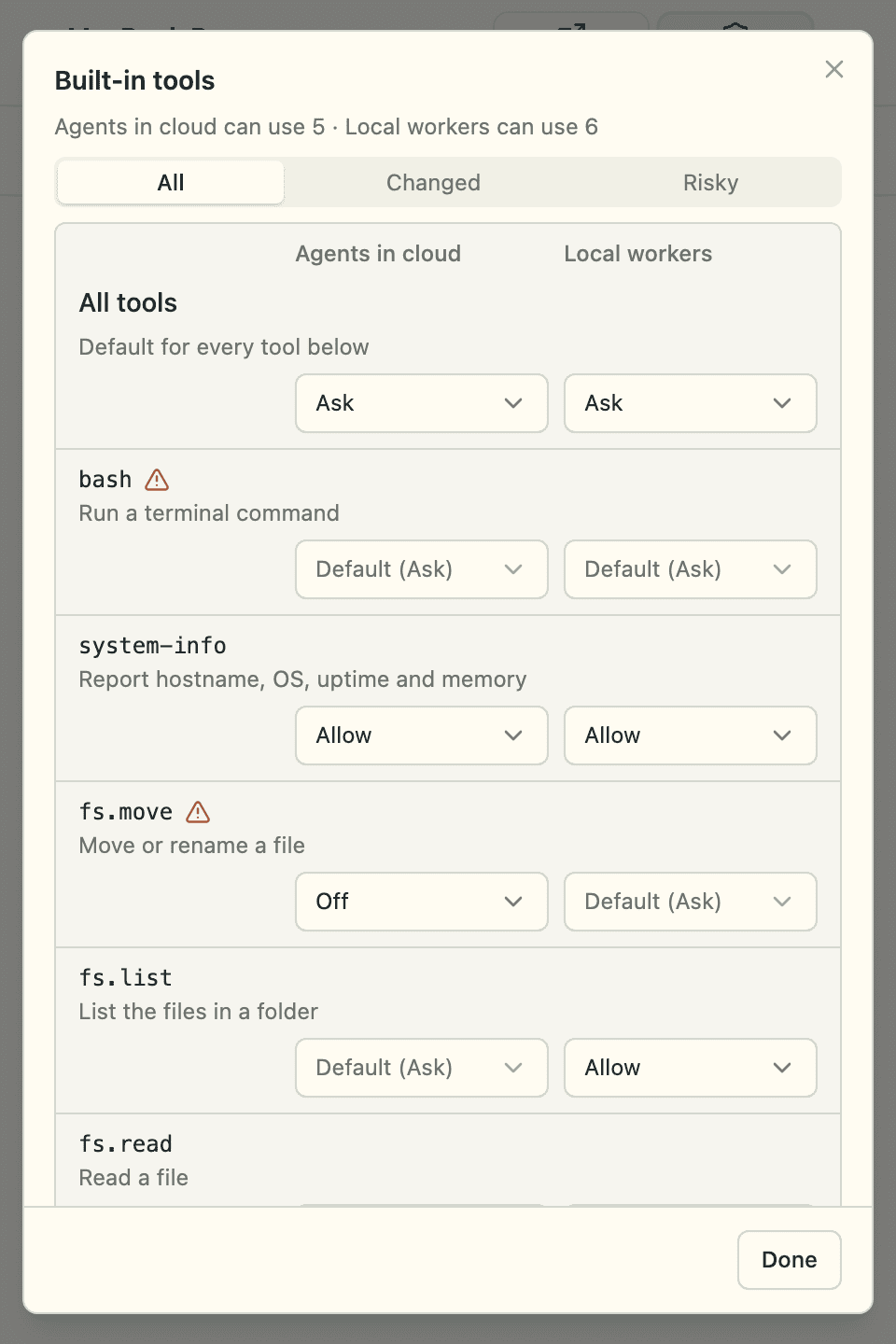
Each tool has a separate Off / Ask / Allow setting for agents in cloud and for local workers.
Approval prompts
When a tool is set to Ask, a Permission request pop-up appears on top of your other windows on the Mac. It names who is asking, the tool, and the details of the call. Tools that can make changes you can’t undo say so.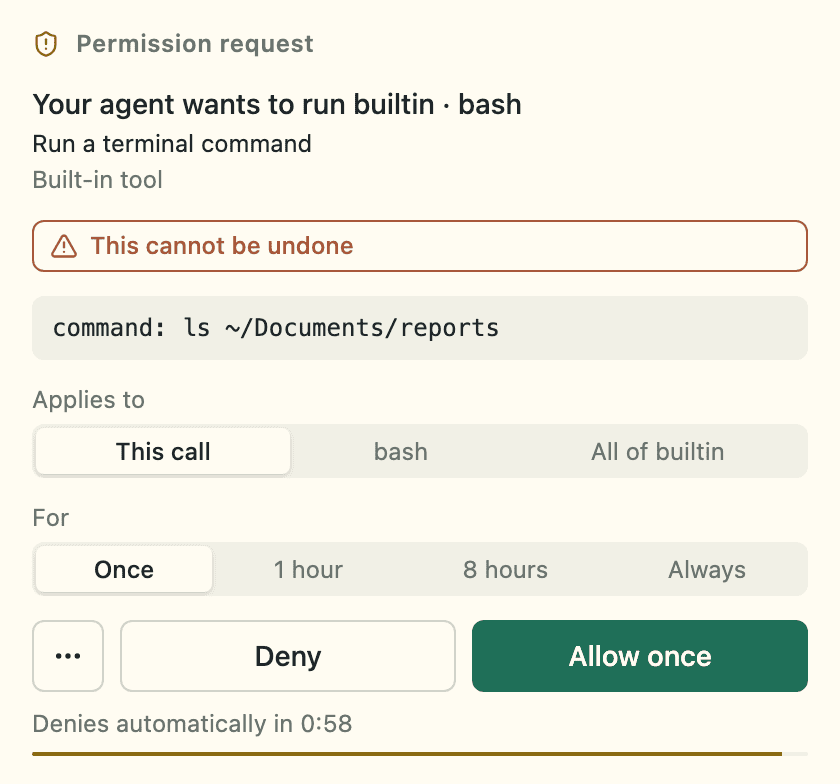
The approval pop-up on your Mac. Deny is the default; Allow runs the call.
Answer from CREAO on the web or your phone
You don’t have to be at your Mac. When a prompt is waiting, CREAO shows it on the task card in the chat and sends you a notification. The card offers the same answers as the pop-up, and your Mac checks every answer before it acts. The pop-up says You can also answer this in CREAO on your phone or browser when this is available.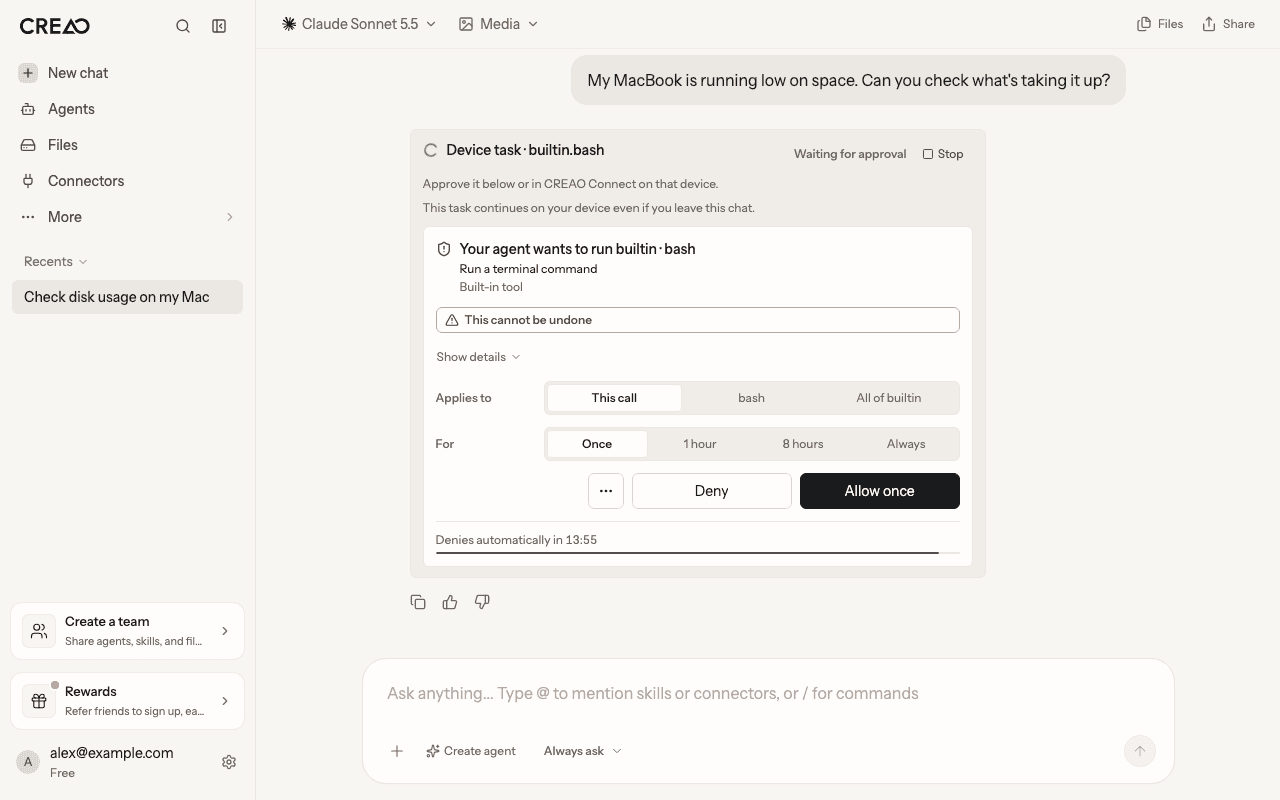
An approval card in CREAO chat. Answer it here or on your Mac, whichever is first.
Add MCP servers
MCP servers give your agents new tools on your computer, such as a notes app, a browser or an internal API.- From the CREAO catalog
- Add one yourself
- In CREAO, open Devices → Browse MCP servers, or click Discover MCP servers in the app.
- Open a server and click Install on this Mac. If your browser asks “Open CREAO Connect?”, choose to open it.
- CREAO Connect shows exactly what will be installed: the command it runs or the address it connects to, any settings and any setup scripts. Nothing changes until you confirm.
- Fill in any settings, sign in if the server needs it, and wait for the check to confirm the server answers.
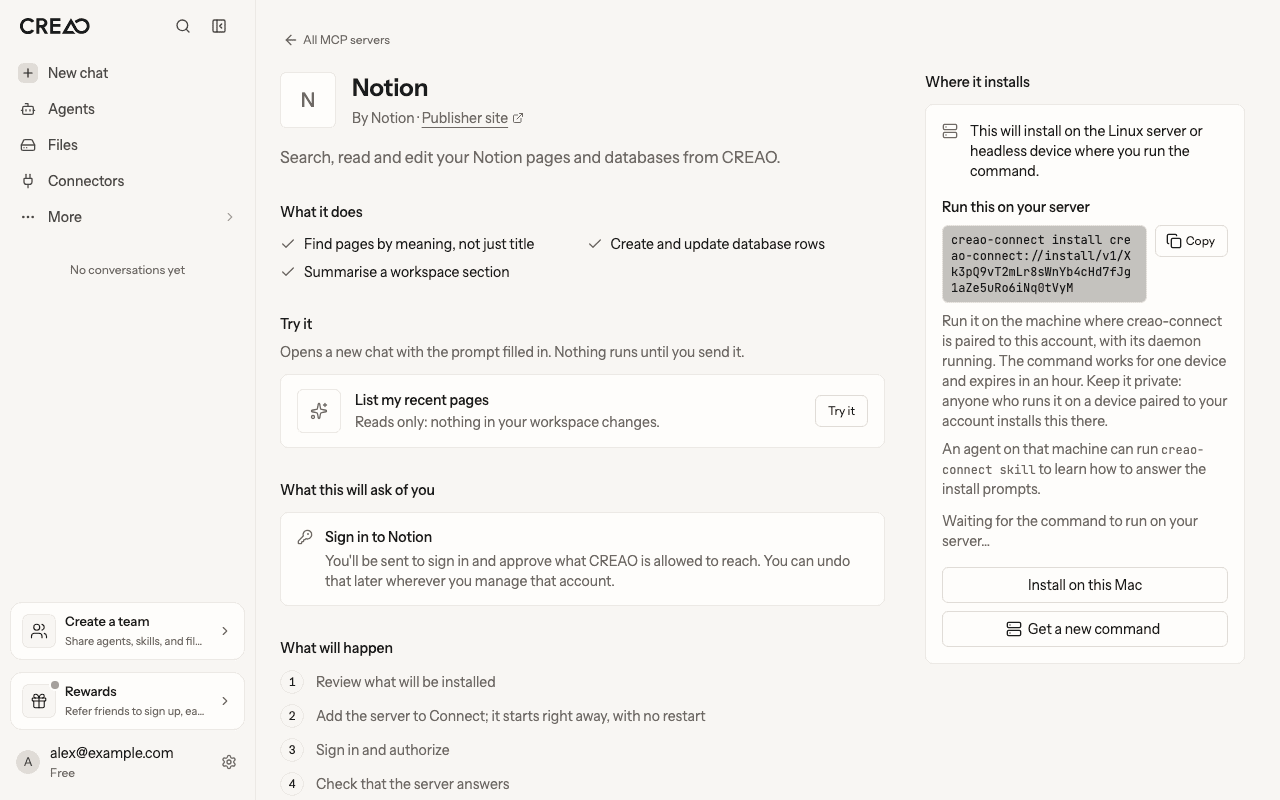
An MCP server from the CREAO catalog. Servers that also support Linux offer a command for your server.
Local Workers
A Local Worker is a small specialist agent installed on your computer, such as a files organizer. Your CREAO agent hands it a whole job, and the worker does that job with the tools on your computer that it declares.- Install workers from Devices → Browse local workers in CREAO. A worker that needs an MCP server shows Needs setup until that server is connected.
- Starting a worker asks first, like a tool does. When you allow a start, that run can also use the worker’s tools that make no irreversible changes. Actions that change things still ask, unless you opt in on the prompt.
- Questions. A worker can ask you a question while it works. Answer it in Activity, or in the chat if the worker is set up to ask there.
- Permissions and runs. In Workers, open a worker’s ⋯ menu and choose Configure… to see its About, Permissions and Runs.
File access
The file tools read and write only inside the folders listed under Settings → Folders for file tools. If you add no folders, they use a single workspace folder that CREAO Connect creates. Add the folders you want your agents to work in, for example~/Documents/Reports.
Pause, unpair or remove a device
- Pause agent access. Click Agent access in the app’s header. While access is paused, agents can’t act on this computer. Click it again to resume.
- Unpair from the Mac. Open Settings → Unpair this computer. Agents lose access at once. To reconnect, pair again with a new code.
- Remove from CREAO. On the Devices page, open the device’s actions menu and choose Revoke. The device is disconnected at once and can’t reconnect without pairing again. Use Rename there to change the name your agents see.
Privacy and safety
- Tools run on your computer. CREAO stores the device’s name and platform, the list of tools it offers, and each task with its result. The result is sent back to the chat so your agent can use it.
- Nothing runs without your approval unless you set it to Allow, chose Always allow, or gave a temporary permission that hasn’t expired yet. Off always wins.
- Settings and sign-ins stay local. The values you enter while installing an MCP server are saved on your computer and are not sent to CREAO.
- Everything is logged. Activity records each call, who asked, how it was decided and how it ended, including answers you gave in CREAO.
- “Read-only” and “Can make changes” labels come from the tools themselves. CREAO doesn’t verify them, and your device still asks before running anything set to Ask.
Troubleshooting
The task says the approval timed out
The task says the approval timed out
Nothing happens when I click Install in the catalog
Nothing happens when I click Install in the catalog
My device shows Offline
My device shows Offline
My agent says a tool isn't available
My agent says a tool isn't available
A worker shows Needs setup
A worker shows Needs setup