

creao-connect command runs the same service as the CREAO Connect desktop app, without a window. Use it to give your CREAO agents tools on a machine you reach over SSH.
It suits:
- Linux servers and VMs, such as a build box, a home server or a cloud instance.
- Single-board computers, such as a Raspberry Pi 4 or 5 running 64-bit Linux.
- Disposable sandboxes, where agents may run anything because the machine is thrown away afterwards.
- People who live in SSH or tmux, with a full-screen terminal UI for status, tools and approvals.
- AI agents on the server, such as a coding agent, which can operate
creao-connectfrom its own shell.
CREAO Connect is in early access. If you don’t see Devices in CREAO, it isn’t enabled for your account yet.
Requirements
- 64-bit Linux on x64 or arm64. Builds exist for glibc distributions (Debian, Ubuntu, Fedora and similar) and for musl distributions (Alpine).
- bash at
/bin/bash. Some install steps from the CREAO catalog run through it. - On Alpine and other musl systems, install the C++ runtime first:
Get the binary
The Linux build is a single executable with no other dependencies. It isn’t offered as a download in CREAO yet: during early access it’s provided on request. Email support from your early-access account and say which build you need: x64 or arm64, glibc or musl (Alpine). Then put it on yourPATH:
creao-connect help for every command, and creao-connect help <command> for its options.
Pair the machine
1
Start pairing
Give the machine a name your agents will see:The command prints a pairing code and an approval link, then waits.
2
Approve it in CREAO
Open the link in a browser where you’re signed in to CREAO, or open Devices → I have a pairing code and enter the code. Check that the name matches, then click Approve device. Codes expire after 10 minutes. If a code expires, run
pair again.3
Start the service
Once you approve the code,
pair exits. The machine is paired, but agents can reach it only while the service runs. See Keep it running.--ephemeral. See Ephemeral devices.
Keep it running
The service holds the connection to CREAO and runs what your agents ask for. Run it in the foreground inside tmux or a container:~/.creao-connect/logs/daemon.log. To keep it running after you log out, use a systemd user service. Create ~/.config/systemd/user/creao-connect.service:
- Pair before you enable the service. A service that isn’t paired exits with an error, and systemd keeps retrying it.
- Use
Restart=always. The service exits on purpose when you restart it from the terminal UI, and expects to be started again. - After you unpair or revoke the device, the service stops. Run
systemctl --user disable --now creao-connectuntil you pair the machine again.
creao-connect keeps its settings and pairing in ~/.creao-connect. To use another folder, set CREAO_CONNECT_HOME the same way for every command and for the service. Keep that path short and on a local disk.The terminal UI
Runcreao-connect tui in SSH or tmux for a full-screen view of the machine:
Press
Tab / Shift-Tab or 1–6 to switch views, r to refresh, ? for help and q to quit. The service keeps running after you quit. If no service is running, the TUI offers to start one in the background.
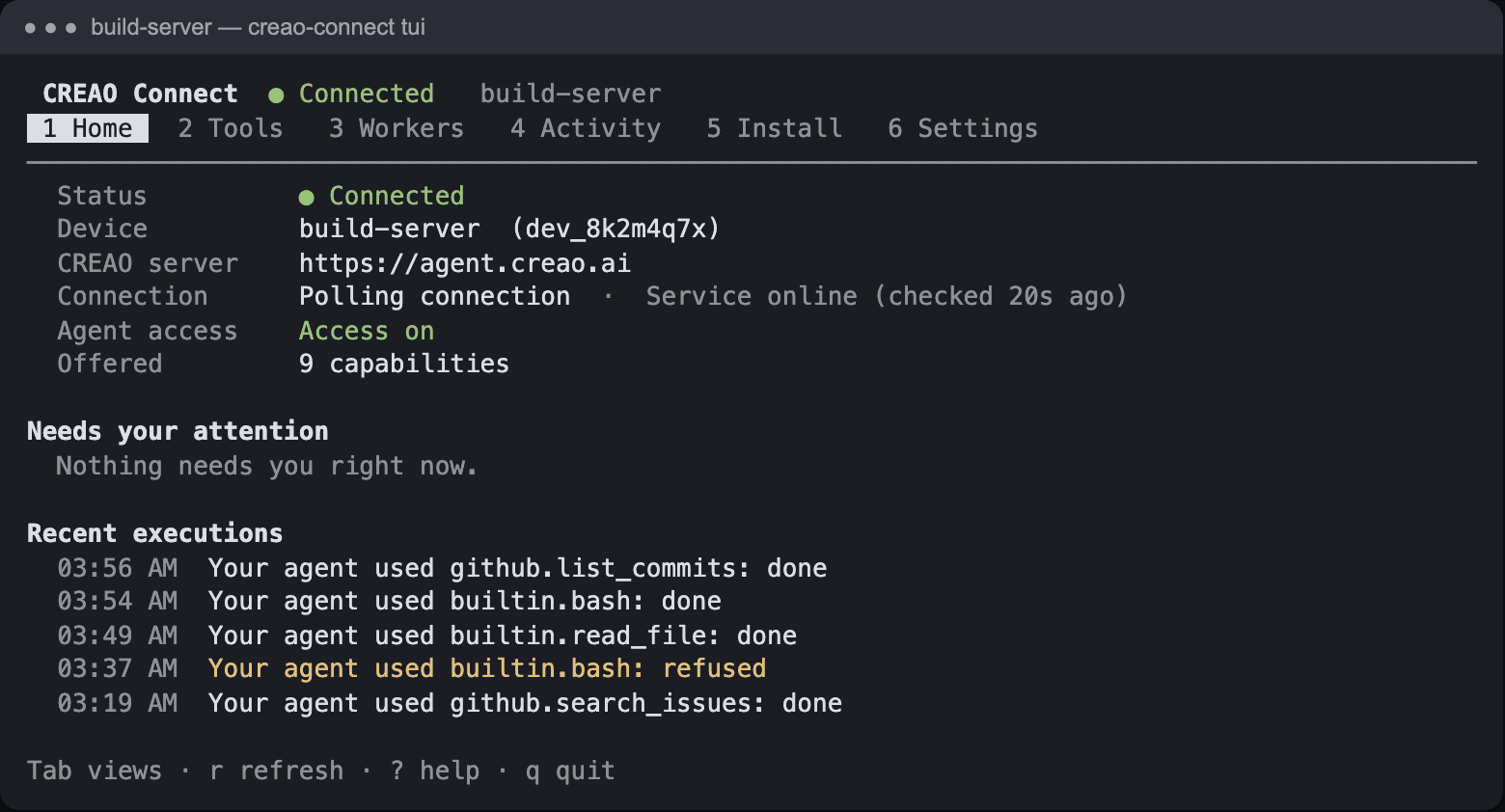
The terminal UI's Home view on a paired Linux server.
Approval prompts in the terminal
When a tool set to Ask is called, the TUI opens an approval prompt with the same choices as the desktop app: what it applies to, and for how long (Once, 1 hour, 8 hours or Always).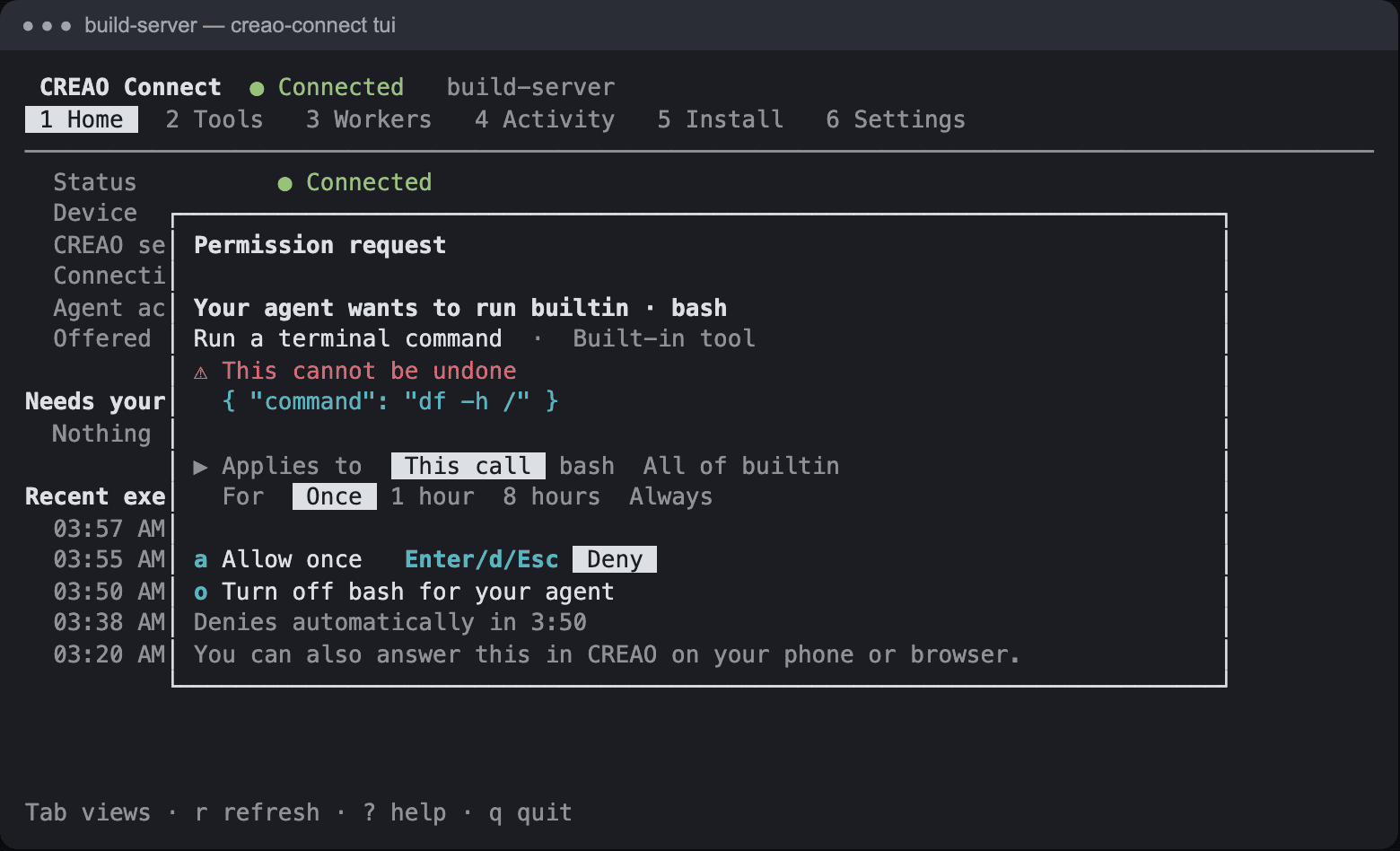
An approval prompt in the terminal UI. Enter denies; press a to allow.
Answer from CREAO
You don’t need a terminal open to approve. When a prompt is waiting, CREAO shows it on the task card in the chat, on the web and in the phone app, with a notification. If nobody can be asked, a call that needs approval is refused at once instead of waiting. That happens when the terminal UI isn’t open and approvals in CREAO aren’t available for your account. For a machine nobody watches, decide which tools may run without asking and set exactly those to Allow.Tool access from the command line
Each tool is off (not offered), ask (waits for approval) or allow (runs without asking). Callers areagent (your CREAO agents in the cloud), workers (all Local Workers) or worker:<id> (one worker). Without --caller, a setting applies to every caller.
builtin is the provider for the built-in tools. A tool set to off stays off: no approval, temporary permission or sandbox mode turns it back on. Changes apply right away, without a restart.
To decide whether your cloud agent may start a Local Worker, use creao-connect workers policy <id> --start off|ask|allow. To list installed workers, run creao-connect worker list.
Add MCP servers
From the CREAO catalog
1
Get an install command in CREAO
In CREAO, open an MCP server from Devices → Browse MCP servers and click Install on a Linux server. CREAO shows a command under Run this on your server. Copy it.
2
Run it on the server
With the service running, paste the command:It walks the same steps as the desktop app: it shows what will be installed and waits for you to confirm, asks for any settings, signs in if needed, and checks that the server answers. Values you type are saved on the machine and are not sent to CREAO.
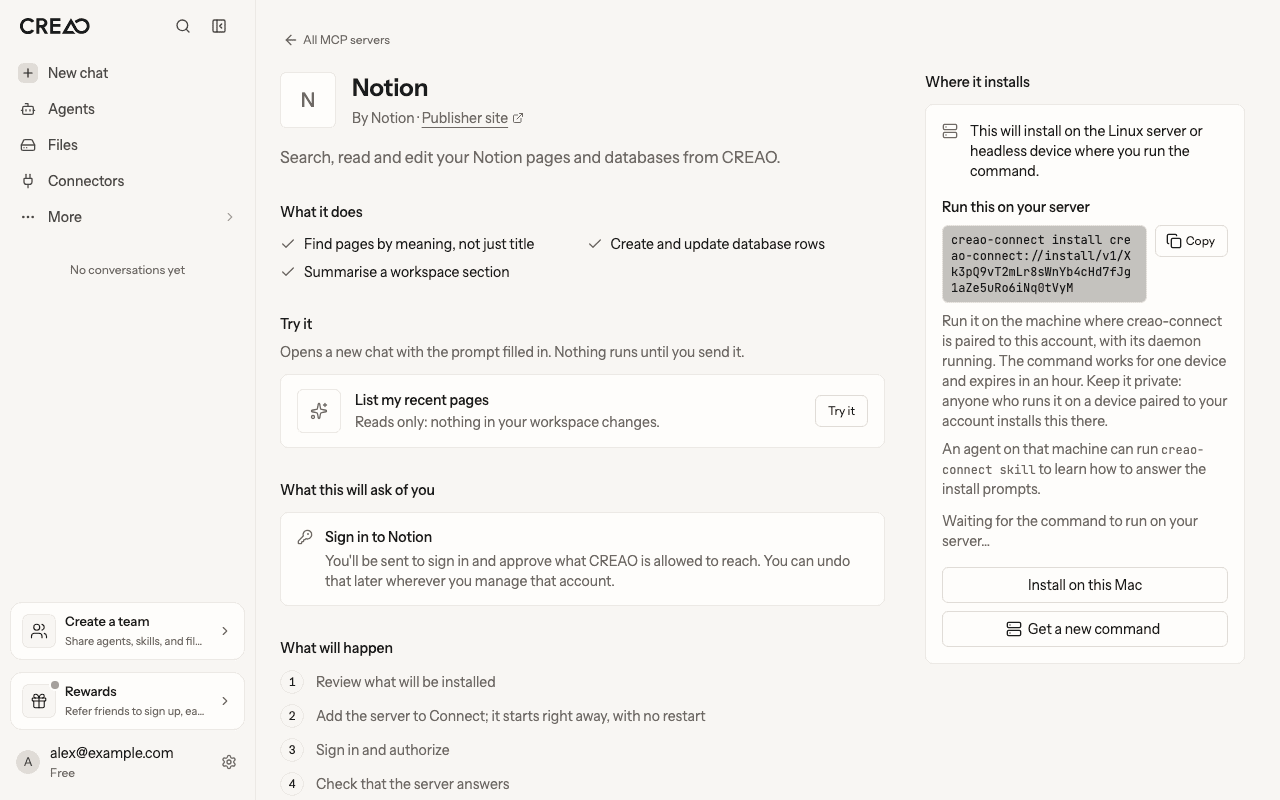
The server install command in CREAO. Each command works for one device and expires after an hour.
- Keep the command private. Anyone who runs it on a device paired to your account installs that server there.
- Signing in over SSH. If the server needs a browser sign-in, the command prints the sign-in link and an
ssh -Lcommand. Run thatssh -Lcommand on the computer with the browser first, then open the link. - Only Linux-ready entries install here. Catalog servers that don’t support Linux are refused before anything changes.
- Cancelled during sign-in? The server stays set up but signed out. Run
creao-connect providers auth <id>to finish signing in, orcreao-connect providers remove <id>to remove it.
install takes:
Add one yourself
--allow-tool and --deny-tool to limit which tools a server offers, and providers disable or providers remove to take it out of use.
Sandbox mode
For a disposable machine, sandbox mode turns every Ask into Allow:- Some limits still apply. Tools set to off stay off, file tools stay inside their folders, and a worker that isn’t ready is still refused.
- It isn’t saved. Sandbox mode lasts only while that service runs. Restart the service without the flag to turn it off.
- It’s always visible. The service prints a warning when it starts, the TUI’s Home view shows a banner, every activity entry records that it ran without asking, and the device shows a Permissions bypassed badge on the Devices page in CREAO.
pair --ephemeral, then daemon --dangerously-skip-permissions, then unpair, or is simply destroyed.
Ephemeral devices
creao-connect pair --name ci-runner-42 --ephemeral marks the device as disposable. The approval page says so, and the Devices page tags it Ephemeral.
An ephemeral device disappears from CREAO about an hour after it goes offline. Your agents can’t reach it after that, and it no longer counts toward your devices. A device that reconnects before then keeps working. Run unpair to remove it at once.
Check status and activity
status --json reports whether the machine is paired, the device name, and whether the service is running, paused or in sandbox mode. activity prints one JSON object per line: what ran, who asked, how it was decided and how it ended. Include creao-connect --version when you contact support.
Unpair
unpair removes the device from CREAO, stops a running service and clears the pairing on this machine. Your settings, MCP servers and workers stay on disk, so pairing again picks them up. You can also remove the device from the Devices page in CREAO with Revoke.
Let an AI agent on the server operate it
If you run an AI coding agent on the server, it can set up and operate CREAO Connect for you. Have it read the built-in guide:--json and --json-lines output rather than parse human-readable text. The terminal UI is for people.
Troubleshooting
Related
CREAO Connect
The desktop app for macOS, tool access and approval prompts.
Security
How pairing, approvals and remote answers are protected.